@wordpress/dataviews
概述
@wordpress/dataviews 是一个 WordPress 包,提供三个 React 组件和实用工具,用于处理和展示数据列表。核心组件包括 DataViews(支持多种布局和交互)、DataViewsPicker(优化用于项目选择)和 DataForm(用于编辑数据项)。
关键要点
- DataViews 组件:支持表格、网格、列表等布局类型,提供搜索、过滤、排序、分页等交互功能,可通过 onChangeView 回调响应用户操作。
- DataViewsPicker 组件:专为项目选择设计,支持 pickerGrid 和 pickerTable 布局,要求提供 selection 和 onChangeSelection 作为受控组件。
- DataForm 组件:用于编辑单个数据项,支持字段配置和表单验证,通过 onChange 回调传递用户编辑。
- 字段 API:定义字段的 id、type、label、render、Edit、filterBy 等属性,支持数据访问、验证、过滤和排序配置。
- 操作 API:定义动作的 id、label、callback、RenderModal 等,支持批量操作和条件执行。
- 实用工具:包括 filterSortAndPaginate 用于客户端视图配置应用,useFormValidity 用于表单验证状态管理。
- 样式和可访问性:提供 CSS 自定义属性,组件设计考虑键盘交互和语义角色,支持自由组合模式。
代码示例
import { DataViews } from '@wordpress/dataviews';

const Example = () => {
    const onChangeView = () => {
        /* React to user changes. */
    };

    return (
        <DataViews
            data={ data }
            fields={ fields }
            view={ view }
            onChangeView={ onChangeView }
            defaultLayouts={ defaultLayouts }
            actions={ actions }
            paginationInfo={ paginationInfo }
        />
    );
};
注意事项
- 在 WordPress 插件或主题中使用时,若使用 @wordpress/scripts 构建,需从 @wordpress/dataviews/wp 导入组件。
- DataViews 要求数据项有唯一 id,否则需提供 getItemId 函数。
- DataViewsPicker 不支持 isItemClickable、renderItemLink、onClickItem、getItemLevel 和 header 属性。
- 自由组合模式通过传递 children 属性启用,可自定义布局使用内部子组件。
This package offers three React components and a few utilities to work with a list of data:
DataViews: to render the dataset using different types of layouts (table, grid, list) and interaction capabilities (search, filters, sorting, etc.).DataViewsPicker: to render the dataset optimized for selection or picking of items.DataForm: to edit the items of the dataset.
Installation
Install the module
npm install @wordpress/dataviews --save
Setup
This package requires CSS from this package and from multiple dependency packages.
Within WordPress
To ensure proper load order, add the wp-components stylesheet as a dependency of your plugin’s stylesheet. See wp_enqueue_style documentation for how to specify dependencies.
Outside WordPress
Install and load these stylesheets in your application:
npm install @wordpress/dataviews @wordpress/theme @wordpress/components
import '@wordpress/theme/design-tokens.css';
import '@wordpress/components/build-style/style.css';
import '@wordpress/dataviews/build-style/style.css';
RTL versions of the stylesheets are available in the same paths, but with -rtl appended to the filename (style-rtl.css). The design tokens stylesheet is universal and does not have a separate RTL version.
DataViews
Usage
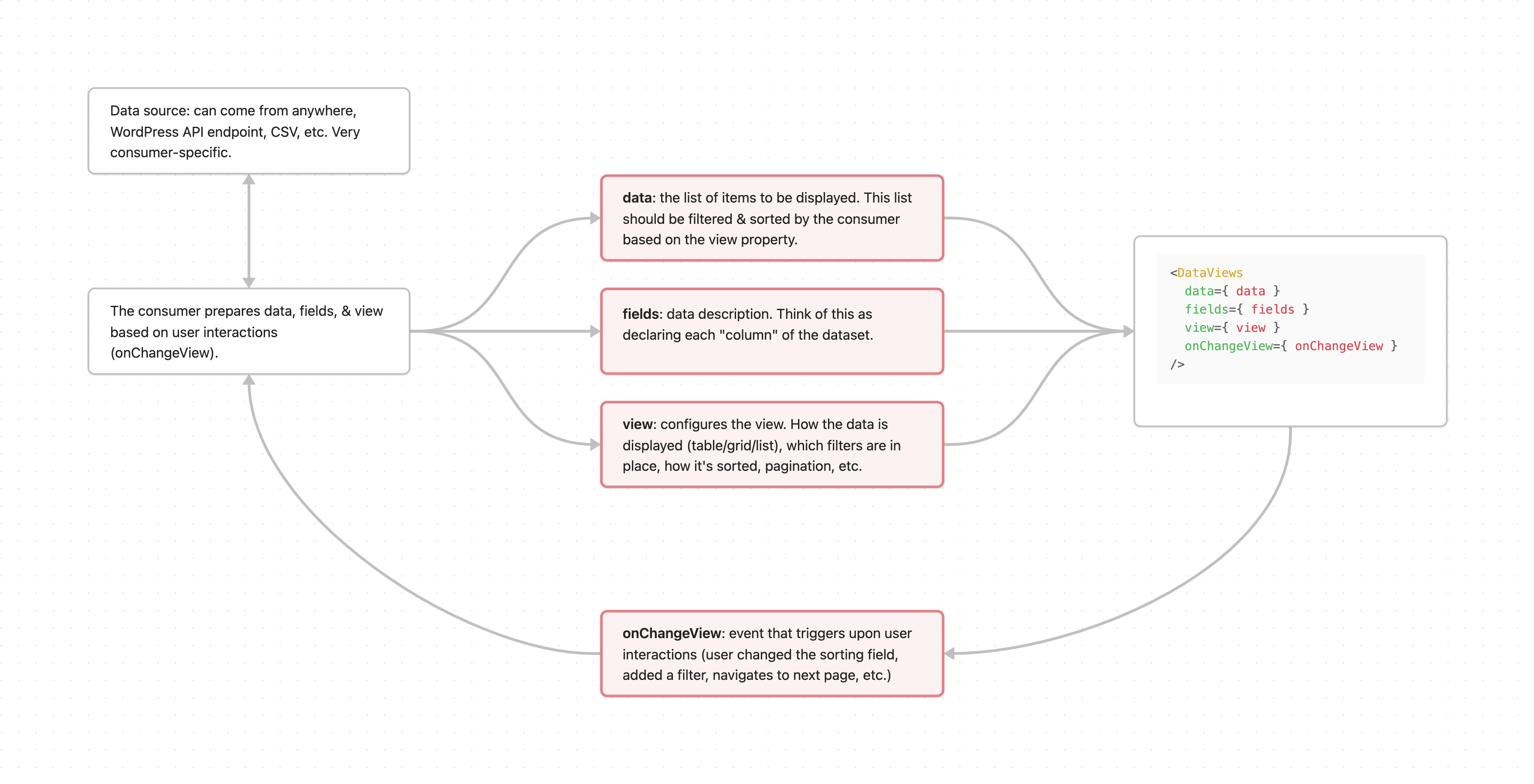
The DataViews component receives data and some other configuration to render the dataset. It’ll call the onChangeView callback every time the user has interacted with the dataset in some way (sorted, filtered, changed layout, etc.):
Example:
import { DataViews } from '@wordpress/dataviews';

const Example = () => {
    const onChangeView = () => {
        /* React to user changes. */
    };

    return (
        <DataViews
            data={ data }
            fields={ fields }
            view={ view }
            onChangeView={ onChangeView }
            defaultLayouts={ defaultLayouts }
            actions={ actions }
            paginationInfo={ paginationInfo }
        />
    );
};
Properties
data: Object[]
A one-dimensional array of objects.
Example:
const data = [
    {
        id: 1,
        title: 'Title',
        author: 'Admin',
        date: '2012-04-23T18:25:43.511Z',
    },
    {
        /* ... */
    },
];
The data can come from anywhere, from a static JSON file to a dynamic source like a HTTP Request. It’s the consumer’s responsibility to query the data source appropriately and update the dataset based on the user’s choices for sorting, filtering, etc.
Each record should have an id that identifies them uniquely. If they don’t, the consumer should provide the getItemId property to DataViews: a function that returns an unique identifier for the record.
getItemId: function
A function that receives an item and returns a unique identifier for it.
It’s optional. The field will get a default implementation by DataViews that returns the value of the item[ id ].
Example:
// Custom getItemId function.
{
    getItemId={ ( item ) => item.name ?? item.id }
}
getItemLevel: function
A function that receives an item and returns its hierarchical level. It’s optional, but this property must be passed for DataViews to display the hierarchical levels of the data if view.showLevels is true.
Example:
// Example implementation
{
    getItemLevel={ ( item ) => item.level }
}
fields: Object[]
The fields describe the visible items for each record in the dataset and how they behave (how to sort them, display them, etc.). See “Fields API” for a description of every property.
Example:
const STATUSES = [
    { value: 'draft', label: __( 'Draft' ) },
    { value: 'future', label: __( 'Scheduled' ) },
    { value: 'pending', label: __( 'Pending Review' ) },
    { value: 'private', label: __( 'Private' ) },
    { value: 'publish', label: __( 'Published' ) },
    { value: 'trash', label: __( 'Trash' ) },
];
const AUTHORS = [
    { value: 1, label: 'Admin' },
    { value: 2, label: 'User' },
];

const fields = [
    {
        id: 'title',
        type: 'text',
        label: 'Title',
        enableHiding: false,
    },
    {
        id: 'date',
        type: 'date',
        label: 'Date',
    },
    {
        id: 'author',
        type: 'integer',
        label: 'Author',
        render: ( { item } ) => {
            return AUTHORS.find( ( { value } ) => value === item.author )?.label ??
            item.author,
        },
        elements: AUTHORS,
        filterBy: {
            operators: [ 'is', 'isNot' ],
        },
        enableSorting: false,
    },
    {
        id: 'status',
        type: 'text',
        label: 'Status',
        getValue: ( { item } ) =>
            STATUSES.find( ( { value } ) => value === item.status )?.label ??
            item.status,
        elements: STATUSES,
        filterBy: {
            operators: [ 'isAny' ],
        },
        enableSorting: false,
    },
];
view: Object
The view object configures how the dataset is visible to the user.
Example:
const view = {
    type: 'table',
    search: '',
    filters: [
        { field: 'author', operator: 'is', value: 2 },
        { field: 'status', operator: 'isAny', value: [ 'publish', 'draft' ] },
    ],
    page: 1,
    perPage: 5,
    sort: {
        field: 'date',
        direction: 'desc',
    },
    titleField: 'title',
    fields: [ 'author', 'status' ],
    layout: {},
};
Properties:
type: view type, one oftable,grid,list,activity,pickerTable,pickerGrid. See “Layout types”.search: the text search applied to the dataset.filters: the filters applied to the dataset. Each item describes:field: which field this filter is bound to.operator: which type of filter it is. See “Operator types”.value: the actual value selected by the user.isLocked: whether the filter is locked (cannot be edited by the user).
perPage: number of records to show per page.page: the page that is visible.startPosition: the first item to load when infinite scroll is enabled. Used instead ofpage.sort:field: the field used for sorting the dataset.direction: the direction to use for sorting, one ofascordesc.
titleField: The id of the field representing the title of the record.mediaField: The id of the field representing the media of the record.descriptionField: The id of the field representing the description of the record.showTitle: Whether the title should be shown in the UI.trueby default.showMedia: Whether the media should be shown in the UI.trueby default.showDescription: Whether the description should be shown in the UI.trueby default.showLevels: Whether to display the hierarchical levels for the data.falseby default. See relatedgetItemLevelDataView prop.groupBy:field: the field used for grouping the dataset.direction: the direction to use for sorting the groups, one ofascordesc. Defaultasc.showLabel: whether to show the field label in the group header.trueby default.
infiniteScrollEnabled: whether infinite scroll is enabled.falseby default.fields: a list of remaining fieldidthat are visible in the UI and the specific order in which they are displayed.layout: config that is specific to a particular layout type.
Properties of layout
| Props / Layout | table |
pickerTable |
grid |
pickerGrid |
list |
activity |
|---|---|---|---|---|---|---|
density |
✓ | ✓ | ✓ | ✓ | ✓ | ✓ |
enableMoving |
✓ | ✓ | ||||
styles |
✓ | ✓ | ||||
badgeFields |
✓ | ✓ | ||||
previewSize |
✓ | ✓ |
table and pickerTable layouts:
density: one ofcomfortable,balanced, orcompact. Configures the size and spacing of the layout.enableMoving: whether the table columns should display moving controls.styles: additionalwidth,maxWidth,minWidth,alignstyles for each field column. Thealignproperty accepts'start','center', or'end'.
For column alignment (align property), follow these guidelines:
Right-align ('end') whenever the cell value is fundamentally quantitative—numbers, decimals, currency, percentages—so that digits and decimal points line up, aiding comparison and calculation. Otherwise, default to left-alignment ('start') for all other types (text, codes, labels, dates).
grid and pickerGrid layout:
badgeFields: a list of field’sidto render without label and styled as badges.density: one ofcomfortable,balanced, orcompact. Configures the gap between items in the grid.previewSize: anumberrepresenting the size of the preview.
list layout:
density: one ofcomfortable,balanced, orcompact. Configures the size and spacing of the layout.
activity layout:
density: one ofcomfortable,balanced, orcompact. Configures the size and spacing of the layout.
onChangeView: function
Callback executed when the view has changed. It receives the new view object as a parameter.
The view is a representation of the visible state of the dataset: what type of layout is used to display it (table, grid, etc.), how the dataset is filtered, and how it is sorted or paginated. The consumer is responsible for using the view config to query the data provider and ensure the user decisions (sort, pagination, filters, etc.) are respected.
The following example shows how a view object is used to query the WordPress REST API via the entities abstraction. The same can be done with any other data provider.
function MyCustomPageTable() {
    const [ view, setView ] = useState( {
        type: 'table',
        perPage: 5,
        page: 1,
        sort: {
            field: 'date',
            direction: 'desc',
        },
        search: '',
        filters: [
            { field: 'author', operator: 'is', value: 2 },
            {
                field: 'status',
                operator: 'isAny',
                value: [ 'publish', 'draft' ],
            },
        ],
        titleField: 'title',
        fields: [ 'author', 'status' ],
        layout: {},
    } );

    const queryArgs = useMemo( () => {
        const filters = {};
        view.filters.forEach( ( filter ) => {
            if ( filter.field === 'status' && filter.operator === 'isAny' ) {
                filters.status = filter.value;
            }
            if ( filter.field === 'author' && filter.operator === 'is' ) {
                filters.author = filter.value;
            }
        } );
        return {
            per_page: view.perPage,
            page: view.page,
            _embed: 'author',
            order: view.sort?.direction,
            orderby: view.sort?.field,
            search: view.search,
            ...filters,
        };
    }, [ view ] );

    const { records } = useEntityRecords( 'postType', 'page', queryArgs );

    return (
        <DataViews
            data={ records }
            view={ view }
            onChangeView={ setView }
            // ...
        />
    );
}
actions: Object[]
A list of actions that can be performed on the dataset. See “Actions API” for more details.
Example:
const actions = [
    {
        id: 'view',
        label: 'View',
        isPrimary: true,
        icon: <Icon icon={ view } />,
        isEligible: ( item ) => item.status === 'published',
        callback: ( items ) => {
            console.log( 'Viewing item:', items[ 0 ] );
        },
    },
    {
        id: 'edit',
        label: 'Edit',
        icon: <Icon icon={ edit } />,
        supportsBulk: true,
        callback: ( items ) => {
            console.log( 'Editing items:', items );
        },
    },
    {
        id: 'delete',
        label: 'Delete',
        supportsBulk: true,
        RenderModal: ( { items, closeModal, onActionPerformed } ) => (
            <div>
                <p>Are you sure you want to delete { items.length } item(s)?</p>
                <Button
                    variant="primary"
                    onClick={ () => {
                        console.log( 'Deleting items:', items );
                        onActionPerformed();
                        closeModal();
                    } }
                >
                    Confirm Delete
                </Button>
            </div>
        ),
    },
];
paginationInfo: Object
totalItems: the total number of items in the datasets.totalPages: the total number of pages, taking into account the total items in the dataset and the number of items per page provided by the user.
search: boolean
Whether the search input is enabled. true by default.
searchLabel: string
What text to show in the search input. “Search” by default.
isLoading: boolean
Whether the data is loading. false by default.
defaultLayouts: Object
This property limits the available layout and provides layout information about active view types. If empty, this enables all layout types (see “Layout Types”) with empty layout data.
For example, this is how you’d enable only the table and grid layout type and set whether those layouts show media by default:
const defaultLayouts = {
    table: {
        showMedia: false,
    },
    grid: {
        showMedia: true,
    },
};
The defaultLayouts property should be an object that includes properties named table, grid, list, activity, pickerTable, and pickerGrid. These properties are applied to the view object each time the user switches to the corresponding layout.
selection: string[]
The list of selected items’ ids.
If selection and onChangeSelection are provided, the DataViews component behaves like a controlled component. Otherwise, it behaves like an uncontrolled component.
Note: DataViews still requires at least one bulk action to make items selectable.
onChangeSelection: function
Callback that signals the user selected one of more items. It receives the list of selected items’ IDs as a parameter.
If selection and onChangeSelection are provided, the DataViews component behaves like a controlled component. Otherwise, it behaves like an uncontrolled component.
Note: DataViews still requires at least one bulk action to make items selectable.
isItemClickable: function
A function that determines if a media field or a primary field is clickable. It receives an item as an argument and returns a boolean value indicating whether the item can be clicked.
Note that layouts may still decide not to render clickable primary and media fields. For example, the list layout has a different interaction model and doesn’t enable this feature.
onClickItem: function
A function that is called when an item is clicked. It receives the item as a parameter.
renderItemLink: React.ComponentType
A render function used to render clickable items.
It can render regular links, but also allows integration with routing libraries (like TanStack Router or React Router).
The component receives the following props:
item: The data item that was clicked- Additional standard HTML anchor props (className, style, etc.)
// Then use it in DataViews
<DataViews
    // ...other props
    renderItemLink={ ( { item, ...props } ) => (
        <Link to={ `/sites/${ item.slug }` } preload="intent" { ...props } />
    ) }
/>
header: React component
React component to be rendered next to the view config button.
config: { perPageSizes: number[] }
Optional. Pass an object with a list of perPageSizes to control the available item counts per page (defaults to [10, 20, 50, 100]). perPageSizes needs to have a minimum of 2 items and a maximum of 6, otherwise the UI component won’t be displayed.
empty: React node
An element to display when the data prop is empty. Defaults to <p>No results</p>.
onReset: ( () => void ) | false
Callback function to reset the view to its default state, or false to indicate the view is not modified.
- Type:
functionorfalse - Optional
This prop controls the “Reset view” button in the view configuration dropdown:
- When
undefined(not provided): No reset functionality is shown. Use this when view persistence is not supported. - When
false: The “Reset view” button is shown but disabled. Use this when view persistence is supported but the current view matches the default (not modified). - When a function: The “Reset view” button is shown and enabled. A blue dot indicator appears on the view options button to signal that the view has been modified. The function is called when the user clicks the reset button.
Example:
const { view, setView, isModified, resetToDefault } = useView( 'my-view-key' );

<DataViews
    data={ data }
    view={ view }
    onChangeView={ setView }
    onReset={ isModified ? resetToDefault : false }
    // ...other props
/>
Styling
These are the CSS Custom Properties that can be used to tweak the appearance of the component:
--wp-dataviews-color-background: sets the background color.
Composition modes
The DataViews component supports two composition modes:
- Controlled: This is the default usage mode.
DataViewsrenders a full layout out-of-the-box — including search, filters, view switcher, layout grid or table, actions, and pagination. It’s the simplest way to get started and requires minimal setup. -
Free composition: This mode gives developers full control over the layout. You can compose your own UI using internal components — placing them exactly where they’re needed in your interface. This is useful for more advanced or custom layouts, while still relying on the same shared context for user interactions.
The component automatically detects the mode based on the children prop. If no children are passed, DataViews renders its internal layout (controlled mode). If children are provided, the component switches to free composition mode, skipping the default layout entirely.
In both modes, user interactions update the same view object and share the same behavior. Free composition components rely on context state and don’t require additional props to work, making them safe to use without extra boilerplate.
Free composition
When you pass the children prop to the DataViews component, it enters free composition mode. In this mode, DataViews no longer renders its built-in layout — instead, it acts as a wrapper that provides access to internal state and shared behavior through context.
This allows you to build your own layout from scratch using the subcomponents exposed by DataViews. Each subcomponent automatically connects to the shared context, so you don’t need to wire props manually. You can arrange these components however you want and combine them with your own custom elements.
This pattern enables full layout flexibility while keeping the data logic centralized.
The following components are available directly under DataViews:
DataViews.SearchDataViews.FiltersToggleDataViews.FiltersToggledDataViews.FiltersDataViews.LayoutDataViews.LayoutSwitcherDataViews.PaginationDataViews.BulkActionToolbarDataViews.ViewConfig
example
import DataViews from '@wordpress/dataviews';
import { __ } from '@wordpress/i18n';

const CustomLayout = () => {
    // Declare data, fields, etc.

    return (
        <DataViews
            data={ data }
            fields={ fields }
            view={ view }
            onChangeView={ onChangeView }
            paginationInfo={ paginationInfo }
            defaultLayouts={ { table: {} } }
        >
            <h1>{ __( 'Free composition' ) }</h1>
            <DataViews.Search />
            <DataViews.FiltersToggle />
            <DataViews.FiltersToggled />
            <DataViews.Layout />
            <DataViews.Pagination />
        </DataViews>
    );
};
You can render only the pieces you need, rearrange them freely, or combine them with custom components.
Accessibility considerations
All DataViews subcomponents are designed with accessibility in mind — including keyboard interactions, focus management, and semantic roles. Components like Search, Pagination, FiltersToggle, and FiltersToggled already handle these responsibilities internally and can be safely used in custom layouts.
When using free composition, developers are responsible for the outer structure of the layout.
Developers don’t need to worry about the internal accessibility logic for individual features. The core behaviors — like search semantics, filter toggles, or pagination focus — are encapsulated.
FiltersToggle controls the visibility of the filters panel, and Filters renders the actual filters inside it. They work together and should always be used as a pair. While their internal behavior is accessible by default, how they’re positioned and grouped in custom layouts may affect the overall experience — especially for assistive technologies. Extra care is recommended.
DataViewsPicker
Usage
The DataViewsPicker component is very similar to the regular DataViews component, but is optimized for selection or picking of items.
The component behaves differently to a regular DataViews component in the following ways:
- The items in the view are rendered using the
listboxandoptionaria roles. - Holding the
ctrlorcmdkey isn’t required for multi-selection of items. The entire item can be clicked to select or deselect it. - Individual items do not display any actions. All actions appear in the footer as text buttons.
- Selection is maintained across multiple pages when the component is paginated.
There are also a few differences in the implementation:
- Only the
pickerGridandpickerTablelayout types are supported forDataViewsPicker. These layouts are similar to the regulargridandtablelayouts respectively. - The picker component is used as a ‘controlled’ component, so
selectionandonChangeSelectionshould be provided as props. This is so that implementers can access the full range of selected items across pages. - An optional
itemListLabelprop can be supplied to theDataViewsPickercomponent. This is added as anaria-labelto thelistboxelement, and should be supplied if there’s no heading element associated with theDataViewsPickerUI. - The
isItemClickable,renderItemLinkandonClickItemprop are unsupported forDataViewsPicker. - To implement a multi-selection picker, ensure all actions are declared with
supportsBulk: true. For single selection usesupportsBulk: false. When a mixture of bulk and non-bulk actions are provided, the component falls back to single selection. - Only the
callbackstyle of action is supported.RenderModalis unsupported. - The
isEligiblecallback for actions is unsupported. - The
isPrimaryoption for an action is used to render aprimaryvariant ofButtonthat can be used as a main call to action.
Example:
const Example = () => {
    // When using DataViewsPicker, `selection` should be managed so that the component is 'controlled'.
    const [ selection, setSelection ] = useState( [] );

    // Both actions have `supportsBulk: true`, so the `DataViewsPicker` will allow multi-selection.
    const actions = [
        {
            id: 'confirm',
            label: 'Confirm',
            isPrimary: true,
            supportsBulk: true,
            callback() {
                window.alert( selection.join( ', ' ) );
            },
        },
        {
            id: 'cancel',
            label: 'Cancel',
            supportsBulk: true,
            callback() {
                setSelection( [] );
            },
        },
    ];

    return (
        <DataViewsPicker
            actions={ actions }
            data={ data }
            fields={ fields }
            view={ view }
            onChangeView={ onChangeView }
            defaultLayouts={ defaultLayouts }
            paginationInfo={ paginationInfo }
            selection={ selection }
            onChangeSelection={ setSelection }
        />
    );
};
Properties
The DataViewsPicker component accepts most of the same properties as DataViews, with some key differences noted below.
data: Object[]
Same as DataViews. A one-dimensional array of objects.
fields: Object[]
Same as DataViews. The fields describe the visible items for each record in the dataset. See “Fields API” for a description of every property.
view: Object
Same as DataViews. The view object configures how the dataset is visible to the user. Note that only the pickerGrid and pickerTable layout types are supported.
onChangeView: function
Same as DataViews. Callback executed when the view has changed.
actions: Object[]
A list of actions that can be performed on the dataset. See “Actions API” for more details.
Important differences from DataViews:
- Only
callbackstyle actions are supported.RenderModalis unsupported. - The
isEligiblecallback for actions is unsupported. - The
isPrimaryoption is used to render aprimaryvariant ofButton. - To implement multi-selection, ensure all actions have
supportsBulk: true. For single selection usesupportsBulk: false.
paginationInfo: Object
Same as DataViews. Contains totalItems and totalPages properties.
search: boolean
Same as DataViews. Whether the search input is enabled. true by default.
searchLabel: string
Same as DataViews. What text to show in the search input. “Search” by default.
isLoading: boolean
Same as DataViews. Whether the data is loading. false by default.
defaultLayouts: Record< string, view >
Limits the available layouts. Only pickerGrid and pickerTable are supported for DataViewsPicker.
Example:
const defaultLayouts = {
    pickerGrid: {
        showTitle: false,
    },
    pickerTable: {},
};
selection: string[]
Required for DataViewsPicker. The list of selected items’ ids.
Unlike DataViews, the picker component must be used as a controlled component, so this prop is required along with onChangeSelection.
onChangeSelection: function
Required for DataViewsPicker. Callback that signals the user selected one or more items. It receives the list of selected items’ IDs as a parameter.
getItemId: function
Same as DataViews. A function that receives an item and returns a unique identifier for it. Optional, defaults to returning item.id.
itemListLabel: string
Optional. An accessible label for the list of items. This is added as an aria-label to the listbox element, and should be supplied if there’s no heading element associated with the DataViewsPicker UI.
Example:
{
    itemListLabel: 'Select a page';
}
config: { perPageSizes: number[] }
Same as DataViews. Optional. Pass an object with a list of perPageSizes to control the available item counts per page.
empty: React node
Same as DataViews. An element to display when the data prop is empty.
children: React node
Optional. Custom UI to render instead of the default picker layout. When provided, you can use the same subcomponents as DataViews for free composition.
Unsupported properties:
The following DataViews properties are not supported by DataViewsPicker:
isItemClickablerenderItemLinkonClickItemgetItemLevelheader
DataForm
Usage
const Example = () => {
    // Declare data, fields, etc.

    return (
        <DataForm
            data={ data }
            fields={ fields }
            form={ form }
            onChange={ onChange }
        />
    );
};
Properties
data: Object
A single item to be edited.
It can be thought of as a single record coming from the data property of DataViews — though it doesn’t need to be. It can be totally separated or a mix of records if your app supports bulk editing.
fields: Object[]
The fields describe which parts of the data are visible and how they behave (how to edit them, validate them, etc.). See “Fields API” for a description of every property.
Example:
const fields = [
    {
        id: 'title',
        type: 'text',
        label: 'Title',
    },
    {
        id: 'date',
        type: 'datetime',
        label: 'Date',
    },
    {
        id: 'author',
        type: 'text',
        label: 'Author',
        elements: [
            { value: 1, label: 'Admin' },
            { value: 2, label: 'User' },
        ],
    },
];
form: Object
layout: an object describing the layout used to render the top-level fields present infields. Seelayoutprop in “Form Field API”.fields: a list of fields ids that should be rendered. Field ids can also be defined as an object and allow you to define alayout,labelPositionorchildrenif displaying combined fields. See “Form Field API” for a description of every property.
Example:
const form = {
    layout: {
        type: 'panel',
        labelPosition: 'side',
    },
    fields: [
        'title',
        'data',
        {
            id: 'status',
            label: 'Status & Visibility',
            children: [ 'status', 'password' ],
        },
        {
            id: 'featured_media',
            layout: 'regular',
        },
    ],
};
onChange: function
Callback function that receives an object with the edits done by the user.
Example:
const data = {
    id: 1,
    title: 'Title',
    author: 'Admin',
    date: '2012-04-23T18:25:43.511Z',
};

const onChange = ( edits ) => {
    /*
     * edits will contain user edits.
     * For example, if the user edited the title
     * edits will be:
     *
     * {
     *   title: 'New title'
     * }
     *
     */
};

return (
    <DataForm
        data={ data }
        fields={ fields }
        form={ form }
        onChange={ onChange }
    />
);
validity
Object that determines the validation status of each field. There’s a useFormValidity hook that can be used to create the validity object — see the utility below. This section documents the validity object in case you want to create it via other means.
The top-level props of the validity object are the field IDs. Fields declare their validity status for each of the validation rules supported: required, elements, pattern, minLength, maxLength, min, max, custom. If a rule is valid, it should not be present in the object; if a field is valid for all the rules, it should not be present in the object either.
A field’s validity can also contain a children property (Record<string, FieldValidity>) for nested field validity when using combined fields.
For example:
{
    "title": {
        "required": {
            "type": "invalid"
        }
    },
    "author": {
        "elements": {
            "type": "invalid",
            "message": "Value must be one of the elements."
        }
    },
    "slug": {
        "pattern": {
            "type": "invalid",
            "message": "Must match the required pattern."
        }
    },
    "description": {
        "minLength": {
            "type": "invalid",
            "message": "Must be at least 10 characters."
        },
        "maxLength": {
            "type": "invalid",
            "message": "Must be at most 200 characters."
        }
    },
    "price": {
        "min": {
            "type": "invalid",
            "message": "Must be at least 0."
        },
        "max": {
            "type": "invalid",
            "message": "Must be at most 9999."
        }
    },
    "publisher": {
        "custom": {
            "type": "validating",
            "message": "Validating..."
        }
    },
    "isbn": {
        "custom": {
            "type": "valid",
            "message": "Valid."
        }
    }
}
Each rule, can have a type and a message.
The message is the text to be displayed in the UI controls. The message for the required rule is optional, and the built-in browser message will be used if not provided.
The type can be:
validating: when the value is being validated (e.g., custom async rule)invalid: when the value is invalid according to the rulevalid: when the value became valid after having been invalid (e.g., custom async rule)
Note the valid status. This is useful for displaying a “Valid.” message when the field transitions from invalid to valid. The useFormValidity hook implements this only for the custom async validation.
Utilities
filterSortAndPaginate
Utility to apply the view config (filters, search, sorting, and pagination) to a dataset client-side.
Parameters:
data: the dataset, as described in the “data” property of DataViews.view: the view config, as described in the “view” property of DataViews.fields: the fields config, as described in the “fields” property of DataViews.
Returns an object containing:
data: the new dataset, with the view config applied.paginationInfo: object containing the following properties:totalItems: total number of items for the current view config.totalPages: total number of pages for the current view config.
useFormValidity
Hook to determine the form validation status.
Parameters:
item: the item being edited.fields: the fields config, as described in the “fields” property of DataViews.form: the form config, as described in the “form” property of DataViews.
Returns an object containing:
isValid: a boolean indicating if the form is valid.validity: an object containing the errors. Each property is a field ID, containing a description of each error type. Seevalidityprop for more info. For example:
{
    fieldId: {
        required: {
            type: 'invalid',
            message: 'Required.' // Optional
        },
        elements: {
            type: 'invalid',
            message: 'Value must be one of the elements.' // Optional
        },
        pattern: {
            type: 'invalid',
            message: 'Must match the required pattern.'
        },
        minLength: {
            type: 'invalid',
            message: 'Must be at least 10 characters.'
        },
        maxLength: {
            type: 'invalid',
            message: 'Must be at most 200 characters.'
        },
        min: {
            type: 'invalid',
            message: 'Must be at least 0.'
        },
        max: {
            type: 'invalid',
            message: 'Must be at most 9999.'
        },
        custom: {
            type: 'validating',
            message: 'Validating...'
        }
    }
}
Actions API
id
The unique identifier of the action.
- Type:
string - Required
- Example:
move-to-trash
label
The user facing description of the action.
- Type:
string | function - Required
- Example:
{
    label: 'Trash'
}
or
{
    label: ( items ) => ( items.length > 1 ? 'Delete items' : 'Delete item' );
}
isPrimary
Whether the action should be displayed inline (primary) or only displayed in the “More actions” menu (secondary).
- Type:
boolean - Optional
icon
Icon to show for primary actions.
- Type: SVG element
- Required for primary actions, optional for secondary actions.
isEligible
Function that determines whether the action can be performed for a given record.
- Type:
function - Optional. If not present, action is considered eligible for all items.
- Example:
{
    isEligible: ( item ) => item.status === 'published';
}
supportsBulk
Whether the action can operate over multiple items at once.
- Type:
boolean - Optional
- Default:
false
disabled
Whether the action is disabled.
- Type:
boolean - Optional
- Default:
false
context
Where this action would be visible.
- Type:
string - Optional
- One of:
list,single
callback
Function that performs the required action.
- Type:
function - Either
callbackorRenderModalmust be provided. IfRenderModalis provided,callbackwill be ignored - Example:
{
    callback: ( items, { registry, onActionPerformed } ) => {
        // Perform action.
        onActionPerformed?.( items );
    };
}
RenderModal
Component to render UI in a modal for the action.
- Type:
ReactElement - Either
callbackorRenderModalmust be provided. IfRenderModalis provided,callbackwill be ignored. - Example:
{
    RenderModal: ( { items, closeModal, onActionPerformed } ) => {
        const onSubmit = ( event ) => {
            event.preventDefault();
            // Perform action.
            closeModal?.();
            onActionPerformed?.( items );
        };
        return (
            <form onSubmit={ onSubmit }>
                <p>Modal UI</p>
                <Stack direction="row">
                    <Button variant="tertiary" onClick={ closeModal }>
                        Cancel
                    </Button>
                    <Button variant="primary" type="submit">
                        Submit
                    </Button>
                </Stack>
            </form>
        );
    };
}
hideModalHeader
Controls visibility of the modal’s header when using RenderModal.
- Type:
boolean - Optional
- When false and using
RenderModal, the action’s label is used in modal header
modalHeader
The header text to show in the modal.
- Type:
string | (items: Item[]) => string - Optional
- If a function is provided, it receives the selected items as an argument and should return the header text
modalSize
Specifies the size of the modal window when displaying action content using RenderModal.
- Type:
string - Optional
- Default:
'medium' - One of:
'small','medium','large','fill'
Example:
{
    modalSize: 'large';
}
modalFocusOnMount
Specifies the focus on mount property of the modal.
- Type:
boolean|string - Optional
- Default:
true - One of:
true|false|'firstElement'|'firstContentElement'
Example:
{
    modalFocusOnMount: 'firstContentElement';
}
Fields API
id
The unique identifier of the field.
- Type:
string. - Required.
Example:
{
    id: 'title',
}
type
Field type. One of text, integer, number, datetime, date, media, boolean, email, password, telephone, color, url, array.
- Type:
string. - Optional.
- By declaring a type, the field gets a default implementation for all the necessary functions (sorting, render, editing, etc.).
Example:
{
    id: 'title',
    type: 'text',
}
label
The field’s name. This will be used across the UI.
- Type:
string. - Optional.
- Defaults to the
idvalue.
Example:
{
    id: 'title',
    type: 'text',
    label: 'Title',
}
header
React element used by some layouts (table, grid) to display the field name — useful to add icons, etc.
- Type:
string| React element. - Optional.
- Defaults to the
labelvalue.
Example:
{
    id: 'title',
    type: 'text',
    header: (
        <Stack direction="row" gap="xs" justify="start">
            <Icon icon={ icon } />
            <span>Title</span>
        </Stack>
    ),
}
description
A string describing the field’s purpose or usage. Used to provide context in Edit mode, etc.
- Type:
string. - Optional.
placeholder
A string used as a placeholder in Edit mode, etc.
- Type:
string. - Optional.
getValue and setValue
These functions control how field values are read from and written to your data structure.
Both functions are optional and automatically generated from the field’s id when not provided. The id is treated as a dot-notation path (e.g., "user.profile.name" accesses item.user.profile.name).
getValue
Function that extracts the field value from an item. This value is used to sort, filter, and display the field.
- Type:
function. - Optional.
- Args:
item: the data item to be processed.
- Returns the field’s value.
setValue
Function that creates a partial item object with updated field values. This is used by DataForm for editing operations and determines the structure of data passed to the onChange callback.
- Type:
function. - Optional.
- Args:
item: the current item being edited.value: the new value to be set for the field.
- Returns a partial item object with the changes to be applied.
Simple field access
For basic field access, you only need to specify the field id. Both getValue and setValue are automatically generated:
// Data structure
const item = {
    title: 'Hello World',
    author: 'John Doe'
};

// Field definition
{
    id: 'title',
    type: 'text',
    label: 'Title'
    // getValue: automatically becomes ( { item } ) => item.title
    // setValue: automatically becomes ( { value } ) => ( { title: value } )
}
Nested data access
Use dot notation in the field id to access nested properties:
// Data structure
const item = {
    user: {
        profile: {
            name: 'John Doe',
            email: 'john@example.com'
        }
    }
};

// Field definition - using dot notation (automatic)
{
    id: 'user.profile.name',
    type: 'text',
    label: 'User Name'
    // getValue: automatically becomes ( { item } ) => item.user.profile.name
    // setValue: automatically becomes ( { value } ) => ( { user: { profile: { name: value } } } )
}

// Alternative - using simple ID with custom functions
{
    id: 'userName',
    type: 'text',
    label: 'User Name',
    getValue: ( { item } ) => item.user.profile.name,
    setValue: ( { value } ) => ( {
        user: {
            profile: { name: value }
        }
    } )
}
Custom data transformation
Provide custom getValue and setValue functions when you need to transform data between the storage format and display format:
// Data structure
const item = {
    user: {
        preferences: {
            notifications: true
        }
    }
};

// Field definition - transform boolean to string options
{
    id: 'notifications',
    type: 'boolean',
    label: 'Notifications',
    Edit: 'radio',
    elements: [
        { label: 'Enabled', value: 'enabled' },
        { label: 'Disabled', value: 'disabled' }
    ],
    getValue: ( { item } ) =>
        item.user.preferences.notifications === true ? 'enabled' : 'disabled',
    setValue: ( { value } ) => ( {
        user: {
            preferences: { notifications: value === 'enabled' }
        }
    } )
}
getValueFormatted
Function that formats the field value for display by computing it from the field’s format configuration. The formatted value is used for consistent value presentation across different contexts. For example, by the default render implementation provided by the field types and by the filter components that display values.
- Type:
function. - Optional.
- Each field
typeprovides a default implementation that formats values appropriately (e.g., considers weekStartsOn for date, thousand separators for number, etc.). - Args:
item: the data item containing the value.field: the normalized field configuration.
- Returns the formatted value for display (typically a string).
Example of some custom getValueFormatted functions:
// Format a number as currency
{
    id: 'price',
    type: 'number',
    label: 'Price',
    getValueFormatted: ( { item, field } ) => {
        const value = field.getValue( { item } );
        if ( value === null || value === undefined ) {
            return '';
        }

        return `$${ value.toFixed( field.format.decimals ) }`;
    }
}
// Format a date with custom logic
{
    id: 'publishDate',
    type: 'date',
    label: 'Published',
    getValueFormatted: ( { item, field } ) => {
        const value = field.getValue( { item } );
        if ( ! value ) {
            return 'Not published';
        }

        const date = new Date( value );
        const now = new Date();
        const diffDays = Math.floor( ( now - date ) / ( 1000 * 60 * 60 * 24 ) );
        if ( diffDays === 0 ) {
            return 'Today';
        }
        if ( diffDays === 1 ) {
            return 'Yesterday';
        }
        return `${ diffDays } days ago`;
    }
}
render
React component that renders the field.
- Type: React component.
- Optional.
- The field
typeprovides a default render that usesgetValueFormattedfor value display andelementsfor label lookup (if provided). - Props
itemvalue to be processed.fieldthe own field config. Useful to accessgetValue,elements, etc.configobject containing configuration options for the field. It’s optional. So far, the only object property available issizes: in fields that are set to be the media field, layouts can pass down the expected size reserved for them so that the field can react accordingly.
- Returns a React element that represents the field’s value.
Example of a custom render function:
{
    id: 'title',
    type: 'text',
    label: 'Title',
    render: ( { item, field, config } ) => {
        /* React element to be displayed. */
    };
}
Edit
React component that renders the control to edit the field.
- Type:
string|object| React component. - Optional.
- The field
typeprovides a default implementation.
Fields that provide a type will have a default Edit control:
{
    id: 'categories',
    type: 'text',
    label: 'Categories',
}
Field authors can override the default Edit control by providing a string that maps to one of the bundled UI controls: array, checkbox, color, date, datetime, email, integer, number, password, radio, select, telephone, text, textarea, toggle, toggleGroup, or url.
{
    id: 'categories',
    type: 'text',
    label: 'Categories',
    Edit: 'radio',
}
Additionally, some of the bundled Edit controls are configurable via a config object:
textareaconfiguration:
{
    id: 'description',
    type: 'text',
    label: 'Description',
    Edit: {
        control: 'textarea',
        rows: 5
    }
}
textconfiguration:
{
    id: 'title',
    type: 'text',
    label: 'Title',
    Edit: {
        control: 'text',
        prefix: ReactComponent,
        suffix: ReactComponent,
    }
}
datetimeconfiguration:
{
    id: 'date',
    type: 'datetime',
    label: 'Date',
    Edit: {
        control: 'datetime',
        compact: true
    }
}
Finally, the field author can always provide its own custom Edit control. It receives the following props:
data: the item to be processedfield: the field definitiononChange: the callback with the updateshideLabelFromVision: boolean representing if the label should be hiddenmarkWhenOptional: boolean indicating whether to label the control as “optional” when the field is not required, instead of showing “required”operator: the currently selected filter operator for this field. Used by DataViews filters to determine which control to render based on the operator typevalidity: object representing the validity of the field’s value (see validity section)config: object representing extra config for the component:prefix: a React component to be rendered as a prefixsuffix: a React component to be rendered as a suffixrows: the number of rows to display (e.g., in the text area component)compact: whether to render a compact version without the calendar widget (datetime control)
{
    id: 'time',
    type: 'datetime',
    label: 'Time of day',
    Edit: ( {
        data,
        field,
        onChange,
        hideLabelFromVision,
        validity,
        config,
    } ) => {
        const value = field.getValue( { item: data } );

        return (
            <CustomTimePicker
                value={ value }
                onChange={ onChange }
                hideLabelFromVision
            />
        );
    };
}
readOnly
Boolean indicating that the field is not editable. Fields that are not editable use the render function to display their value in Edit contexts.
- Type:
boolean. - Optional.
- Defaults to
false.
sort
Function to sort the records.
- Type:
function. - Optional.
When the field declares a type, it gets a default sort function:
{
    id: 'title',
    type: 'text',
    label: 'Title',
}
The default sorting can be overriden by providing a custom sort function. It takes the following arguments:
a: the first item to compareb: the second item to comparedirection: eitherasc(ascending) ordesc(descending)
It should return a number where:
- a negative value indicates that
ashould come beforeb - a positive value indicates that
ashould come afterb - 0 indicates that
aandbare considered equal
{
    id: 'title',
    type: 'text',
    label: 'Title',
    sort: ( a, b, direction ) => {
        return direction === 'asc'
            ? a.localeCompare( b )
            : b.localeCompare( a );
    };
}
isValid
Object that contains the validation rules for the field. If a rule is not met, the control will be marked as invalid and a message will be displayed.
required: boolean indicating whether the field is required or not. Disabled by default.elements: boolean restricting selection to the provided list of elements only. Enabled by default. ThearrayEdit control uses it to restrict the input values.pattern: a regex pattern string that the field value must match.minLength: minimum string length for the field value.maxLength: maximum string length for the field value.min: minimum numeric value for the field.max: maximum numeric value for the field.custom: a function that validates a field’s value. If the value is invalid, the function should return a string explaining why the value is invalid. Otherwise, the function must return null.
Fields that define a type come with default validation for the type. For example, the integer type ensures that the value is a valid integer:
{
    id: 'itemsSold',
    type: 'integer',
    label: 'Items sold',
}
The validation rules can be overriden by the field author. For example, to set the field as required, or to provide a custom validation so that only even numbers are valid:
{
    id: 'itemsSold',
    type: 'integer',
    label: 'Items sold',
    isValid: {
        required: true,
        custom: ( item: Item, field: NormalizedField<Item> ) => {
            if ( field.getValue({ item }) % 2 !== 0 ) {
                return 'Integer must be an even number.';
            }

            return null;
        }
    }
}
Fields that define their own Edit component have access to the validation rules via the field.isValid object:
{
    id: 'itemsSold',
    type: 'integer',
    label: 'Items sold',
    Edit: ( { field } ) => {
        return <input required={ !! field.isValid.required } />;
    };
}
isVisible
Function that indicates if the field should be visible.
- Type:
function. - Optional.
- Args
item: the data to be processed
- Returns a
booleanindicating if the field should be visible (true) or not (false).
This can be useful to hide fields based on the state of other fields. For example, a staticHomepage field can be hidden depending on the value of the homepageDisplay field:
{
    id: 'homepageDisplay',
    type: 'text',
    label: 'Homepage display',
    elements: [
        { value: 'latest', label: 'Latest post' },
        { value: 'static', label: 'Static page' },
    ],
},
{
    id: 'staticHomepage',
    type: 'text',
    label: 'Static homepage',
    elements: [
        { value: 'welcome', label: 'Welcome to my website' },
        { value: 'about', label: 'About' },
    ],
    isVisible: ( item ) => item.homepageDisplay === 'static',
},
enableSorting
Boolean indicating if the field is sortable.
- Type:
boolean. - Optional.
- Defaults to
true.
Example to disable sorting by a field:
{
    id: 'title',
    type: 'text',
    label: 'Title',
    enableSorting: false,
}
enableHiding
Boolean indicating if the field can be hidden.
- Type:
boolean. - Optional.
- Defaults to
true.
Example to disable hiding of a field:
{
    id: 'title',
    type: 'text',
    label: 'Title',
    enableHiding: false,
}
enableGlobalSearch
Boolean indicating if the field is searchable.
- Type:
boolean. - Optional.
- Defaults to
false.
Example to enable global search for a field:
{
    id: 'title',
    type: 'text',
    label: 'Title',
    enableGlobalSearch: true,
}
elements
List of valid values for a field. If provided, the field’s filter will use these as predefined options to chose from.
- Type:
arrayof objects. - Optional.
- Each object can have the following properties:
value: the value to match against the field’s value. (Required)label: the name to display to users. (Required)description: optional, a longer description of the item.
Example:
{
    id: 'selectedProduct',
    type: 'integer',
    label: 'Selected product',
    elements: [
        { value: '1', label: 'Product A' },
        { value: '2', label: 'Product B' },
        { value: '3', label: 'Product C' },
        { value: '4', label: 'Product D' },
    ]
}
getElements
Async function that fetches elements only when they are needed, enabling lazy loading. It returns a promise that resolves to an array of elements.
Note this function may be called many times in the lifetime of the DataViews/DataForm component. For example, if elements are used in the render method of a field, it’ll trigger as many times as records displayed in the page. It’s the consumer responsibility to cache the results to avoid unnecessary costly operations (network requests, etc.).
{
    id: 'selectedProduct',
    type: 'integer',
    label: 'Selected product',
    getElements: () => {
        return Promise.resolve( [
            { value: '1', label: 'Product A' },
            { value: '2', label: 'Product B' },
            { value: '3', label: 'Product C' },
            { value: '4', label: 'Product D' },
        ] );
    }
}
filterBy
Configuration of the filters. Set to false to opt the field out of filtering entirely.
- Type:
object|boolean. - Optional.
- If
false, the field will not be available for filtering. - If an object, it can have the following properties:
operators: the list of operators supported by the field. See “operators” below.isPrimary: boolean, optional. Indicates if the filter is primary. A primary filter is always visible and is not listed in the “Add filter” component, except for the list layout where it behaves like a secondary filter.
By default, fields have filtering enabled by using the field’s Edit function:
{
    id: 'product',
    type: 'text',
    label: 'Product',
}
If the field provides elements, the filter will use those as predefined options instead:
{
    id: 'product',
    type: 'text',
    label: 'Title',
    elements: [
        { value: 'a', label: 'Product A' },
        { value: 'b', label: 'Product B' },
        { value: 'c', label: 'Product C' },
        { value: 'd', label: 'Product D' },
    ]
}
A field can opt-out of filtering by setting filterBy to false:
{
    id: 'product',
    type: 'text',
    label: 'Product',
    filterBy: false;
}
Fields can declare its filter as primary, which means it’ll always be visible and can’t be removed by the user:
{
    id: 'title',
    type: 'text',
    label: 'Title',
    filterBy: {
        isPrimary: true;
    }
}
Filters come with default operators per field type, but this is configurable by the field. For example, a field can enable only single-selection operators for the filter:
{
    id: 'product',
    type: 'text',
    label: 'Product',
    elements: [
        { value: 'a', label: 'Product A' },
        { value: 'b', label: 'Product B' },
        { value: 'c', label: 'Product C' },
        { value: 'd', label: 'Product D' },
    ],
    filterBy: {
        operators: [ `is`, `isNot` ];
    }
}
Or multi-selection operators:
{
    id: 'product',
    type: 'text',
    label: 'Product',
    elements: [
        { value: 'a', label: 'Product A' },
        { value: 'b', label: 'Product B' },
        { value: 'c', label: 'Product C' },
        { value: 'd', label: 'Product D' },
    ],
    filterBy: {
        operators: [ `isAny`, `isNone`, `isAll` ];
    }
}
The next table lists all available operators:
| Operator | Description | Example |
|---|---|---|
after |
The result is after a given date. | Date is after: 2024-01-01 |
afterInc |
The result is after a given date, including the date. | Date is on or after: 2024-01-01 |
before |
The result is before a given date. | Date is before: 2024-01-01 |
beforeInc |
The result is before a given date, including the date. | Date is on or before: 2024-01-01 |
between |
The result is between two values. | Count between (inc): 10 and 180 |
contains |
The result contains the given substring. | Title contains: Mars |
greaterThan |
The result is numerically greater than a single value. | Age is greater than: 65 |
greaterThanOrEqual |
The result is numerically greater than or equal to a single value. | Age is greater than or equal to: 65 |
inThePast |
The result is within the last N units (days, weeks, months, or years) from now. | Orders in the past: 7 days |
isAll |
The result includes all values in the list. | Category includes all: Book, Review, Science Fiction |
isAny |
The result includes some values in the list. | Author includes: Admin, Editor |
isNone |
The result does not include some values in the list. | Author excludes: Admin, Editor |
is |
The result is equal to a single value. | Author is: Admin |
isNot |
The result is not equal to a single value. | Author is not: Admin |
lessThan |
The result is numerically less than a single value. | Age is less than: 18 |
lessThanOrEqual |
The result is numerically less than or equal to a single value. | Age is less than or equal to: 18 |
notContains |
The result does not contain the given substring. | Description doesn’t contain: photo |
notOn |
The result is not on a given date (date inequality using proper date parsing). | Date is not: 2024-01-01 |
on |
The result is on a given date (date equality using proper date parsing). | Date is: 2024-01-01 |
over |
The result is older than N units (days, weeks, months, or years) from now. | Orders over: 7 days ago |
startsWith |
The result starts with the given substring. | Title starts with: Mar |
Some operators are single-selection: is, isNot, on, notOn, lessThan, greaterThan, lessThanOrEqual, greaterThanOrEqual, before, after, beforeInc, afterInc, contains, notContains, and startsWith. Others are multi-selection: isAny, isNone, isAll. A filter cannot mix single-selection & multi-selection operators; if a single-selection operator is present in the list of valid operators, the multi-selection ones will be discarded, and the filter won’t allow selecting more than one item.
Valid operators per field type:
- array:
isAny,isNone,isAll. - boolean:
is,isNot. - color:
is,isNot,isAny,isNone. - date:
on,notOn,before,beforeInc,after,afterInc,inThePast,over,between. - datetime:
on,notOn,before,beforeInc,after,afterInc,inThePast,over. - email:
is,isNot,contains,notContains,startsWith,isAny,isNone,isAll. - integer:
is,isNot,lessThan,greaterThan,lessThanOrEqual,greaterThanOrEqual,between,isAny,isNone,isAll. - media: none.
- number:
is,isNot,lessThan,greaterThan,lessThanOrEqual,greaterThanOrEqual,between,isAny,isNone,isAll. - password: none.
- email:
is,isNot,contains,notContains,startsWith,isAny,isNone,isAll. - text:
is,isNot,contains,notContains,startsWith,isAny,isNone,isAll. - url:
is,isNot,contains,notContains,startsWith,isAny,isNone,isAll. - fields with no type: any operator.
format
Display format configuration for fields. Supported for datetime, date, number, and integer fields. This configuration affects how the field is displayed in the render method, the Edit control, and filter controls.
- Type:
object. - Optional.
For datetime fields:
– Properties:
– datetime: The format string using PHP date format (e.g., 'M j, Y g:i a' for 'Jan 1, 2021 2:30 pm'). Optional, defaults to WordPress date format settings.
– weekStartsOn: Specifies the first day of the week for calendar controls. One of 0, 1, 2, 3, 4, 5, 6. Optional, defaults to WordPress “Week Starts On” setting, whose value is 0 (Sunday).
Example:
{
    id: 'createdAt',
    type: 'datetime',
    label: 'Created At',
    format: {
        datetime: 'M j, Y g:i a',
        weekStartsOn: 1,
    },
}
For date fields:
– Properties:
– date: The format string using PHP date format (e.g., ‘F j, Y’ for ‘March 10, 2023’). Optional, defaults to WordPress “Date Format” setting.
– weekStartsOn: Specifies the first day of the week for calendar controls. One of 0, 1, 2, 3, 4, 5, 6. Optional, defaults to WordPress “Week Starts On” setting, whose value is 0 (Sunday).
Example:
{
    id: 'publishDate',
    type: 'date',
    label: 'Publish Date',
    format: {
        date: 'F j, Y',
        weekStartsOn: 1,
    },
}
For number fields:
- Properties:
separatorThousand: The character used as thousand separator (e.g., ‘,’ for ‘1,234’). Optional, defaults to ‘,’.separatorDecimal: The character used as decimal separator (e.g., ‘.’ for ‘1.23’). Optional, defaults to ‘.’.decimals: Number of decimal places to display (0-100). Optional, defaults to 2.
Example:
{
    id: 'price',
    type: 'number',
    label: 'Price',
    format: {
        separatorThousand: ',',
        separatorDecimal: '.',
        decimals: 2,
    },
}
For integer fields:
- Properties:
separatorThousand: The character used as thousand separator (e.g., ‘,’ for ‘1,234’). Optional, defaults to ‘,’.
Example:
{
    id: 'quantity',
    type: 'integer',
    label: 'Quantity',
    format: {
        separatorThousand: ',',
    },
}
Form Field API
id
The unique identifier of the field.
- Type:
string. - Required.
Example:
{
    id: 'field_id';
}
layout
Represents the type of layout used to render the field. It’ll be one of Regular, Panel, Card, Row, or Details. This prop is the same as the form.layout prop.
Regular
type:regular. Required.labelPosition: one ofside,top, ornone. Optional.topby default.
For example:
{
    id: 'field_id',
    layout: {
        type: 'regular',
        labelPosition: 'side'
    },
}
Panel
type:panel. Required.labelPosition: one ofside,top, ornone. Optional.sideby default.editVisibility: one ofalways, oron-hover. Optional.on-hoverby default.openAs: one ofdropdown,modal. Optional.dropdownby default.summary: Summary field configuration. Optional. Specifies which field(s) to display in the panel header. Can be:- A string (single field ID)
- An array of strings (multiple field IDs)
When no summary fields are explicitly configured, the panel automatically determines which fields to display using this priority:
- Use
summaryfields if they exist - Fall back to the field definition that matches the form field’s id
- If the form field id doesn’t exist, pick the first child field
- If no field definition is found, return empty summary fields
For example:
{
    id: 'field_id',
    layout: {
        type: 'panel',
        labelPosition: 'top'
    },
}
Card
type:card. Required.isOpened: boolean. Optional.trueby default.withHeader: boolean. Optional.trueby default.summary: Summary field configuration. Optional. Specifies which field(s) to display in the card header. Can be:- A string (single field ID)
- An array of strings (multiple field IDs)
- An array of objects for per-field visibility control
[{ id: string, visibility: 'always' | 'when-collapsed' }]
isCollapsible: boolean. Optional.trueby default. Specifies whether the card can be collapsed.
Cards can be collapsed while visible, so you can control when summary fields appear:
'always': Show the field in both expanded and collapsed states.'when-collapsed': Show the field only when the card is collapsed. This is the default.
For example:
{
    id: 'field_id',
    layout: {
        type: 'card',
        isOpened: false,
        withHeader: true,
    },
}
Row
type:row. Required.alignment: one ofstart,center, orend. Optional.centerby default.styles: an object mapping field IDs to style objects. Each style object supports aflexproperty (any valid CSSflexvalue) to control how the field sizes within the row. Optional.
The Row layout displays fields horizontally in a single row. It’s particularly useful for grouping related fields that should be displayed side by side. This layout can be used both as a top-level form layout and for individual field groups.
For example:
{
    id: 'field_id',
    layout: {
        type: 'row',
        alignment: 'start',
        styles: {
            field1: { flex: '1 1 auto' },
            field2: { flex: '0 0 200px' },
        },
    },
}
Details
type:details. Required.summary: Summary field configuration. Optional. Specifies which field to display in the details summary. A string (single field ID)
The Details layout renders the field inside a collapsible <details> HTML element. The summary property controls the text shown in the disclosure summary.
For example:
{
    id: 'field_id',
    layout: {
        type: 'details',
        summary: 'summaryFieldId'
    },
}
label
The label used when displaying a combined field, this requires the use of children as well.
- Type:
string.
Example:
{
    id: 'field_id',
    label: 'Combined Field',
    children: [ 'field1', 'field2' ]
}
description
A string describing the form field’s purpose or usage. Used to provide additional context.
- Type:
string. - Optional.
Example:
{
    id: 'field_id',
    label: 'Status & Visibility',
    description: 'Control the publish status and visibility of the post.',
    children: [ 'status', 'password' ],
}
children
Groups a set of fields defined within children. For example if you want to display multiple fields within the Panel dropdown you can use children ( see example ).
- Type:
Array< string | FormField >.
Example:
{
    id: 'status',
    layout: {
        type: 'panel',
    },
    label: 'Combined Field',
    children: [ 'field1', 'field2' ],
}
Contributing to this package
This is an individual package that’s part of the Gutenberg project. The project is organized as a monorepo. It’s made up of multiple self-contained software packages, each with a specific purpose. The packages in this monorepo are published to npm and used by WordPress as well as other software projects.
To find out more about contributing to this package or Gutenberg as a whole, please read the project’s main contributor guide.