theme.json
概述
theme.json 文件是定制 WordPress 编辑器体验的核心工具,允许主题开发者通过配置控制界面选项和功能。本文以 duotone 功能为例,详细说明了如何在不同层级(全局、块级)定义默认值、启用或禁用选项。
关键要点
- theme.json 作为配置工具,可精细控制编辑器中的可用选项,如颜色、版式等设置。
- 通过 settings 字段可定义全局默认值,例如 duotone 调色板,支持自定义和核心选项。
- 在 blocks 字段下,可针对特定块(如 core/post-featured-image)设置独立配置,覆盖全局设置。
- 通过将选项设置为 false(如 customDuotone: false),可限制或禁用功能,实现界面简化。
- 示例展示了从全功能到仅预设选项的不同配置场景,帮助开发者按需调整。
代码示例
{
    "version": 3,
    "settings": {
        "color": {
            "customDuotone": true,
            "duotone": []
        }
    }
}
{
"version": 3,
"settings": {
"color": {
"duotone": [
{
"colors": [ "#000000", "#ffffff" ],
"slug": "foreground-and-background",
"name": "Foreground and background"
}
]
}
}
}{
"version": 3,
"settings": {
"color": {
"custom": true,
"customDuotone": true
},
"blocks": {
"core/post-featured-image": {
"color": {
"duotone": [
{
"colors": [ "#282828", "#ff5837" ],
"slug": "black-and-orange",
"name": "Black and Orange"
}
],
"customDuotone": true,
"custom": true
}
}
}
}
}{
"version": 3,
"settings": {
"layout": {
"contentSize": "750px"
},
"color": {
"background": false,
"custom": false,
"customDuotone": false
},
"typography": {
"customFontSize": false,
"dropCap": false
}
}
}注意事项
- 移除 layout 中的 contentSize 和 wideSize 设置可禁用“继承默认布局”选项。
- 通过将全局设置如 color.background 或 typography.customFontSize 设为 false,可大幅限制编辑器功能。
- 配置需基于 version 3 的 theme.json 结构,确保兼容性。
A theme’s theme.json file is one of the best ways to curate the Editor experience and will likely be the first tool you use before reaching for more sophisticated solutions.
Providing default controls/options
Since theme.json acts as a configuration tool, there are numerous ways to define at a granular level what options are available. This section will use duotone as an example since it showcases a feature that cuts across a few blocks and allows for varying levels of access.
Duotone with Core options and customization available for each image related block:
{
    "version": 3,
    "settings": {
        "color": {
            "customDuotone": true,
            "duotone": [
            ]
        }
    }
}
Duotone with theme defined color options, Core options, and customization available for each image related block:
{
    "version": 3,
    "settings": {
        "color": {
            "duotone": [
                {
                    "colors": [ "#000000", "#ffffff" ],
                    "slug": "foreground-and-background",
                    "name": "Foreground and background"
                },
                {
                    "colors": [ "#000000", "#ff0200" ],
                    "slug": "foreground-and-secondary",
                    "name": "Foreground and secondary"
                },
                {
                    "colors": [ "#000000", "#7f5dee" ],
                    "slug": "foreground-and-tertiary",
                    "name": "Foreground and tertiary"
                },
            ]
        }
    }
}
Duotone with defined default options and all customization available for the Post Featured Image block:
{
    "version": 3,
    "settings": {
        "color": {
            "custom": true,
            "customDuotone": true
        },
        "blocks": {
            "core/post-featured-image": {
                "color": {
                    "duotone": [
                        {
                            "colors": [ "#282828", "#ff5837" ],
                            "slug": "black-and-orange",
                            "name": "Black and Orange"
                        },
                        {
                            "colors": [ "#282828", "#0288d1" ],
                            "slug": "black-and-blue",
                            "name": "Black and Blue"
                        }
                    ],
                    "customDuotone": true,
                    "custom": true
                }
            }
        }
    }
}
Duotone with only defined default options and core options available for the Post Featured Image block (no customization):
{
    "version": 3,
    "settings": {
        "color": {
            "custom": true,
            "customDuotone": true
        },
        "blocks": {
            "core/post-featured-image": {
                "color": {
                    "duotone": [
                        {
                            "colors": [ "#282828", "#ff5837" ],
                            "slug": "black-and-orange",
                            "name": "Black and Orange"
                        },
                        {
                            "colors": [ "#282828", "#0288d1" ],
                            "slug": "black-and-blue",
                            "name": "Black and Blue"
                        }
                    ],
                    "customDuotone": false,
                    "custom": false
                }
            }
        }
    }
}
Limiting interface options with theme.json
Limit options on a per-block basis
Beyond defining default values, using theme.json allows you to also remove options entirely and instead rely on what the theme has set in place. Below is a visual showing two extremes with the same paragraph block:
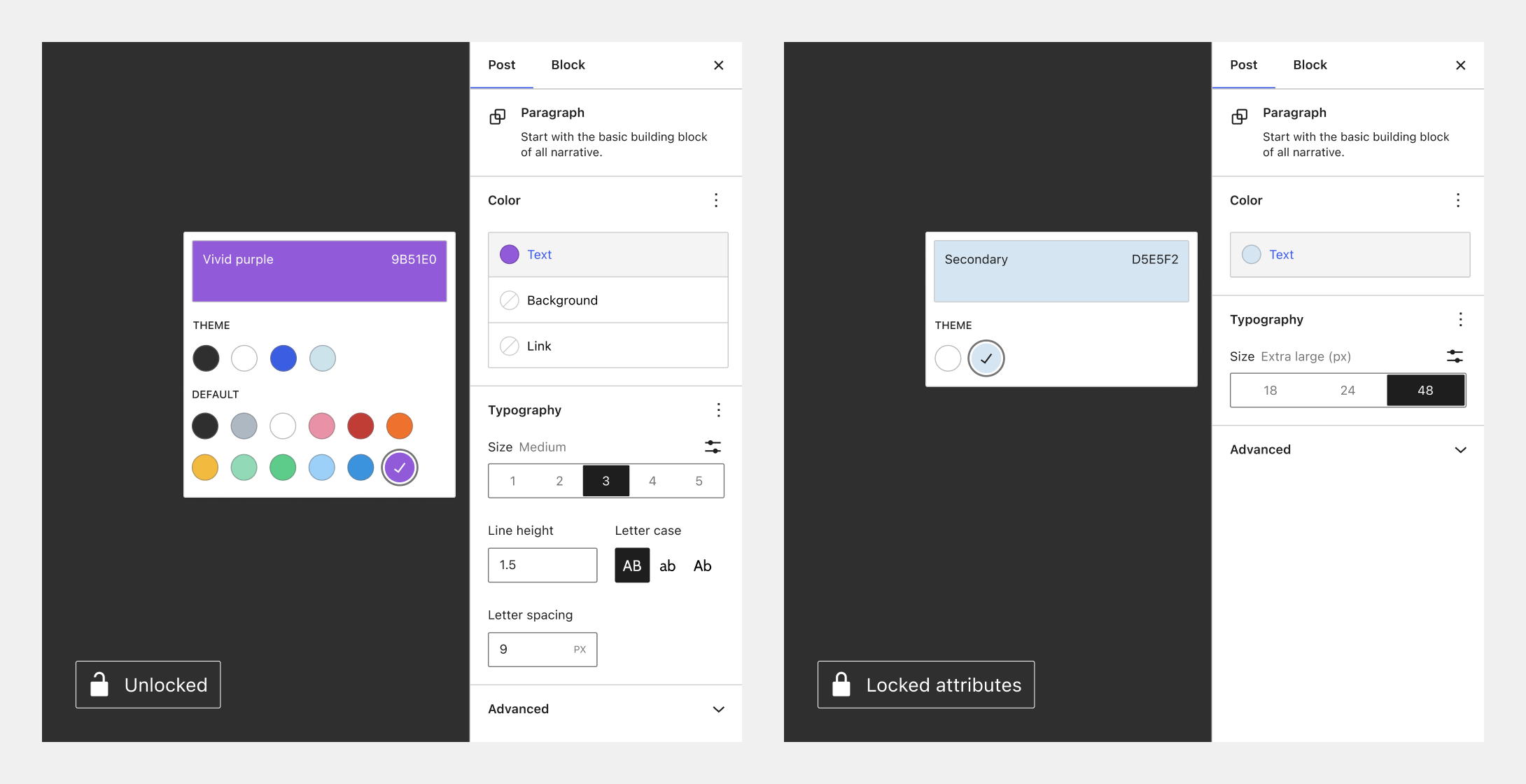
Continuing the examples with duotone, this means you could allow full access to all Duotone functionality for Image blocks and only limit the Post Featured Image block like so:
{
    "version": 3,
    "settings": {
        "color": {
            "custom": true,
            "customDuotone": true
        },
        "blocks": {
            "core/image": {
                "color": {
                    "duotone": [],
                    "customDuotone": true,
                    "custom": true
                }
            },
            "core/post-featured-image": {
                "color": {
                    "duotone": [],
                    "customDuotone": false,
                    "custom": false
                }
            }
        }
    }
}
You can read more about how best to turn on/off options with theme.json here.
Disable inherit default layout
To disable the “Inherit default layout” setting for container blocks like the Group block, remove the following section:
"layout": {
    "contentSize": null,
    "wideSize": null
},
Limit options globally
When using theme.json in a block or classic theme, these settings will stop the default color and typography controls from being enabled globally, greatly limiting what’s possible:
{
    "version": 3,
    "settings": {
        "layout": {
            "contentSize": "750px"
        },
        "color": {
            "background": false,
            "custom": false,
            "customDuotone": false,
            "customGradient": false,
            "defaultGradients": false,
            "defaultPalette": false,
            "text": false
        },
        "typography": {
            "customFontSize": false,
            "dropCap": false,
            "fontStyle": false,
            "fontWeight": false,
            "letterSpacing": false,
            "lineHeight": false,
            "textDecoration": false,
            "textTransform": false
        }
    }
}
To enable something from the above, just set whatever value you want to change to true for more granularity.