格式化工具栏 API
概述
Format API 允许开发者在格式化工具栏中添加自定义按钮,以对文本选区应用特定格式。本文档通过一个示例,指导如何注册新格式、添加按钮并实现点击应用功能。
关键要点
- 使用 registerFormatType 注册自定义格式,定义标题、标签名(如 )和类名。
- 通过 RichTextToolbarButton 组件添加按钮到工具栏,并利用 toggleFormat 方法切换格式应用。
- 可选步骤包括:使用 useSelect 和 data API 限制按钮仅显示于特定块(如段落块),或使用 BlockControls 将按钮直接添加到工具栏而非下拉菜单。
- 开发前需具备 WordPress 插件和 JavaScript 基础,确保正确构建和加载脚本。
代码示例
import { registerFormatType, toggleFormat } from '@wordpress/rich-text';
import { RichTextToolbarButton } from '@wordpress/block-editor';

const MyCustomButton = ( { isActive, onChange, value } ) => {
    return (
        <RichTextToolbarButton
            icon="editor-code"
            title="Sample output"
            onClick={ () => {
                onChange(
                    toggleFormat( value, {
                        type: 'my-custom-format/sample-output',
                    } )
                );
            } }
            isActive={ isActive }
        />
    );
};

registerFormatType( 'my-custom-format/sample-output', {
    title: 'Sample output',
    tagName: 'samp',
    className: null,
    edit: MyCustomButton,
} );
注意事项
- 确保运行 npm run build 以生成可加载的 JavaScript 文件。
- 检查浏览器控制台是否有错误,确认格式类型已正确注册和按钮显示。
- 使用 className 选项可为标签添加自定义类,以便通过 CSS 进行样式化。
Overview
The Format API makes it possible for developers to add custom buttons to the formatting toolbar and have them apply a format to a text selection. Bold is an example of a standard button in the formatting toolbar.
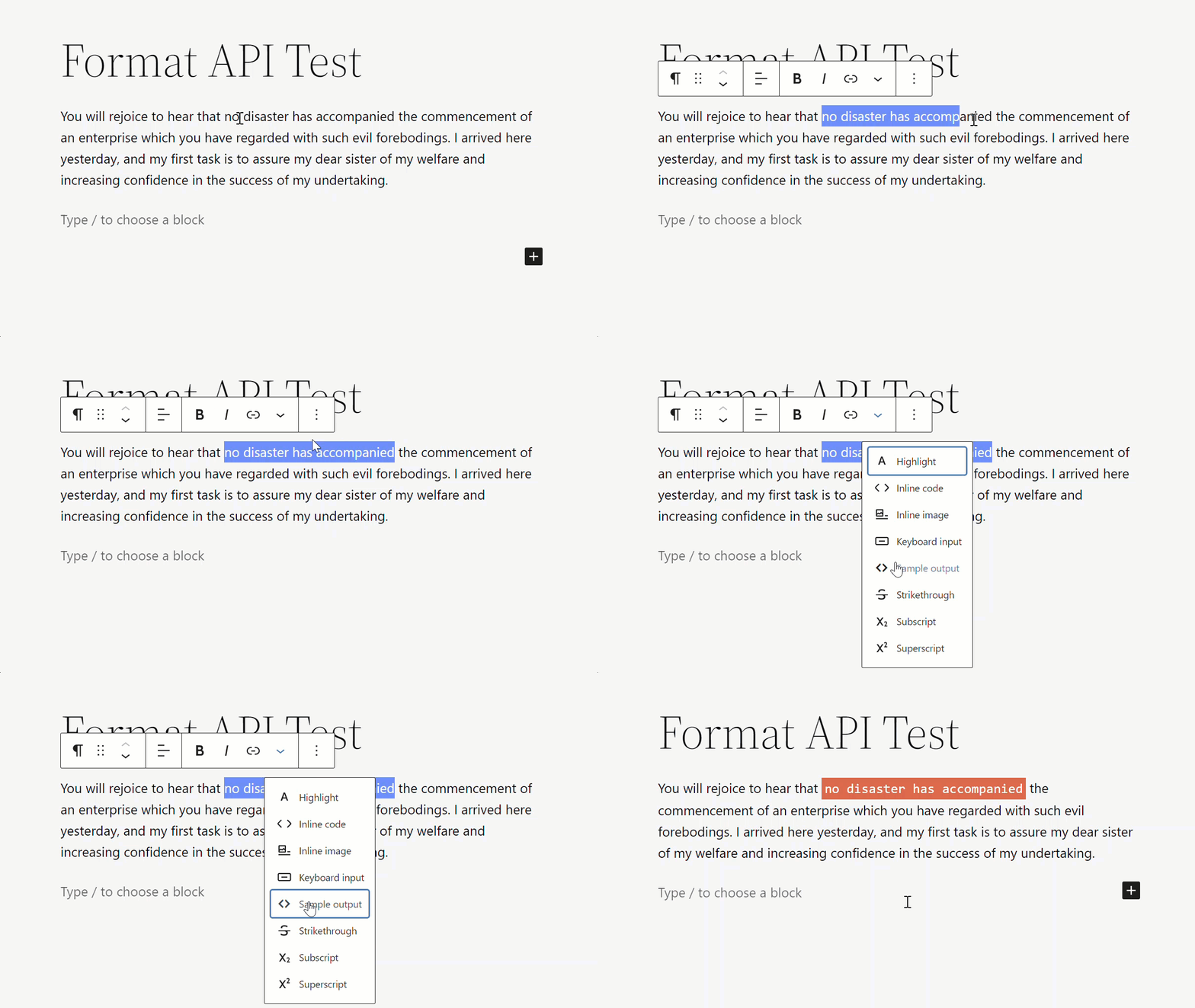
In WordPress lingo, a format is a HTML tag with text-level semantics used to give some special meaning to a text selection. For example, in this tutorial, the button to be hooked into the format toolbar will wrap a particular text selection with the <samp> HTML tag.
Before you start
This guide assumes you are already familiar with WordPress plugins and loading JavaScript with them, see the Plugin Handbook or JavaScript Tutorial to brush up.
You will need:
- WordPress development environment
- A minimal plugin activated and setup ready to edit
- JavaScript setup for building and enqueuing
The complete format-api example is available that you can use as a reference for your setup.
Step-by-step guide
The guide will refer to src/index.js as the JavaScript file where the changes are made. After each step, running npm run build creates build/index.js that is then loaded on the post editor screen.
Step 1: Register a new format
The first step is to register the new format, add src/index.js with the following:
import { registerFormatType } from '@wordpress/rich-text';

registerFormatType( 'my-custom-format/sample-output', {
    title: 'Sample output',
    tagName: 'samp',
    className: null,
} );
The list of available format types is maintained in the core/rich-text store. You can query the store to check that your custom format is now available.
Run this code in your browser’s console to confirm:
wp.data.select( 'core/rich-text' ).getFormatTypes();
It’ll return an array containing the format types, including your own.
Step 2: Add a button to the toolbar
With the format available, the next step is to add a button to the UI by registering a component for the edit property.
Using the RichTextToolbarButton component, update src/index.js:
import { registerFormatType } from '@wordpress/rich-text';
import { RichTextToolbarButton } from '@wordpress/block-editor';

const MyCustomButton = ( props ) => {
    return (
        <RichTextToolbarButton
            icon="editor-code"
            title="Sample output"
            onClick={ () => {
                console.log( 'toggle format' );
            } }
        />
    );
};

registerFormatType( 'my-custom-format/sample-output', {
    title: 'Sample output',
    tagName: 'samp',
    className: null,
    edit: MyCustomButton,
} );
Let’s check that everything is working as expected. Build and reload and then select any block containing text like for example the paragraph block. Confirm the new button was added to the format toolbar.
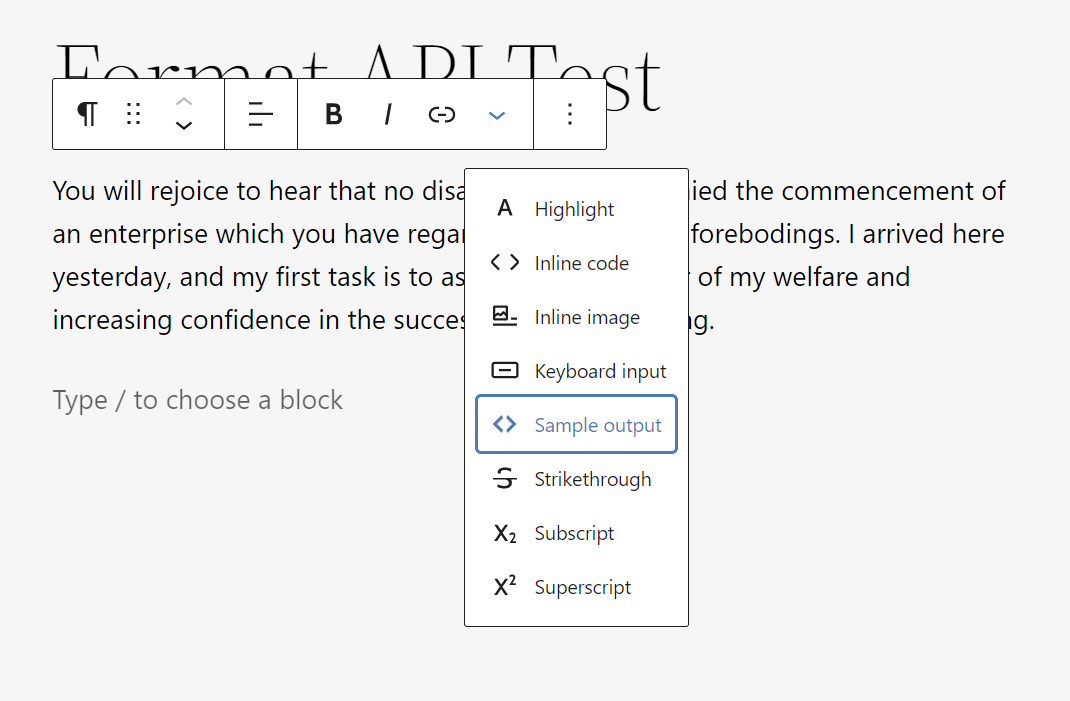
Click the button and check the console.log for the “toggle format” message.
If you do not see the button or message, double check you are building and loading the JavaScript properly; and check the console.log for any errors.
Step 3: Apply a format when clicked
Next is to update the button to apply a format when clicked.
For our example, the <samp> tag format is binary – either a text selection has the tag or not, so we can use the toggleFormat method from the RichText package.
Update src/index.js changing the onClick action:
import { registerFormatType, toggleFormat } from '@wordpress/rich-text';
import { RichTextToolbarButton } from '@wordpress/block-editor';

const MyCustomButton = ( { isActive, onChange, value } ) => {
    return (
        <RichTextToolbarButton
            icon="editor-code"
            title="Sample output"
            onClick={ () => {
                onChange(
                    toggleFormat( value, {
                        type: 'my-custom-format/sample-output',
                    } )
                );
            } }
            isActive={ isActive }
        />
    );
};

registerFormatType( 'my-custom-format/sample-output', {
    title: 'Sample output',
    tagName: 'samp',
    className: null,
    edit: MyCustomButton,
} );
Confirm it is working: first build and reload, then make a text selection and click the button. Your browser will likely display that selection differently than the surrounding text.
You can also confirm by switching to HTML view (Code editor Ctrl+Shift+Alt+M) and see the text selection wrapped with <samp> HTML tags.
Use the className option when registering to add your own custom class to the tag. You can use that class and custom CSS to target that element and style as you wish.
Step 4: Show the button only for specific blocks (Optional)
By default, the button is rendered on every rich text toolbar (image captions, buttons, paragraphs, etc). You can render the button only on blocks of a certain type by using the data API.
Here is an example that only shows the button for Paragraph blocks:
import { registerFormatType, toggleFormat } from '@wordpress/rich-text';
import { RichTextToolbarButton } from '@wordpress/block-editor';
import { useSelect } from '@wordpress/data';

function ConditionalButton( { isActive, onChange, value } ) {
    const selectedBlock = useSelect( ( select ) => {
        return select( 'core/block-editor' ).getSelectedBlock();
    }, [] );

    if ( selectedBlock && selectedBlock.name !== 'core/paragraph' ) {
        return null;
    }

    return (
        <RichTextToolbarButton
            icon="editor-code"
            title="Sample output"
            onClick={ () => {
                onChange(
                    toggleFormat( value, {
                        type: 'my-custom-format/sample-output',
                    } )
                );
            } }
            isActive={ isActive }
        />
    );
}

registerFormatType( 'my-custom-format/sample-output', {
    title: 'Sample output',
    tagName: 'samp',
    className: null,
    edit: ConditionalButton,
} );
Step 5: Add a button outside of the dropdown (Optional)
Using the RichTextToolbarButton component, the button is added to the default dropdown menu. You can add the button directly to the toolbar by using the BlockControls component.
import { registerFormatType, toggleFormat } from '@wordpress/rich-text';
import { BlockControls } from '@wordpress/block-editor';
import { ToolbarGroup, ToolbarButton } from '@wordpress/components';

const MyCustomButton = ( { isActive, onChange, value } ) => {
    return (
        <BlockControls>
            <ToolbarGroup>
                <ToolbarButton
                    icon="editor-code"
                    title="Sample output"
                    onClick={ () => {
                        onChange(
                            toggleFormat( value, {
                                type: 'my-custom-format/sample-output',
                            } )
                        );
                    } }
                    isActive={ isActive }
                />
            </ToolbarGroup>
        </BlockControls>
    );
};

registerFormatType( 'my-custom-format/sample-output', {
    title: 'Sample output',
    tagName: 'samp',
    className: null,
    edit: MyCustomButton,
} );
Troubleshooting
If you run into errors:
- Double check that you run
npm run buildfirst. - Confirm no syntax errors or issues in build process.
- Confirm the JavaScript is loading in the editor.
- Check for any console error messages.
Additional resources
Reference documentation used in this guide:
- RichText:
registerFormatType - Components:
RichTextToolbarButton - RichText:
applyFormat - RichText:
removeFormat - RichText:
toggleFormat
Conclusion
The guide showed you how to add a button to the toolbar and have it apply a format to the selected text. Try it out and see what you can build with it in your next plugin.
Download the format-api example from the block-development-examples repository.