区块锁定 API
概述
区块锁定 API 允许在编辑器中限制对特定区块的操作,防止用户移动、移除或编辑区块,以确保布局一致性和内容完整性。该 API 支持通过 UI 或代码配置锁定选项,并可应用于模式或模板。
关键要点
- 锁定移动或移除能力:用户可通过编辑器 UI 锁定区块,防止其在画布中移动或移除,并可应用于嵌套区块。
- 锁定编辑能力:Navigation Block 和 Reusable block 支持锁定编辑内容的能力,防止修改内部区块。
- 应用于模式或模板:主题作者可在构建模式或模板时设置默认锁定状态,用户可解锁。
- 内容仅编辑功能:WordPress 6.1 引入,在模式或模板级别隐藏设计工具,仅允许编辑内容,简化界面并保留设计。
- 权限控制:开发者可通过 block_editor_settings_all hook 配置用户锁定/解锁权限,例如基于用户角色或页面类型。
代码示例
add_filter( 'block_editor_settings_all', function( $settings, $context ) {
    if ( $context->post && 'page' === $context->post->post_type ) {
        $settings['canLockBlocks'] = false;
    }

    return $settings;
}, 10, 2 );
add_filter( 'block_editor_settings_all', function( $settings ) {
$settings['canLockBlocks'] = current_user_can( 'edit_theme_options' );
return $settings;
} );注意事项
- 内容仅编辑功能无 UI 管理,需在代码级别使用 templateLock:"contentOnly" 属性。
- 默认情况下,管理员用户拥有锁定/解锁权限,开发者可通过条件检查自定义。
The Block Locking API allows you to restrict actions on specific blocks within the Editor. This API can be used to prevent users from moving, removing, or editing certain blocks, ensuring layout consistency and content integrity.
Lock the ability to move or remove specific blocks
Users can lock and unlock blocks via the Editor. The locking UI has options for preventing blocks from being moved within the content canvas or removed:
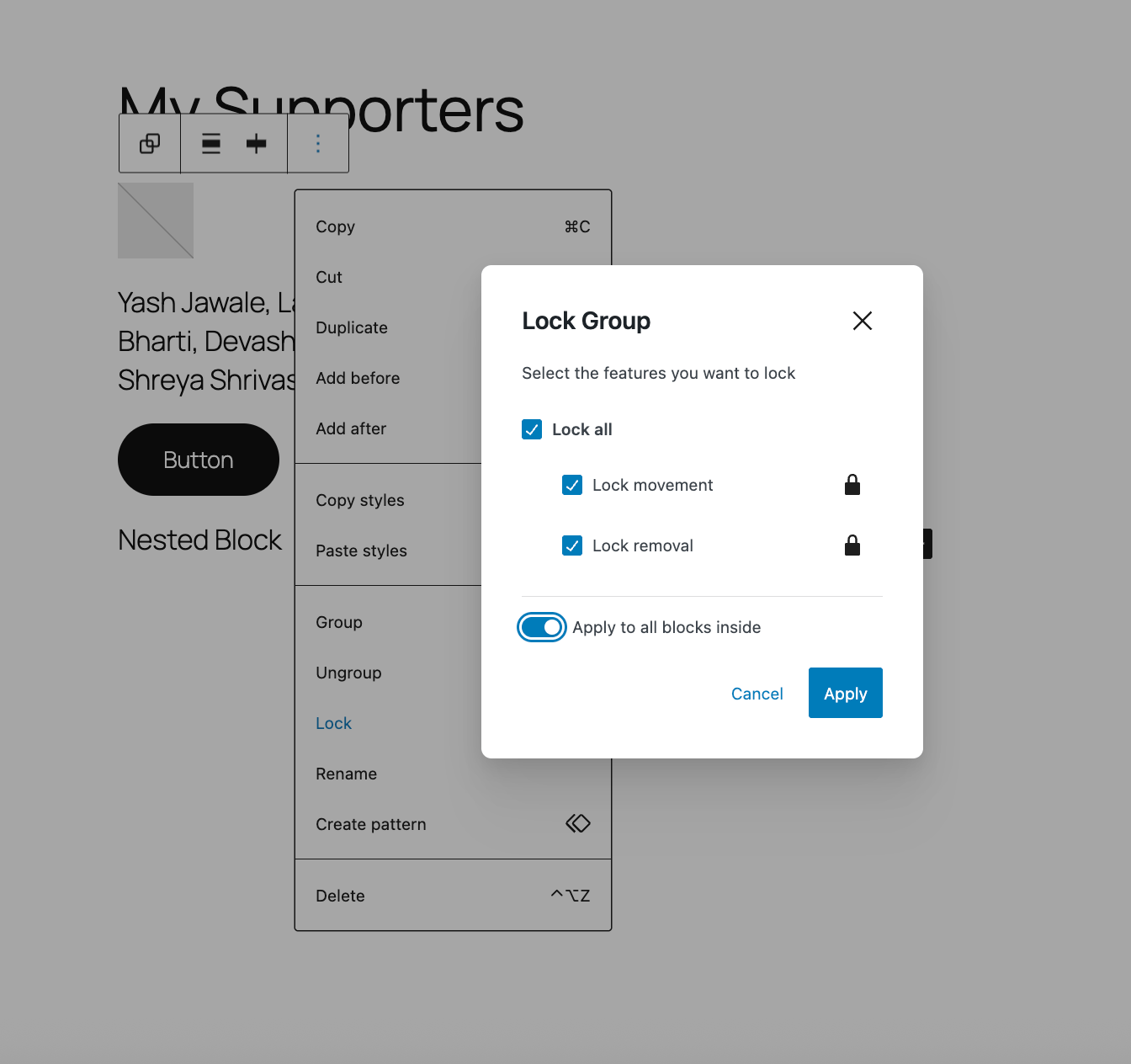
Keep in mind that you can apply locking options to blocks nested inside of a containing block by turning on the “Apply to all blocks inside” option. However, you cannot mass lock blocks otherwise.
Lock the ability to edit certain blocks
Alongside the ability to lock moving or removing blocks, the Navigation Block and Reusable block have an additional capability: lock the ability to edit the contents of the block. This locks the ability to make changes to any blocks inside of either block type.
Apply block locking to patterns or templates
When building patterns or templates, theme authors can use these same UI tools to set the default locked state of blocks. For example, a theme author could lock various pieces of a header. Keep in mind that by default, users with editing access can unlock these blocks. Here’s an example of a pattern with various blocks locked in different ways and here’s more context on creating a template with locked blocks. You can build these patterns in the Editor itself, including adding locking options, before following the documentation to register them.
Apply content-only editing in patterns or templates
This functionality was introduced in WordPress 6.1. In contrast to block locking, which disables the ability to move or remove blocks, content-only editing is both designed for use at the pattern or template level and hides all design tools, while still allowing for the ability to edit the content of the blocks. This provides a great way to simplify the interface for users and preserve a design. When this option is added, the following changes occur:
- Non-content child blocks (containers, spacers, columns, etc) are hidden from list view, un-clickable on the canvas, and entirely un-editable.
- The Inspector will display a list of all child ‘content’ blocks. Clicking a block in this list reveals its settings panel.
- The main List View only shows content blocks, all at the same level regardless of actual nesting.
- Children blocks within the overall content locked container are automatically move / remove locked.
- Additional child blocks cannot be inserted, further preserving the design and layout.
- There is a link in the block toolbar to ‘Modify’ that a user can toggle on/off to have access to the broader design tools. Currently, it’s not possibly to programmatically remove this option.
This option can be applied to Columns, Cover, and Group blocks as well as third-party blocks that have the templateLock attribute in its block.json. To adopt this functionality, you need to use "templateLock":"contentOnly". Here’s an example of a pattern with this functionality in place. For more information, please review the relevant documentation.
Note: There is no UI in place to manage content locking and it must be managed at the code level.
Change permissions to control locking ability
Agencies and plugin authors can offer an even more curated experience by limiting which users have permission to lock and unlock blocks. By default, anyone who is an administrator will have access to lock and unlock blocks.
Developers can add a filter to the block_editor_settings_all hook to configure permissions around locking blocks. The hook passes two parameters to the callback function:
$settings– An array of configurable settings for the Editor.$context– An instance of WP_Block_Editor_Context, an object that contains information about the current Editor.
Specifically, developers can alter the $settings['canLockBlocks'] value by setting it to true or false, typically by running through one or more conditional checks.
The following example disables block locking permissions for all users when editing a page:
add_filter( 'block_editor_settings_all', function( $settings, $context ) {
if ( $context->post && 'page' === $context->post->post_type ) {
$settings['canLockBlocks'] = false;
}
return $settings;
}, 10, 2 );
Another common use case may be to only allow users who can edit the visual design of the site (theme editing) to lock or unlock blocks. Now, the best option would be to test against the edit_theme_options capability, as shown in the following code snippet:
add_filter( 'block_editor_settings_all', function( $settings ) {
    $settings['canLockBlocks'] = current_user_can( 'edit_theme_options' );

    return $settings;
} );
Developers may use any type of conditional check to determine who can lock/unlock blocks. This is merely a small sampling of what is possible via the filter hook.