模式简介
概述
模式(Block patterns)是 WordPress 5.4 引入的功能,允许主题作者预配置一组块,供用户快速插入复杂布局。本文介绍模式的基本概念、类型和管理方法,为后续章节奠定基础。
关键要点
- 模式本质上是预配置的块组,可重用,适用于文章、页面和模板内容。
- 模式分为同步(Synced)和非同步(Not synced)两种类型:同步模式在所有使用位置保持一致,非同步模式每次插入创建新实例,更改不影响其他使用。
- 主题注册的模式默认为非同步类型,目前不支持同步主题注册模式。
- 用户可通过 WordPress 管理后台(外观 > 编辑器 > 模式)创建和管理自定义模式,包括设置名称、分类和同步选项。
- 模式支持 PHP 集成,便于国际化文本和动态添加资源,但经典主题无法访问模式管理界面。
- 开发时,可先在管理后台创建模式,再复制块标记代码到主题中注册,但需手动同步更改。
代码示例
<!-- wp:cover {"overlayColor":"contrast","align":"full"} -->
<div class="wp-block-cover alignfull"><span aria-hidden="true" class="wp-block-cover__background has-contrast-background-color has-background-dim-100 has-background-dim"></span><div class="wp-block-cover__inner-container"><!-- wp:group {"style":{"spacing":{"blockGap":"2.5rem"}},"layout":{"type":"constrained","wideSize":"%","contentSize":"75%"}} -->
<div class="wp-block-group"><!-- wp:heading {"textAlign":"center"} -->
<h2 class="wp-block-heading has-text-align-center">Welcome to My Site</h2>
<!-- /wp:heading -->

<!-- wp:paragraph {"align":"center"} -->
<p class="has-text-align-center">This is my little home away from home. Here, you will get to know me. I'll share my likes, hobbies, and more. Every now and then, I'll even have something interesting to say in a blog post.</p>
<!-- /wp:paragraph -->

<!-- wp:buttons {"layout":{"type":"flex","justifyContent":"center"}} -->
<div class="wp-block-buttons"><!-- wp:button {"className":"is-style-outline"} -->
<div class="wp-block-button is-style-outline"><a class="wp-block-button__link wp-element-button">See My Popular Posts →︎</a></div>
<!-- /wp:button --></div>
<!-- /wp:buttons --></div>
<!-- /wp:group --></div></div>
<!-- /wp:cover -->
注意事项
- 主题作者需手动从管理界面复制块标记代码到主题中,目前无标准工具自动同步模式更改。
- 建议通过 Create Block Theme 插件讨论模式管理的最佳实践,以改进工作流程。
Block patterns (“patterns,” for short) are one of the most powerful features at a theme author’s disposal. Introduced in WordPress 5.4, patterns made it easier for users to insert more complex layouts from the block editor while opening a world of possibilities to designers.
This article provides an overarching definition of what patterns are and how they work. This will serve as a foundation as you read through the other articles in this chapter.
What are patterns?
Essentially, a pattern is nothing more than one or more blocks that have been pre-configured and presented to the end-user. Think of them as reusable groups of blocks.
And that’s it. Really. Patterns are just groups of blocks.
They are ideal as starting points for users to insert into their post and page content, but they are also useful when used inside of templates.
Users can insert them directly into a template from the Site Editor or into their content from the Post Editor:

In comparison to template parts, which is a similar feature for reusable groups of blocks, patterns also give you access to PHP when you bundle them inside a theme. This means that you can internationalize text within them, dynamically add URLs to include images, and more. And you will learn more about these things throughout this chapter.
Note that users can create and manage custom patterns from the Appearance > Editor > Patterns screen in the admin. You can also use this screen to manage your own patterns in your development install:
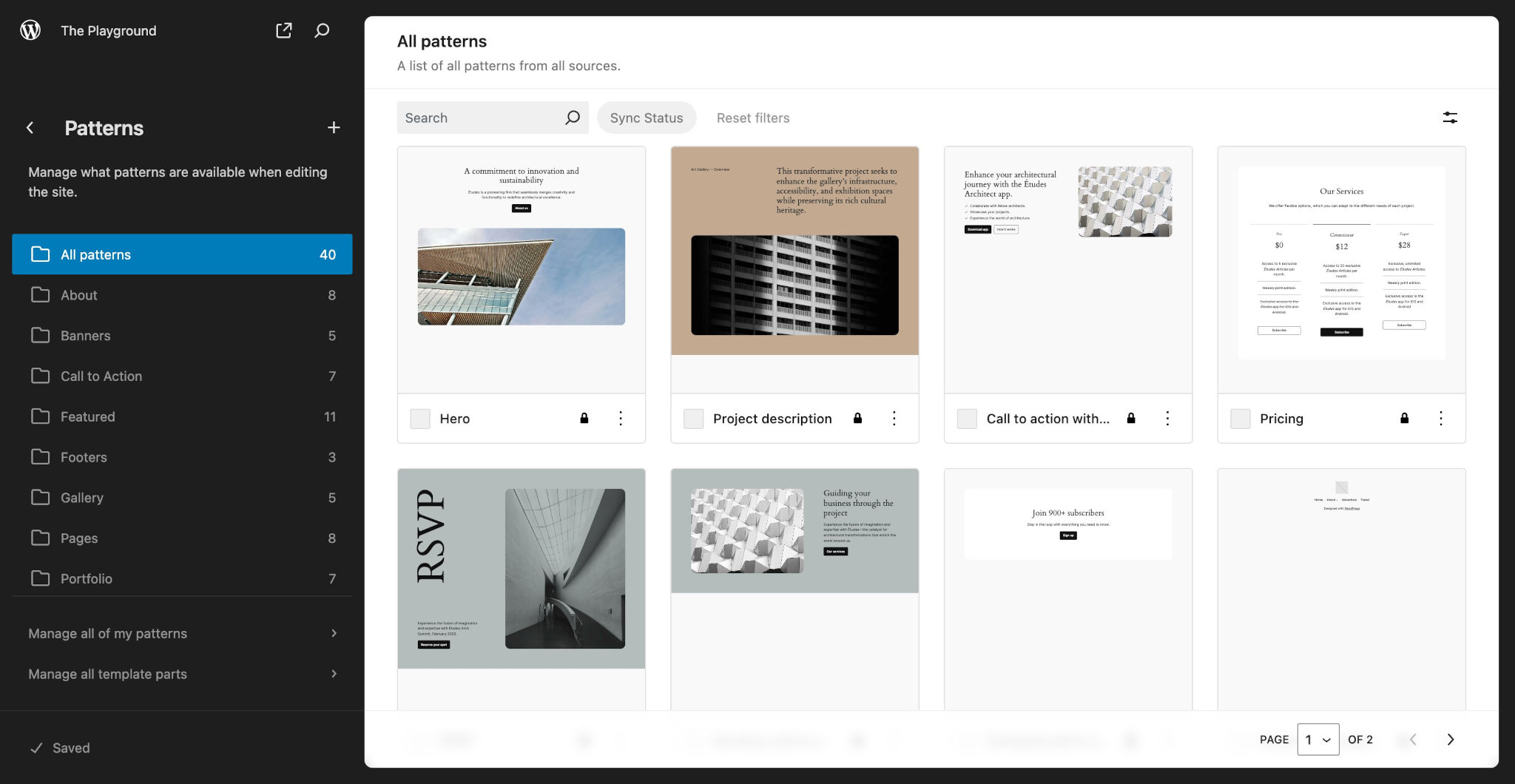
If you are building a classic theme, this screen is unavailable. But, as of WordPress 6.5, you can access patterns through the Appearance > Patterns screen instead.
Types of patterns
Essentially, there are two types of patterns:
- Synced: Patterns that remain unchanged regardless of how many times or where it’s used on the website. These were formerly called “reusable blocks” in older versions of WordPress. Note: these can only be created and managed from the WordPress admin.
- Not synced: Patterns that, when inserted via the Block Editor, create a new instance of the pattern’s blocks. Any changes made to the inserted blocks do not affect other uses of the pattern. Changes to the pattern in the future also do not affect prior uses of it.
By the nature of how the pattern system works, all patterns registered by the theme are of the Not synced type. There is an open ticket for syncing theme-registered patterns, but it is not currently possible.
Managing patterns in the WordPress admin
Even when building a theme, you will often build patterns directly from the admin before bundling and registering them from within the theme itself. This can also be a good way to store and manage your patterns locally until you are satisfied that they are ready to include in your theme.
It’s also good practice to get a feel for how users interact with patterns.
You can manage patterns by visiting the Appearance > Editor screen in your WordPress admin and clicking on the Patterns item in the sidebar.
Creating custom patterns
On the Patterns screen, you must click on the Create pattern button (+ icon), which will give you a choice to create several options:
- Create pattern
- Create template part
- Import pattern from JSON
Select the Create pattern option, which will trigger an overlay modal that looks like this:
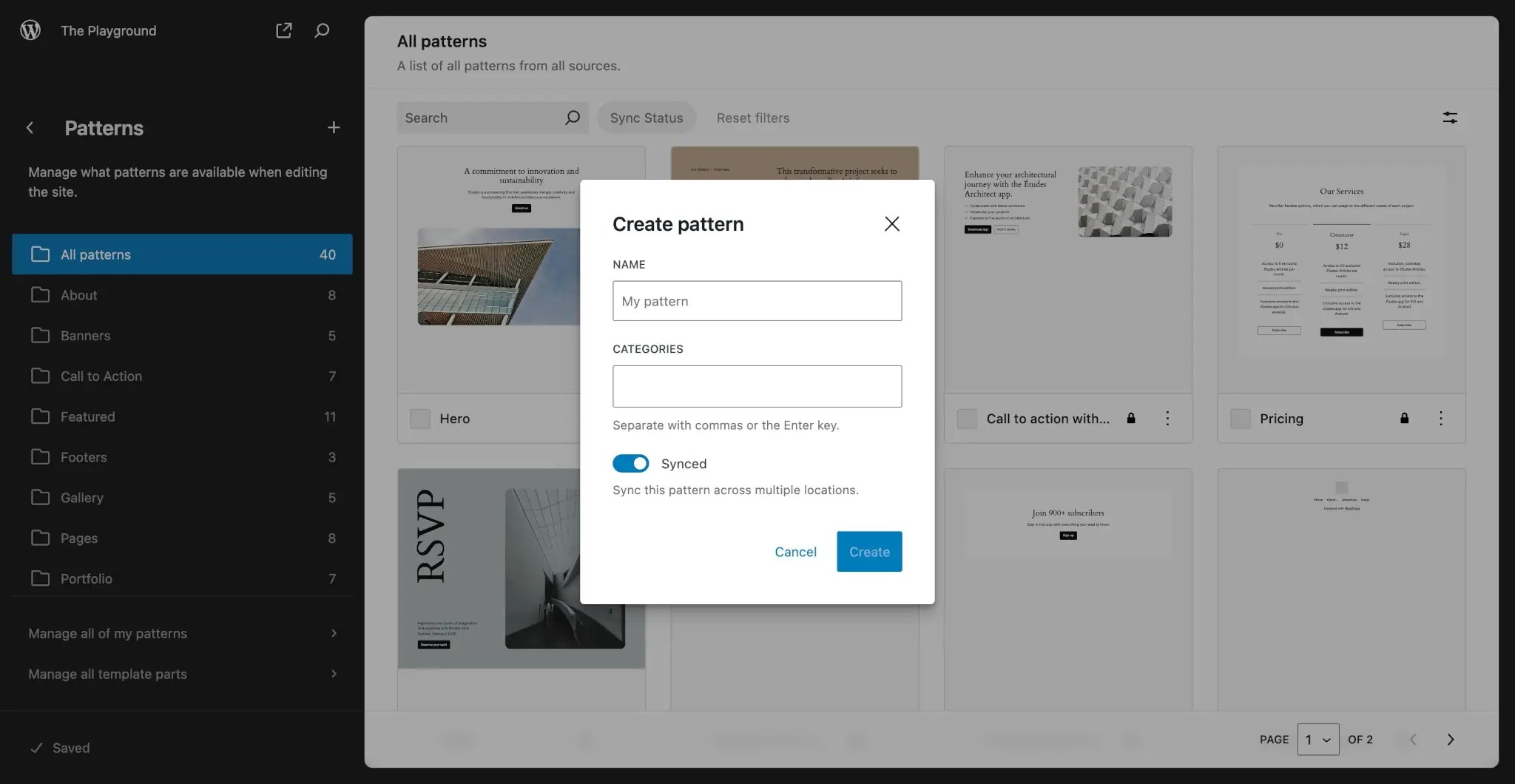
You’ll need to fill out three fields:
- Name: Decide on a name for the pattern you are creating.
- Categories: Add one or more categories that your pattern will fit into.
- Synced: Decide on whether your pattern should be synced. If you plan to ship this with your theme, you should toggle this option off just so that it behaves the same as it would coming from a theme.
Once you click the Create button, it will take you to the Pattern Editor. From there, it works just like any other Editor in WordPress. Add the blocks that you want to in your pattern and adjust their settings and styles to suit your needs.
Here is an example of a basic “Welcome Hero” pattern:

Just be sure to hit the Save button. From there, you can use your pattern just like you’d use any other pattern on your site.
You can also view and edit any custom patterns you’ve created via the Patterns > My Patterns section in the sidebar:
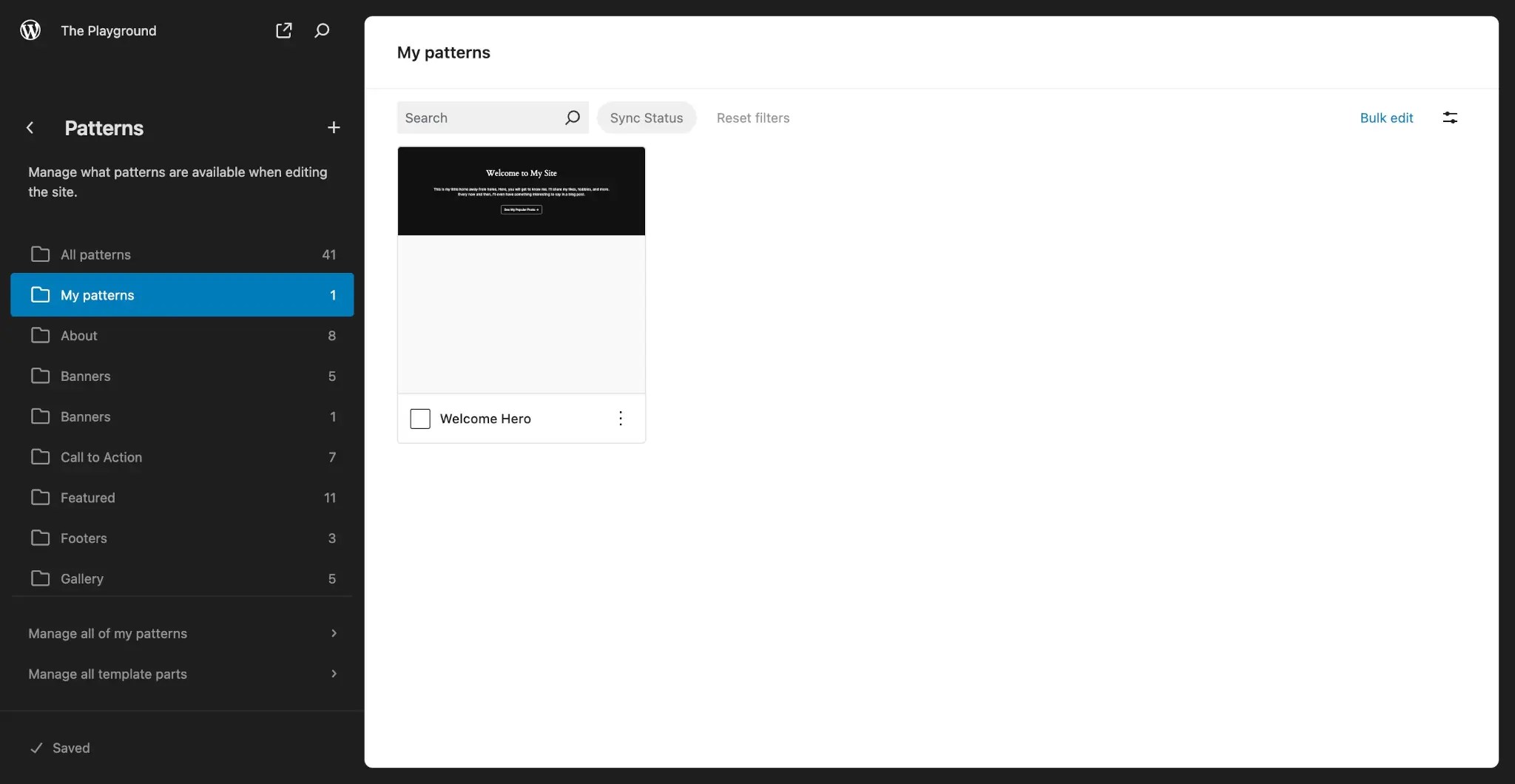
The My Patterns section is always where any user-created patterns will appear in the WordPress admin. They will also appear under the All patterns section and any other categories they were assigned to.
Copying a pattern to your theme
The Editor interface is a nice and easy method for creating patterns. But this is the Theme Handbook, so you’re probably wanting to know how to bundle this pattern that you’ve created with your theme.
For that, you need to copy the pattern code itself. You’ll learn what to do with pattern code in the Registering Patterns article in this chapter.
There are a few different methods for copying pattern code. But the easiest way is to click the Options button (⋮ icon) at the top of the editor and select the Copy all blocks option in the dropdown menu:

For the particular pattern shown in the screenshot, it will give you this block markup:
<!-- wp:cover {"overlayColor":"contrast","align":"full"} -->
<div class="wp-block-cover alignfull"><span aria-hidden="true" class="wp-block-cover__background has-contrast-background-color has-background-dim-100 has-background-dim"></span><div class="wp-block-cover__inner-container"><!-- wp:group {"style":{"spacing":{"blockGap":"2.5rem"}},"layout":{"type":"constrained","wideSize":"%","contentSize":"75%"}} -->
<div class="wp-block-group"><!-- wp:heading {"textAlign":"center"} -->
<h2 class="wp-block-heading has-text-align-center">Welcome to My Site</h2>
<!-- /wp:heading -->

<!-- wp:paragraph {"align":"center"} -->
<p class="has-text-align-center">This is my little home away from home. Here, you will get to know me. I'll share my likes, hobbies, and more. Every now and then, I'll even have something interesting to say in a blog post.</p>
<!-- /wp:paragraph -->

<!-- wp:buttons {"layout":{"type":"flex","justifyContent":"center"}} -->
<div class="wp-block-buttons"><!-- wp:button {"className":"is-style-outline"} -->
<div class="wp-block-button is-style-outline"><a class="wp-block-button__link wp-element-button">See My Popular Posts <span aria-hidden="true" class="wp-exclude-emoji">→</span>︎</a></div>
<!-- /wp:button --></div>
<!-- /wp:buttons --></div>
<!-- /wp:group --></div></div>
<!-- /wp:cover -->
In the Registering Patterns documentation, you will learn how to take that block markup and bundle it as a pattern with your theme.
Managing theme-bundled patterns
There is currently no standard for theme authors to manage their patterns or port them directly to their theme without going through the process outlined above.
For the moment, it’s entirely up to you to decide how you want to integrate pattern management into your workflow. Some things to consider:
- You’ll need to manually copy and paste a pattern’s block markup from the admin UI to your theme.
- If you need to make changes to a pattern’s block markup, there’s no way to keep the pattern in your theme and the version you built in the admin in sync.
These are certainly challenges that you’ll encounter when deciding the best method to use. There is an open discussion for the official Create Block Theme plugin that would explore pattern management, and that is the best place to discuss with other theme authors the best path forward.