工具与设置
概述
本文档介绍了构建 WordPress 主题所需的工具和设置开发环境的方法,旨在帮助开发者建立高效的工作流程。内容包括开发环境的重要性、本地环境设置选项、代码编辑器选择以及其他辅助工具。
关键要点
- 开发环境:建议在独立于生产站点的环境中构建主题,以安全测试代码,避免致命错误影响网站。
- 本地环境优势:无需网络连接、加快构建速度、即时查看更改、多角度测试主题兼容性。
- 设置选项:提供多种本地开发环境工具,如 @wordpress/env、Docker、Local、MAMP、XAMPP、VVV 等。
- 代码编辑器:推荐使用 Visual Studio Code、VIM、Brackets 等,以获取语法高亮、错误报告和版本控制集成等功能。
- 其他工具:包括测试数据导入(如 WordPress.org Theme Test Data)、插件(如 Theme Check、Debug Bar)和遵循 WordPress.org 主题审查指南与编码标准。
注意事项
- 开发环境设置可能对初学者有挑战,但长期来看是值得学习的。
- 某些开发环境可能自动安装 WordPress,可跳过手动安装步骤。
- 选择代码编辑器时,应基于个人舒适度和功能需求,而非仅限于免费选项。
- 测试数据和插件是可选但有用的工具,有助于确保主题质量和标准合规性。
In this document, you will learn about the tools that you will need to get off to a solid start when building WordPress themes. You will also find resources on setting up a development environment for testing your projects.
While it is definitely possible to create and build block themes without any of these tools, they are foundational pieces of a good workflow.
Development environment
When building WordPress themes, it is a good idea to do it within an environment that is separate from a live (i.e., production) site. Before creating your first WordPress theme, you should set up a development environment.
Don’t let this process scare you if it’s your first time. In the long run, you will be happy you learned how to set this up.
Why set up a development environment?
Development environments allow you to test code before it goes live on a production site. You don’t want to change something, push it live, and later realize you created a fatal error that took down the whole website.
By using a development environment, you can test things to ensure they work before they are live.
Your development environment can either be local (on your computer) or on a remote server. But configuring a local environment to work on your theme is beneficial for several reasons:
- You do not need an internet connection to build your theme.
- You can build your theme without relying on a remote server. This speeds up the building process, and you can see changes instantly in your browser.
- You can test your theme from many perspectives. This is important if you plan on releasing it to a larger audience and want maximum compatibility.
Setting up a local development environment
For developing WordPress themes, you need to set up a development environment that is suited to WordPress. This list is not exhaustive, but here are several options to choose from:
- @wordpress/env (local WordPress environment package)
- Docker
- WordPress Studio
- Local
- MAMP
- XAMPP
- Varying Vagrant Vagrants (VVV)
For more information, read the Setting Up a Development Environment documentation in the Core Handbook.
Installing WordPress
Before you begin building themes in your development environment, you must also install WordPress.
Some of the development environments include methods for automatically installing an instance of WordPress. You can skip this step if this is the case for you.
To install WordPress on your own, follow the How to install WordPress documentation from the Advanced Administration handbook. Then, of course, come back here and learn more about creating WordPress themes!
Code editor
A good code editor is worth its weight in gold.
Someone Wise
On a more serious note, a good code editor gives you proper syntax highlighting, error reporting, integration with version control systems (VCS), and much more. It’s there to make your life easier.
Technically, you could edit code in a plain text editor, but you’d be missing out on all the best features that true code editors and IDEs (Integrated Development Environments) bring to life.
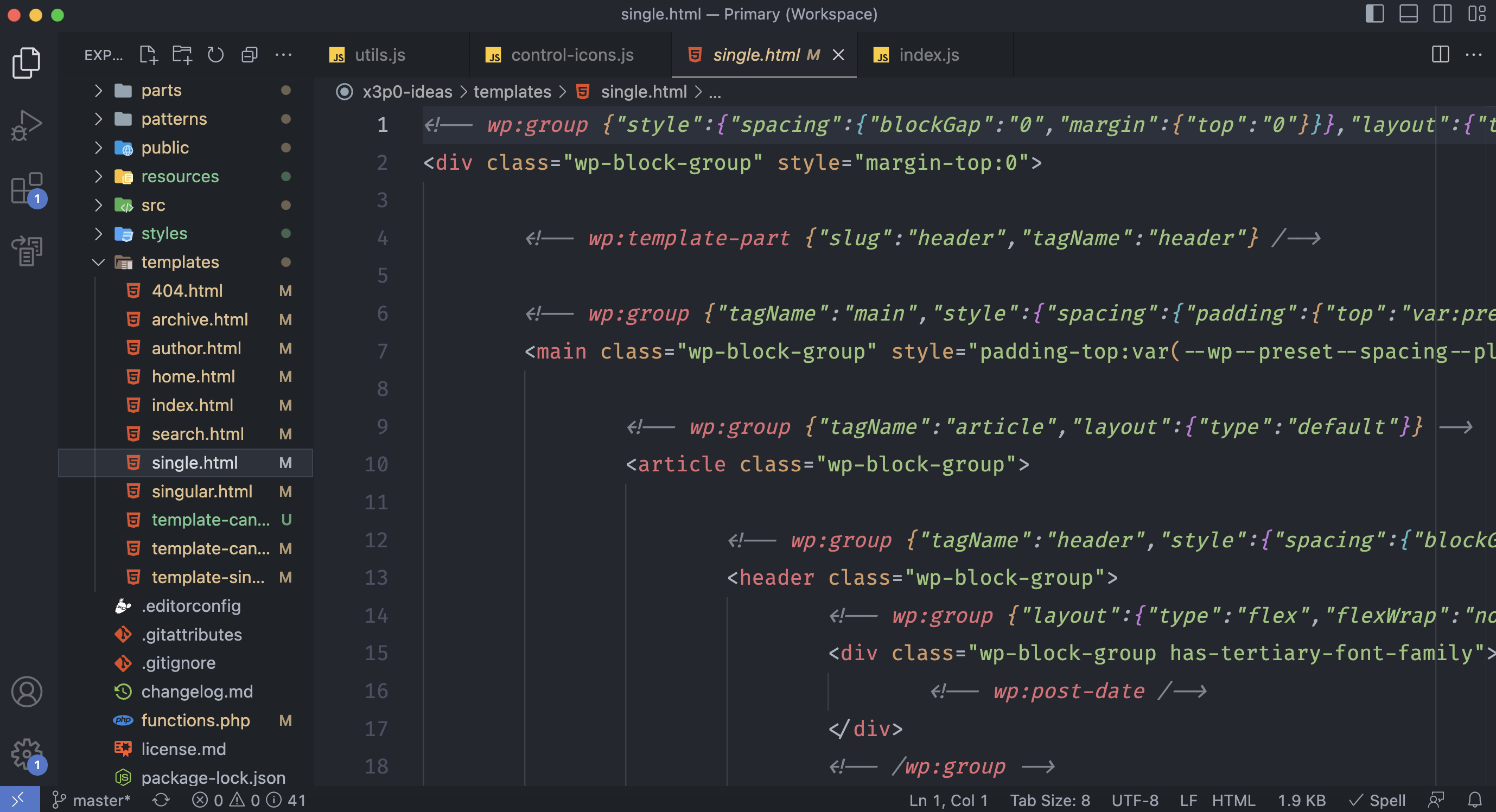
single.html template in Visual Studio CodeThere are many free and open-source editors to choose from. Here are some of the more popular ones:
There are also many proprietary editors that are free or cost a fee to use. Whatever you decide to use, pick something you feel comfortable with.
Other development tools
A code editor and development environment are the foundational pieces of creating a WordPress theme. However, there are other tools and resources that you will likely find useful for your project.
Test data
WordPress allows you to import XML files containing real or dummy data for testing your themes. This lets you see how your theme performs with different types of content and layouts. Here are two options for importing:
- WordPress.org Theme Test Data
- WordPress.com Theme Test Data (includes WordPress.com-specific data)
If nothing else, you need some type of demo/test content to see what your theme looks like in action. You could even create test posts and pages of your own!
Plugins
In addition to test data, there are several WordPress plugins that can help make sure your theme is following standard practices and not producing debugging notices. These are optional but can be useful:
- Theme Check: Tests your theme for compliance with the latest WordPress standards and practices.
- Debug Bar: Adds an admin bar to your WordPress admin and provides a central location for debugging.
- Query Monitor: Allows debugging of database queries, API requests, and AJAX used to generate theme pages and functionality.
- Log Deprecated Notices: Logs incorrect function usage, deprecated file usage, and deprecated function usage in your theme.
- Monster Widget: Consolidates the core WordPress widgets into a single widget, making it easier to test them all at once (classic themes only).
WordPress.org Theme Review Guidelines
It is a good idea to stay up to date with the theme guidelines provided by the WordPress.org Themes Team. These guidelines are required if you plan to submit your theme to the official Theme Directory, but they are also good principles for anyone creating a theme.
You should also follow the WordPress Coding Standards when writing any code for your theme. This will help make sure what you are creating meets some minimum quality standards.