你的第一个主题
概述
本文档指导 WordPress 开发者创建第一个块主题和经典主题,涵盖所需文件、基本步骤和安装激活过程。块主题基于 HTML 模板和 theme.json,而经典主题使用 PHP 文件。
关键要点
- 块主题所需文件:templates/index.html、style.css 和 theme.json,可添加 templates 和 parts 目录用于高级开发。
- 经典主题所需文件:index.php 和 style.css,可扩展为 header.php、sidebar.php 等模板文件。
- 创建主题步骤:包括创建文件夹、添加 style.css(定义主题名称)、配置 theme.json(块主题)或 index.php(经典主题),并安装激活。
- 块主题通过 ZIP 文件上传安装,经典主题直接复制到 wp-content/themes 目录。
- 主题开发基于构建块原则,后续章节将深入模板、PHP 动态功能等主题基础知识。
代码示例
/* style.css 示例 */
/*
Theme Name: My First WordPress Theme
*/

body {
background: #21759b;
}
/* theme.json 示例 */
{
"version": 2,
"settings": {
"layout": {
"contentSize": "840px",
"wideSize": "1100px"
}
}
}/* index.php 示例 */
<!DOCTYPE html>
<html>
<head>
<meta charset="<?php bloginfo( 'charset' ); ?>">
<title><?php wp_title( '|', true, 'right' ); ?></title>
<link rel="stylesheet" href="<?php echo esc_url( get_stylesheet_uri() ); ?>" type="text/css" />
<?php wp_head(); ?>
</head>
<body>
<h1><?php bloginfo( 'name' ); ?></h1>
<h2><?php bloginfo( 'description' ); ?></h2>
<?php if ( have_posts() ) : while ( have_posts() ) : the_post(); ?>
<h3><?php the_title(); ?></h3>
<?php the_content(); ?>
<?php wp_link_pages(); ?>
<?php edit_post_link(); ?>
<?php endwhile; ?>
<?php
if ( get_next_posts_link() ) {
next_posts_link();
}
?>
<?php
if ( get_previous_posts_link() ) {
previous_posts_link();
}
?>
<?php else: ?>
<p>No posts found. :(</p>
<?php endif; ?>
<?php wp_footer(); ?>
</body>
</html>注意事项
- 块主题开发需遵循特定文件结构,如将 index.html 放在 templates 文件夹内。
- 经典主题的 index.php 包含基本 PHP 代码,如 The Loop 和模板标签,用于动态内容显示。
- 创建主题前,确保已完成开发环境设置(针对经典主题部分)。
- 主题激活后,前端显示可能较简单,但这是学习主题构建的基础。
- 建议参考默认主题(如 Twenty Twenty-Three)以深入了解块主题。
Block Theme
This section is for a block theme.
Required Files
The only files needed for a block theme is,
- index.html, which is the main template to display your list of posts. Index.html needs to be placed inside a folder called templates.
- style.css file to style content.
- theme.json file to set style properties in a structured way.

For advanced block theme development, you can add templates and template parts. For example,
- You can create a templates directory inside the theme folder and put your templates there. Templates examples,
- index.html
- archive.html
- single.html
- page.html
- You can create a parts directory inside the theme folder and put template parts. Template parts examples,
- header.html
- footer.html
- sidebar.html

As you know the required files for block themes, now let’s create your first block theme.
Step 1 – Create a theme folder
First, create a new folder on your computer, and name it my-first-theme. This is where all of your theme’s files will go.
Step 2 – Create a style.css file
You can use any basic text editor on your computer to create a new file called style.css.
If you’re on a Windows-based machine use Notepad for now and if you’re using a Mac then use TextEdit.
Copy and paste the following code into your newly created style.css file:
/*
Theme Name: My First WordPress Theme
*/
Step 3 – Create a theme.json file
Create the theme.json file in the root folder, and copy and paste the following code:
{
“version”: 2,
“settings”: {
“layout”: {
“contentSize”: “840px”,
“wideSize”: “1100px”
}
}
}
Step 4 – Add index.html inside the templates folder
Inside your theme directory, create a templates folder. Inside the templates folder creates an index.html file.
Now, your theme structure should look like this,
templates/
index.html
style.css
theme.json
Your block theme is now ready. You can install and activate the theme. First, make the ZIP file of your theme directory. The ZIP file will be like, my-first-theme.zip
Step 5 – Install and activate your theme
Now, go to your WordPress admin panel and Appearance > Themes > Add New > Upload. Upload the my-first-theme.zip and click on install and then activate.
Congratulations – you’ve made your first WordPress block theme.
To know more about block themes, you can download the default Twenty Twenty-Three theme and use it as a reference.
Classic Theme
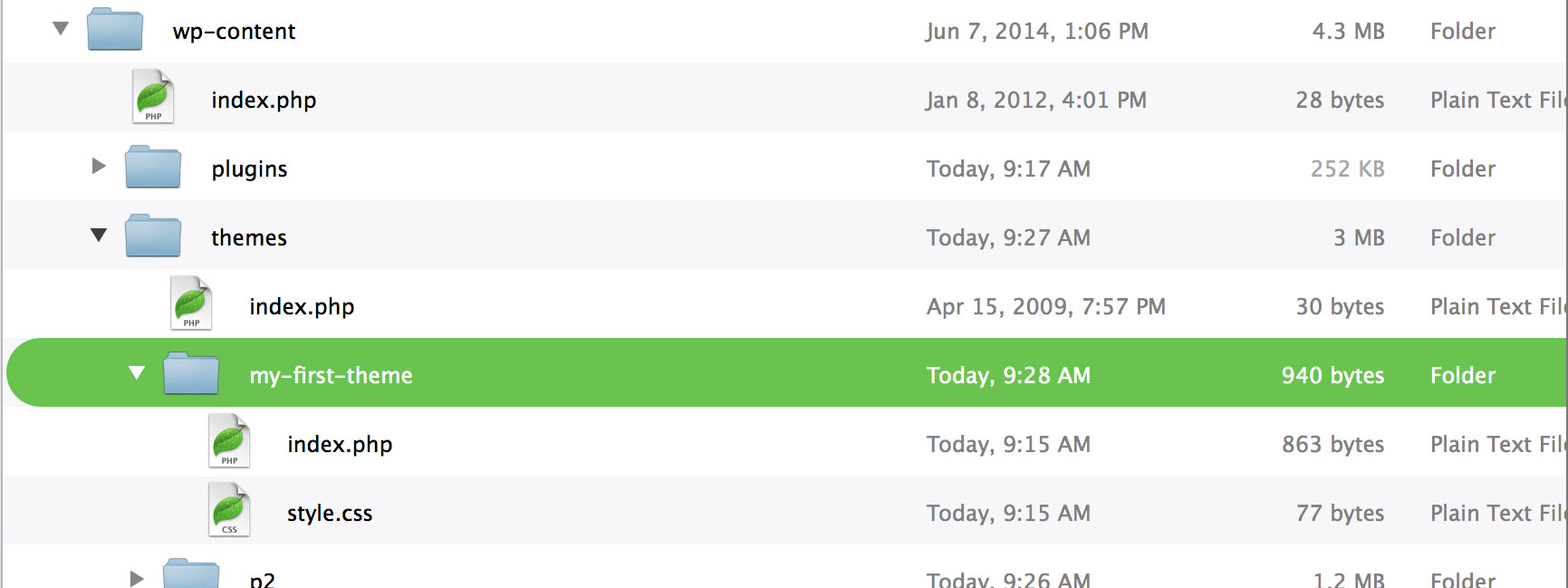
Required Files
As mentioned earlier in the “What is a Theme” section, the only files needed for a WordPress theme to work out of the box are an index.php file to display your list of posts and a style.css file to style the content.
Once you get into more advanced development territory and your themes grow in size and complexity, you’ll find it easier to break your theme into many separate files (called template files) instead. For example, most WordPress themes will also include:
header.phpindex.phpsidebar.phpfooter.php
We will cover creating separate files later in this handbook, but for now let’s get your first theme launched!
(Note: The following steps assume you have already completed the “Setting up a Development Environment” section.)
Step 1 – Create a theme folder
First, create a new folder on your computer, and name it my-first-theme. This is where all of your theme’s files will go.
Step 2 – Create a style.css file
You can use any basic text editor on your computer to create a new file called style.css.
If you’re on a Windows-based machine use Notepad for now and if you’re using a Mac then use TextEdit.
Copy and paste the following code into your newly created style.css file:
/*
Theme Name: My First WordPress Theme
*/

body {
background: #21759b;
}Step 3 – Create an index.php file
Now create a file named index.php and put it into your theme’s folder, adding the following code to it:
<!DOCTYPE html>
<html>
<head>
<meta charset="<?php bloginfo( 'charset' ); ?>">
<title><?php wp_title( '|', true, 'right' ); ?></title>
<link rel="stylesheet" href="<?php echo esc_url( get_stylesheet_uri() ); ?>" type="text/css" />
<?php wp_head(); ?>
</head>
<body>
<h1><?php bloginfo( 'name' ); ?></h1>
<h2><?php bloginfo( 'description' ); ?></h2>

<?php if ( have_posts() ) : while ( have_posts() ) : the_post(); ?>

<h3><?php the_title(); ?></h3>

<?php the_content(); ?>
<?php wp_link_pages(); ?>
<?php edit_post_link(); ?>

<?php endwhile; ?>

<?php
if ( get_next_posts_link() ) {
next_posts_link();
}
?>
<?php
if ( get_previous_posts_link() ) {
previous_posts_link();
}
?>

<?php else: ?>

<p>No posts found. :(</p>

<?php endif; ?>
<?php wp_footer(); ?>
</body>
</html>Step 4 – Install Your Theme
Copy your new theme into the wp-content/themes folder on your development environment and activate it for review and testing.
Step 5 – Activate Your Theme
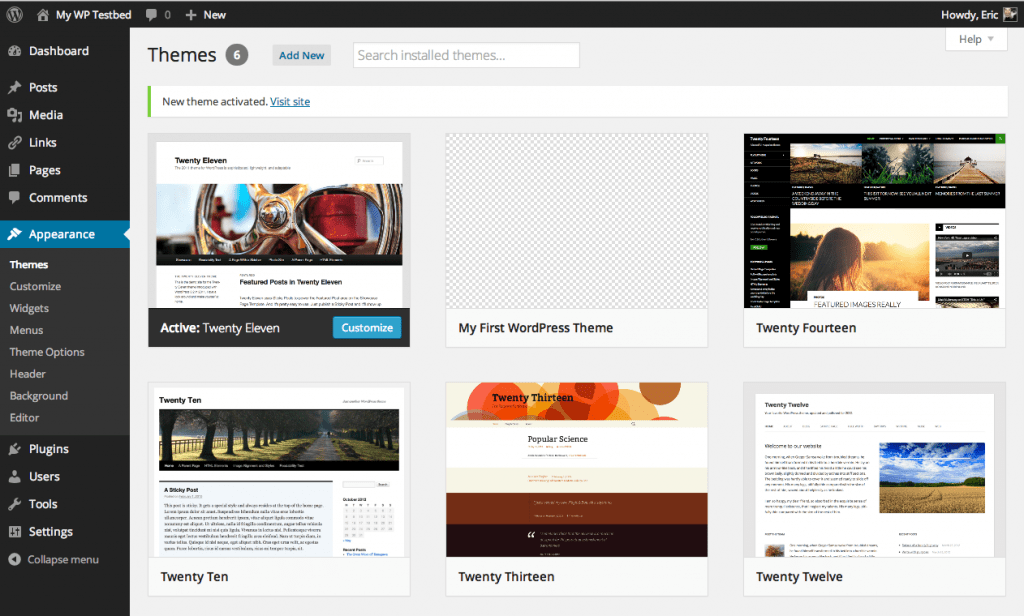
Now that you’ve installed your theme, go to Admin > Appearance > Themes to activate it.
Using Your First Theme
Congratulations – you’ve just made your first WordPress theme!
If you activate your new theme and view it within a browser, you should see something like this:
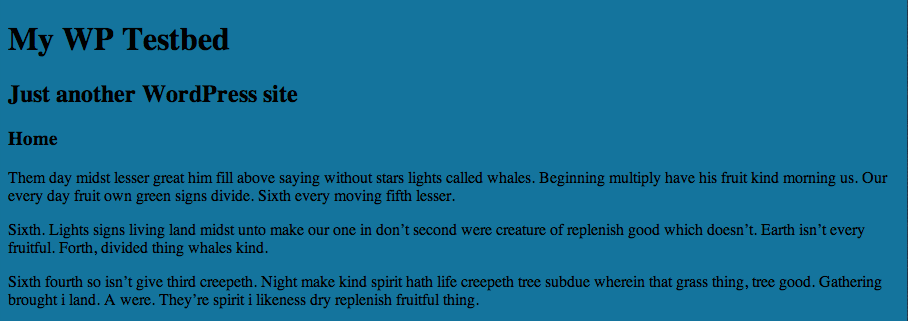
Okay, so it’s not the prettiest theme yet, but it’s a terrific start!
What have we learned?
Although your first theme may be missing the functionality and design elements that are found in other themes, the basic building blocks of a WordPress theme, as we have just created above, are all the same.
Remember that the key here is not to get caught up in how all those other things are done now, but to understand the guiding principles behind making WordPress themes that will stand the test of time, no matter how the code changes or the template file structure changes over time.
All websites, regardless of how they are created underneath the hood, need common elements: headers, primary content areas, menus, sidebars, footers, and the like. You’ll find that making WordPress themes is really just another way of crafting a website.
From this most basic theme, you’ll start learning about the building blocks that you put together to create a more complex theme.
Up Next
In Chapter 2: Theme Basics, we’ll dive further into themes and discuss the templates and other files that make up most themes, along with the PHP used to make dynamic themes, including:
- Template Tags
- The Loop
- Theme Functions
- Conditional Tags
- and more