Galleries
概述
本文档介绍了 WordPress 中画廊(Galleries)功能的使用,包括如何通过短代码在文章、页面或模板文件中创建和自定义图像画廊。核心内容涵盖基本短代码语法、常用选项(如排序、列数、尺寸等)以及高级设置。
关键要点
- 画廊是展示图片的有效方式,WordPress 默认提供创建画廊功能,需先上传图片到媒体库。
- 使用 [gallery] 短代码可添加画廊,支持 ids 参数指定图像 ID,或依赖附件图像。
- 在模板文件中,可使用 do_shortcode() 函数输出短代码,例如:。
- 短代码支持多种选项,如 orderby(排序依据)、order(排序顺序)、columns(列数)、size(图像尺寸)、link(链接目标)等。
- 高级选项包括 itemtag、icontag、captiontag 用于自定义 HTML 标签,以及 include 和 exclude 用于包含或排除特定附件 ID。
- 注意:include 和 exclude 不能同时使用;图像 ID 可从媒体库 URL 中获取。
代码示例
// 基本短代码示例
[gallery]
[gallery ids="10, 205, 552, 607"]

// 在模板文件中使用 do_shortcode()
<?php echo do_shortcode('[gallery]'); ?>
<?php echo do_shortcode('[gallery ids="10, 205, 552, 607"]'); ?>

// 使用选项的短代码
[gallery order="DESC" orderby="ID"]
[gallery columns="4"]
[gallery size="medium"]
[gallery link="file"]
[gallery include="23,39,45"]
[gallery exclude="21,32,43"]

// 高级 HTML 标签自定义
[gallery itemtag="div" icontag="span" captiontag="p"]

// 使用过滤器处理短代码
<?php
$gallery_shortcode = '[gallery id="' . intval( $post->post_parent ) . '"]';
print apply_filters( 'the_content', $gallery_shortcode );
?>
注意事项
- 创建画廊前,确保媒体库中有图像,否则需先上传。
- 使用 [gallery] 短代码时,若不指定 ids,则仅显示附加到当前文章或页面的图像。
- include 和 exclude 选项不能同时使用,以避免冲突。
- 图像 ID 可从媒体库中点击图像后查看 URL 获取,确保使用正确的 ID。
- 在模板文件中使用短代码时,注意代码格式和引号转义,避免语法错误。
Galleries
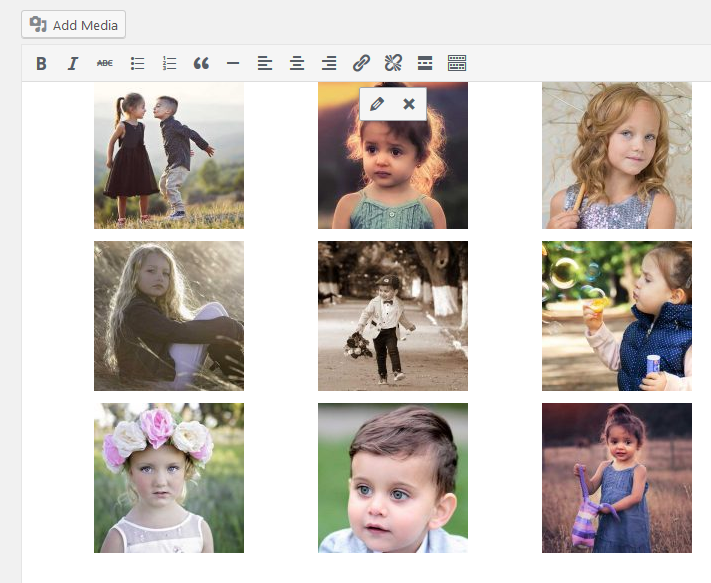
Image galleries are the best way to showcase your pictures on your WordPress sites. WordPress bundles the Create Gallery feature by default in the media uploader which allows you to create a simple gallery.
Note: Before adding a gallery, you must have images in your media library. Otherwise, you need to upload the images into the library and can proceed on gallery creation.
Gallery shortcode
The Gallery feature allows you to add one or more image galleries to your posts and pages using a simple Shortcode.
The basic form of gallery shortcode is:
ids argument in your post or page, only images that are “attached” to that post or page will be displayed.If you need to add multiple images with ID’s, use the following sample shortcode
//Note: 10, 205, 552 and 607 are the IDs of respected image.
To use the shortcode from the template file, use the do_shortcode() function. Insert the following code into your template file:
<?php echo do_shortcode( ); ?>If you need to use the shortcode with IDs, insert the following code in your template file:
<?php echo do_shortcode( ); ?>Usage
There are may options that may be specified using the below syntax:
If you want to print the gallery directly on the template file, use `do_shortcode() ` function like below:
<?php echo do_shortcode( '' ); ?>If you need to filter the shortcodes, the following example gives you some tips
// Note: 'the_content' filter is used to filter the content of the
// post after it is retrieved from the database and before it is
// printed to the screen.
<?php
$gallery_shortcode = '';
print apply_filters( 'the_content', $gallery_shortcode );
?>
Supported Options
Gallery Shortcodes supports the basic options which are listed below:
Orderby
‘orderby’ specifies the order the thumbnails show up. The default order is ‘menu_order’.
- menu_order: You can reorder the images in the Gallery tab of the Add Media popup
- title: Order by the title of the image in the Media Library
- post_date: Sort by date/time
- rand: Order randomly
- ID: Specify the post ID
Order
order specify the sort order used to display thumbnail; ASC or DESC. For Example, to sort by ID and DESC:
If you need to print it on template file, use the do_shortcode() function;
<?php echo do_shortcode( '' ); ?>columns
The Columns options specify the number of columns in the gallery. The default value is 3.
If you want to increase the number of column in the galley, use the following shortcode.
If you need to print it on your template file, use the do_shortcode() function;
<?php echo do_shortcode(' '); ?>IDs
The IDs option on the gallery shortcode loads images with specific post IDs.
If you want to display the attached image with the specific post ID, follow the following code example.
// Note: remove each space between brackets and 'gallery' and brackets and `123"`.
//Here "123" stands for the post IDs. If you want to display more than
//one ID, separate the IDs by a comma `,`.
[ gallery id="123" ]
Use ‘do_shortcode’ function to print the gallery with IDs on template files like below:
// Note: remove each space between brackets and 'gallery' and brackets and `123"`.
<?php echo do_shortcode(' [ gallery id="123" ] '); ?>
Size
Size determines the image size to use for the thumbnail display. Valid values include “thumbnail”, “medium”, “large”, “full” and any other additional image size that was registered with add_image_size(). The default value is “thumbnail”. The size of the images for “thumbnail”, “medium” and “large” can be configured in WordPress admin panel under Settings > Media.
For example, to display a gallery of medium sized images:
Some advanced options are also available on Gallery shortcodes.
itemtag
The name of the HTML tag used to enclose each item in the gallery. The default is “dl”.
icontag
The name of the HTMLtag used to enclose each thumbnail icon in the gallery. The default is “dt”.
captiontag
The name of the HTML tag used to enclose each caption. The default is “dd”.
You are allowed to change the defaults.
Link
Specify where you want the image to link. The default value links to the attachment’s permalink. Options:
- file – Link directly to image file
- none – No link
Example:
Include
Include allows you to insert an “array” of comma separated attachment IDs to show only the images from these attachments.
Exclude
Exclude callows you to insert an “array” of comma separated attachment IDs to not show the images from these attachments. Please note that include and exclude cannot be used together.
References
For more technical details take a reference from below links