使用 FileZilla
概述
本文介绍如何使用 FileZilla FTP 客户端来管理 WordPress 站点,包括安装、设置和连接服务器。FileZilla 是一个支持 SFTP、FTPS 等协议的开源文件传输工具,适用于 Windows、Linux 和 macOS。
关键要点
- FileZilla 是一个免费、快速、稳定且易于使用的 FTP 客户端,支持 SFTP 和 FTPS 等加密协议。
- 使用前需从主机获取服务器名称、协议(推荐 SFTP)、用户名和密码等连接信息。
- 通过 Site Manager 注册服务器,简化连接过程,只需点击即可连接。
- 连接后,可在远程目录树中查看服务器文件,便于上传和下载文件管理 WordPress 站点。
- 遇到连接问题时,检查服务器名称、协议、端口、用户名和密码设置,或调整传输模式为被动模式。
注意事项
- 确保输入的主机名称正确,不要添加不必要的斜杠。
- 密码区分大小写,需仔细核对。
- 如果主机支持,优先使用 SFTP 协议以提高安全性。
FileZilla is an open-source file transfer client and server. Both the client and the server are available for Windows, Linux, and macOS. FileZilla supports SFTP and FTPS (encrypted), plus other protocols. If your host supports it, prefer SFTP over plain FTP.
FileZilla may be used to manage your WordPress site by uploading and downloading files and images. This article will guide you through the process of installing and using the FileZilla FTP client to manage your WordPress site.
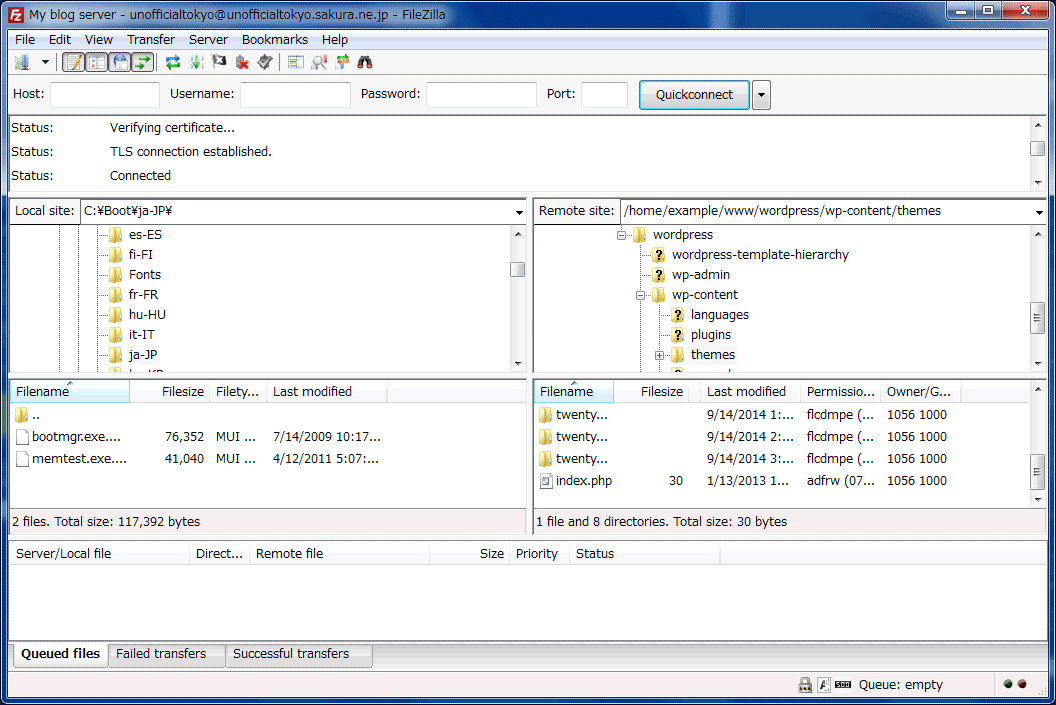
For more information about FileZilla, view the list of features at the official site.
Why would I want to download FileZilla?
It’s fast, stable, easy to use, and free. FTP is a standard way to upload or download files between your local system and your web server, and FileZilla is a solid client for everyday FTP needs.
Setting Up the Options
You will need the following details from your host (for FTP, FTPS, or SFTP):
- The host/server name (often something like
example.com,ftp.example.com, or a host-provided server name) - The protocol (prefer SFTP if available; some hosts offer FTPS instead)
- Your username
- Your password (or, for SFTP, sometimes an SSH key)
If you do not already have an FTP account on your server, use your Control Panel or website administration tool to set one up — it will have all the information required. If in doubt, ask your host for directions or help regarding an FTP account for your use to access your webspace.
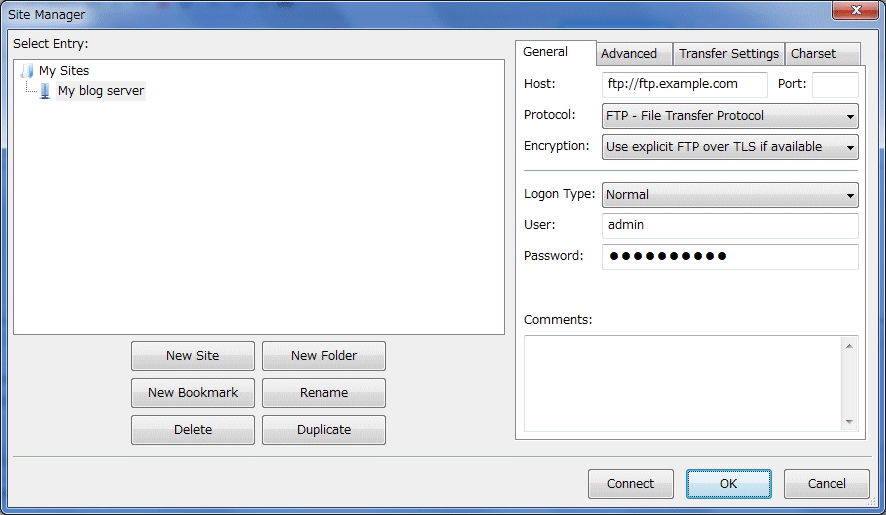
Before connecting the FTP server, you should register it in the Site Manager. Once you register it, you just one click to connect to the same server.
To register the FTP server, follow the below steps:
- Click File Site Manager from FileZilla main window.
- Click New Site then name the new connection to what you want (example: My blog server).
- Enter the host/server name in the Host box. This may be
ftp.example.com,example.com, or a host-provided value. Check with your host if you do not know. Note: Do not put a/at the end unless specifically told to do so by your host. - Choose the correct Protocol for your account (prefer SFTP when available). Leave Port blank unless your host provides a specific port. Common defaults are 22 (SFTP) and 21 (FTP).
- Select Normal from Logon Type box
- Enter the full username that you have been given in the User box. It may be just a username, or it may look like an email address (but it isn’t one). For instance, it would look similar to
useroruser@example.com. - Enter password. Remember that the password might be case-sensitive.
- Click OK.
Connecting
Go to the first icon in the toolbar of FileZilla’s main window, “Open the Site Manager”, click the down arrow, and select your FTP server from the dropdown list.
Alternatively, start the Site Manager from File Site Manager, select your FTP server, and click ‘Connect’.
Following the appearance of a series of messages in the small window (Message Log), you should then see the list of the files on your server in the large window (Remote Directory Tree).
Troubleshooting
If you have a problem, then it’s time to start troubleshooting!
Look at the top area of the FileZilla main window and check the messages.
- If there was no attempt to connect, then the server/host name is wrong (or the protocol/port is incorrect). All it needs is one character to be incorrect and it will fail. Click the red X, break the connection, and click the Site Manager to check what you entered.
- If it says that the user does not exist or Incorrect Login and so on, check the Site Manager setting and ensure that it reflects what your FTP account and password details provided by your host says, or use the web server administration interface provided to you by your host to re-check the existence of the FTP account. Check your password carefully. It is case-sensitive (capitals and small letters). You may want to ask your web host for some assistance, too.
- If it says Could not retrieve directory listing, you may need to change the Transfer Setting. From Site Manager, select your FTP Server and click the Transfer Settings tab. Select Passive from Transfer mode and click OK.