创建网络前的注意事项
概述
本文档概述了在创建 WordPress 多站点网络前需要考虑的要求和决策,包括网络类型选择、管理需求和服务器配置。它帮助开发者评估是否真正需要多站点网络,并提供安装前的关键指导。
关键要点
- 评估是否需要多站点网络:多站点网络中的站点是独立的,类似于 WordPress.com 上的独立博客,如果站点需要强互联、共享数据或用户,可能不是最佳解决方案。
- 选择网络类型:根据 URL 处理方式和是否允许用户按需创建站点,可以选择基于域(子域名)或基于路径(子目录)的网络类型,每种类型有不同的服务器要求。
- 管理需求:创建多站点网络需要 WordPress 管理员权限和服务器文件系统访问权限(如通过 FTP 或 cPanel),但不需要深入的开发知识,尽管这些知识有助于故障排除和定制。
- 服务器要求:确保服务器支持复杂的 .htaccess(或 nginx.conf、web.config)规则,Apache 服务器需要加载 mod_rewrite,并配置 AllowOverride 设置。
- WordPress 设置要求:从现有 WordPress 安装开始创建多站点网络时,需注意域名设置(如避免使用 www)、目录配置和 URL 限制,某些情况下无法创建网络或选择特定安装类型。
注意事项
- 在激活多站点网络前,如果 WordPress 使用自己的目录,需先进行相关配置更改。
- 避免在域名中使用 www,特别是计划使用子域名时,确保站点地址和 WordPress 地址一致。
- 基于域的网络需要配置 DNS 和服务器以映射域名到 WordPress 安装目录,基于路径的网络在已有漂亮固定链接时通常能正常工作。
- 现有 WordPress 安装超过一个月时,可能无法选择基于路径的网络安装,因固定链接问题。
This section outlines some requirements to consider before you begin creating a multisite network.
Do you really need a network?
The sites in a multisite network are separate, very much like the separate blogs at WordPress.com. They are not interconnected like things in other kinds of networks (even though plugins can create various kinds of interconnections between the sites). If you plan on creating sites that are strongly interconnected, that share data, or share users, then a multisite network might not be the best solution.
For example, if all you want is for different collections of web pages to look very different, then you can probably achieve what you want in a single site by using a plugin to switch themes, templates, or stylesheets.
For another example, if all you want is for different groups of users to have access to different information, then you can probably achieve what you want in a single site by using a plugin to switch capabilities, menus, and link URLs.
This guide describes how to install manually WordPress Multisite in your current WordPress installation.
Types of multisite network
You can choose between several different types of multisite network depending on how you want your network to handle URLs, and on whether it will allow end users to create new sites on demand.
Different types of network have different server requirements, which are described in a section below. If you do not have full control over your server then certain types of multisite network might not be available to you. For example, you might not have full control over your server because you use a shared hosting environment. In that case you will have to negotiate the requirements with whoever operates the hosting environment.
The sites in a network have different URLs. You can choose one of two ways for the URL to specify the site:
- Each site has a different subdomain. For example:
site1.example.com,site2.example.com. - Each site has a different path. For example:
example.com/site1,example.com/site2
Additionally, you can map domains like example1.com, example2.com, etc, however a plugin is suggested. You can make the changes directly in the network settings, but it’s considered advanced administration.
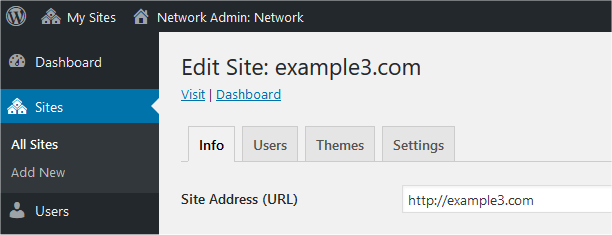
Administration managing sites
You can also choose whether or not to allow end users to create new sites on demand. Domain-based on-demand sites are normally only possible using subdomains like site1.example.com and site2.example.com. Path-based on-demand sites are also possible.
The multisite installation process uses different terminology. A sub-domain install creates a domain-based network, even though you might use separate mapped domains, and not subdomains, for your sites. A sub-directory install creates a path-based network, even though it does not use file system directories. If you want to use a sub-domain install, you must install WordPress in the root of your webpath (i.e. domain.com) however it does not need to be installed in the root (i.e. /public_html/) if you choose to run WordPress from its own directory.
After the multisite network installation is complete, WordPress uses the terminology domain and path for each site’s domain and path in the Network Admin user interface. A super admin (that is, a multisite network administrator) can edit sites’ domain and path settings, although it is unusual to do this to established sites because it changes their URLs.
Plugins can extend the options available and help with administration. Search Plugin Directory by ‘multisite’ or click this link.
Admin Requirements
To create a multisite network you must be the administrator of a WordPress installation, and you normally need access to the server’s file system so that you can edit files and create a directory. For example, you could access the server’s file system using FTP, or using the File Manager in cPanel, or in some other way.
You do not necessarily need any knowledge of WordPress development, PHP, HTML, CSS, server administration or system administration, although knowledge of these things might be useful for troubleshooting or for customizing your multisite network after installation.
Server Requirements
When you are planning a network, it can sometimes be helpful to use a development server for initial testing. However, setting up a development server that exactly matches your production server is not always possible, and transferring an entire network to a production server may not be easy. A test site on your production server is sometimes a more useful way to test your planned network.
In all cases, you will need to make sure your server can use the more complex .htaccess (or nginx.conf or web.config) rules that Multisite requires.
Multisite requires mod_rewrite to be loaded on the Apache server, support for it in .htaccess files, and Options FollowSymLinks either already enabled or at least not permanently disabled. If you have access to the server configuration, then you could use a Directory section instead of a .htaccess file. Also make sure that your httpd.conf file is set for “AllowOverride” to be “All” or “Options All” for the vhost of the domain. You can ask your webhost for more information on any of this.
Some server requirements depend on the type of multisite network you want to create, as follows.
Domain-based
Also known as ‘Subdomain’ installs, a Domain-based network uses URLs like https://subsite.example.com
A domain-based network maps different domain names to the same directory in the server’s file system where WordPress is installed. You can do this in various ways, for example:
- by configuring wildcard subdomains
- by configuring virtual hosts, specifying the same document root for each
- by creating addon domains or subdomains in cPanel or in a similar web hosting control panel
On-demand domain-based sites require the wildcard subdomains method. You can create additional sites manually in the same network using other methods.
Whichever methods you use, you will need to configure your DNS (to map the domain name to the server’s IP address) and server (to map the domain name to the WordPress installation directory). WordPress will then map the domain name to the site.
WordPress should be run from the root of your webfolder (i.e. public_html) for subdomains to work correctly. Making subdomains work from a non-root directory requires experience with Virtual Hosts and redirects.
External links:
- Wildcard DNS record (Wikipedia)
- Apache Virtual Host (Apache HTTP Server documentation)
- cPanel Domains (cPanel documentation)
For some examples of how to configure wildcard subdomains on various systems, see: Configuring Wildcard Subdomains
Path-based
Also known as ‘Subfolder’ or ‘Subdirectory’ installs, a path-based network uses URLs like https://example.com/subsite
If you are using pretty permalinks in your site already, then a path-based network will work as well, and you do not need any of the other information in this section. That said, be aware that your main site will use the following URL pattern for posts: https://example.com/blog/[postformat]/
At this time, you cannot remove the blog slug without manual configuration to the network options in a non-obvious place. It’s not recommended.
WordPress Settings Requirements
When you install a multisite network you start from an existing WordPress installation. If it is a fresh install with its own domain name, then you do not need to read this section. If it is an established site, or not reachable using just a domain name, then the following requirements apply to allow it to be converted to a multisite network.
Be Aware
Giving WordPress its own directory works with Multisite as of 3.5, however you must make the ‘own directory’ changes before you activate Multisite.
While it’s not recommended to use www in your domain URL, if you chose to do so and plan to use subdomains for multisite, make sure that both the site address and the WordPress address are the same. Also keep in mind some hosts will default to showing this sort of URL:

For this, and many other reasons, we do not suggest you use www in your domain name whenever possible. If you plan on changing them to domain.com or www.domain.com, do so before you begin the rest of the setup for multisite, as changing the domain name after the fact is more complicated.
Restrictions
You cannot create a network in the following cases:
- “WordPress address (URL)” uses a port number other than ‘:80’, ‘:443’.
You cannot choose Sub-domain Install (for a domain-based network) in the following cases:
- The WordPress URL contains a path, not just a domain. (That is, WordPress is not installed in a document root, or you are not using the URL of that document root.)
- “WordPress address (URL)” is
localhost. - “WordPress address (URL)” is IP address such as 127.0.0.1.
(Note that you can create a domain-based network on your local machine for testing purposes by using your hosts file to map some other hostnames to the IP address 127.0.0.1, so that you never have to use the hostname localhost.)
You cannot choose Sub-directory Install (for a path-based network) if your existing WordPress installation has been set up for more than a month, due to issues with existing permalinks. (This problem will be fixed in a future version. See Switching network types for more information.)
See wp-admin/network.php for more detail)