备份
概述
本文档介绍了WordPress备份的重要性、方法和最佳实践,包括数据库和文件的备份,以及自动备份选项。备份是防止数据丢失的关键步骤,建议定期执行并存储多个副本。
关键要点
- WordPress备份包括数据库和文件两部分,两者都需备份以完全恢复网站。
- 建议定期备份数据库,特别是在升级或迁移前,备份频率取决于网站活动水平。
- 应保留至少3-5个最近备份,并存储在不同位置(如服务器、云存储、本地计算机)。
- 自动备份可通过插件实现,但建议偶尔手动备份以验证过程。
- 备份方法包括使用主机提供的软件、FTP客户端、phpMyAdmin等工具。
- 恢复时通常先恢复文件,再导入数据库,并更新wp-config.php以匹配数据库凭证。
代码示例
-- 在phpMyAdmin中导出数据库的SQL示例步骤:
-- 1. 选择数据库和所有表。
-- 2. 在输出部分选择“保存输出到文件”,压缩选“无”。
-- 3. 格式选SQL,勾选“添加DROP TABLE”和“IF NOT EXISTS”。
-- 4. 点击“执行”以保存文件。
注意事项
- 备份时确保数据库和文件作为“备份集”同时创建,以保持一致性。
- 使用phpMyAdmin备份时,注意版本差异可能影响界面和步骤。
- 对于大型数据库,考虑使用压缩方法以减少文件大小。
- 恢复前测试备份文件,确保其完整性和可用性。
WordPress Backups
Note: Want to skip the hard stuff? Skip to Automated Solutions such as WordPress Plugins for backups.
Your WordPress database contains every post, every comment and every link you have on your blog. If your database gets erased or corrupted, you stand to lose everything you have written. There are many reasons why this could happen, and not all are things you can control. With a proper backup of your WordPress database and files, you can quickly restore things back to normal.
Instructions to back up your WordPress site include:
- WordPress Site and your WordPress Database
- Automatic WordPress backup options
In addition, support is provided online at the WordPress Support Forum to help you through the process.
Site backups are essential because problems inevitably occur and you need to be in a position to take action when disaster strikes. Spending a few minutes to make an easy, convenient backup of your database will allow you to spend even more time being creative and productive with your website.
Backup Questions
Back up your database regularly, and always before an upgrade.
How often should you back up?
That depends on how often you blog, how often you want to do this, and how you would feel if your database were lost along with a few posts. It is your decision. General suggestion when backups should be made:
- For smaller websites with fewer posts, backups should be made once a week.
- For high-activity websites with a lot of posts, backups should be made daily.
Can you use this method to back up other data?
Yes. Backups are good all around.
How many backups should I keep?
You should keep at least 3–5 recent WordPress backups to stay safe from data loss, with copies stored in different locations — for example, one on your hosting server, one on cloud storage (Google Drive, Dropbox, etc.), and one downloaded to your local computer. This way, even if one backup fails or is lost, you’ll always have a reliable version to restore your website.
Can backups be automated?
Yes. There are several methods of automating the backup process available, and we’ve listed some in the Automatic WordPress backup section. However, it is highly recommended that you back up those auto backups with a manual backup once in a while to guarantee that the process is working.
Is there more information on backing up WordPress available?
Yes. See Backup Resources for more information.
Backing Up Your WordPress Site
There are two parts to backing up your WordPress site: Database and Files. You need both to be able to fully restore a typical WordPress site.
For step-by-step instructions, see:
Database vs files (why both are needed)
It is common to wonder whether “backing up the files” also backs up the database. In a typical WordPress setup, the answer is no:
- WordPress files are the files in your WordPress directory on the web server (WordPress core, themes, plugins, uploads,
wp-config.php,.htaccess, etc.). - The WordPress database is stored in a separate database system (usually MySQL/MariaDB). You usually cannot back it up by downloading your WordPress directory, because the database lives outside of it.
When you “back up the database” you usually create an export/dump file (for example, a .sql, .gz, or .bz2 file). That exported file is a file and you can store it alongside your file backups — but restoring still requires importing it back into MySQL/MariaDB.
Recommended backup and restore order
To keep backups consistent, it helps to treat the files + database as one “backup set” (for example, both created around the same time).
- Backup (typical order):
- Back up the database first, then back up the WordPress files.
- Optionally store the database export file inside the same backup folder/zip as the file backup, so they stay together.
- Restore (typical order):
- Restore the WordPress files first, then restore/import the database.
- If you changed database credentials during a migration, update
wp-config.phpto match.
Your WordPress site consists of the following:
- WordPress Core installation
- WordPress plugins
- WordPress themes
- Images and files
- JavaScript, PHP, and other code files
- Additional files and static web pages
All of these are used in various combinations to generate your website. The database contains your posts and a lot of data generated on your site, but it does not include the above elements that all come together to create the look and information on your site. These need to be saved.
Most hosts back up the entire server, including your site, but it takes time to request a copy of your site from their backups, and a speedy recovery is critical. You need to learn how to back up your own site files and restore them.
Here are some methods to backup your site files:
Website Host Provided Backup Software
Most website hosts provide software to back up your site. Check with your host to find out what services and programs they provide.
Create Sync With Your Site
WinSCP and other programs allow you to sync with your website to keep a mirror copy of the content on your server and hard drive updated. It saves time and makes sure you have the latest files in both places.
Copy Your Files to Your Desktop
Using FTP Clients or UNIX Shell Skills you can copy the files to a folder on your computer. Once there, you can compress them into a zip file to save space, allowing you to keep several versions.
Remember, keep at least three backups on file, just in case one is corrupted or lost, and store them in different places and on different mediums (such as CD’s, DVDs or hard drives).
Database Backup Instructions
Back up your WordPress database regularly, and always before an upgrade or a move to a new location. The following information will help you back up your WordPress database using various popular server software packages. For detailed information, contact your website host for more information.
Accessing phpMyAdmin
See phpMyAdmin for more information on phpMyAdmin.
While familiarity with phpMyAdmin is not necessary to back up your WordPress database, these instructions should take you step-by-step through the process of finding phpMyAdmin on your server. Then you can follow the instructions below as a simple and easy backup. For more detailed instructions, see Backing Up Your Database.
- Plesk
- cPanel
- Direct Admin
- Ensim
- vDeck
- Ferozo
Plesk
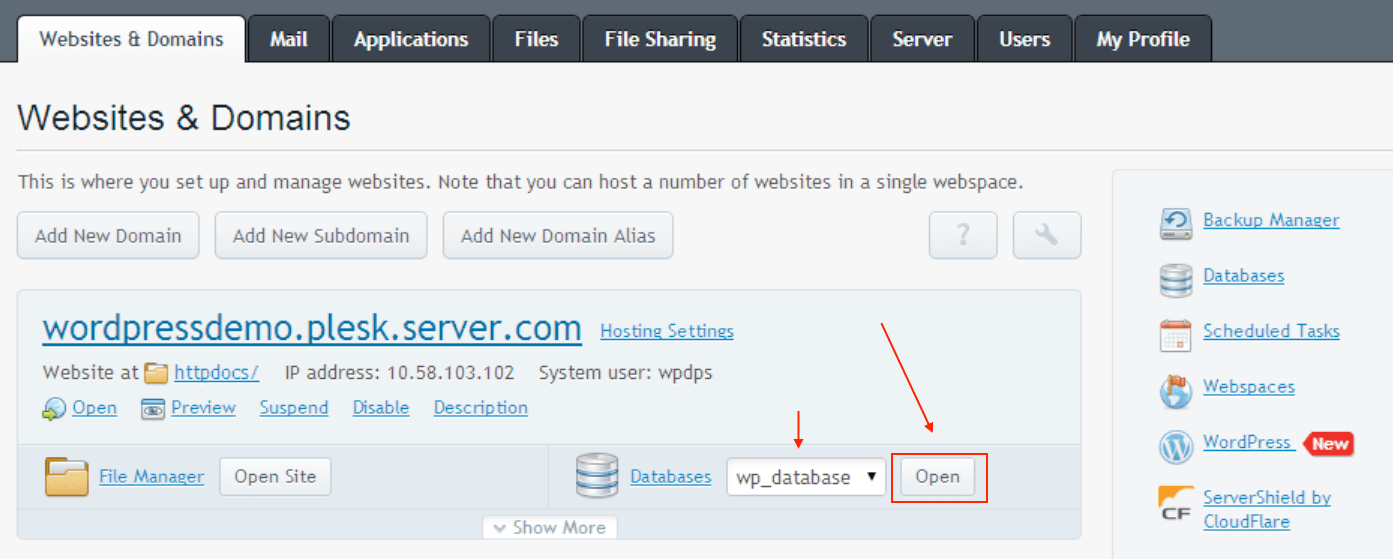
On your Websites & Domains screen, click Open button corresponding to the database you have set up during the WordPress installation. This will open phpMyAdmin interface:
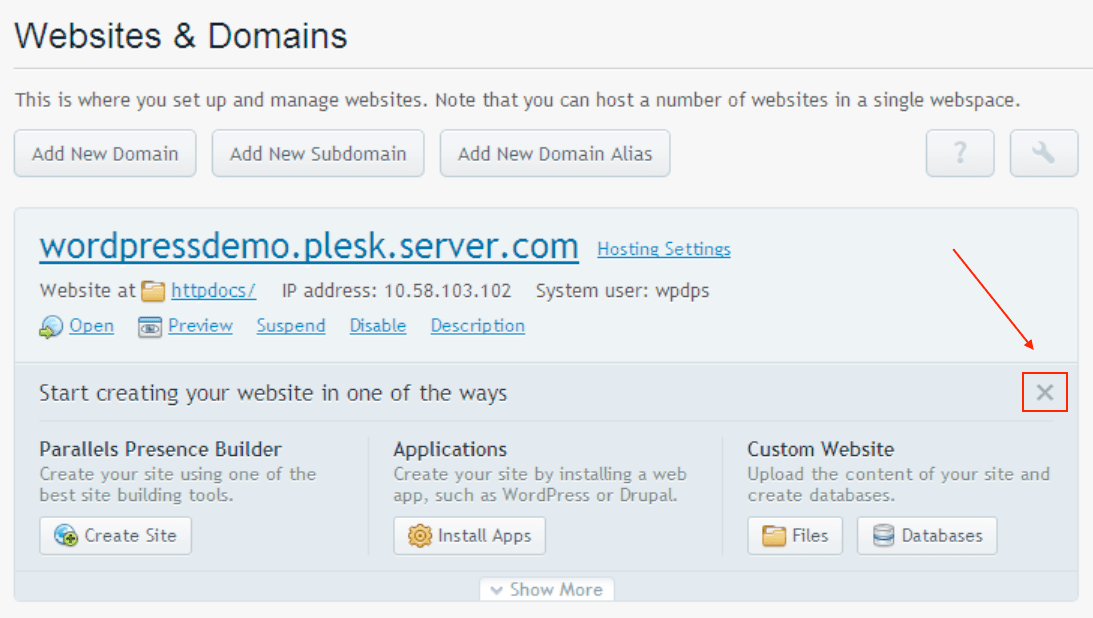
If you cannot see the Open button, make sure to close the Start creating your website prompt:
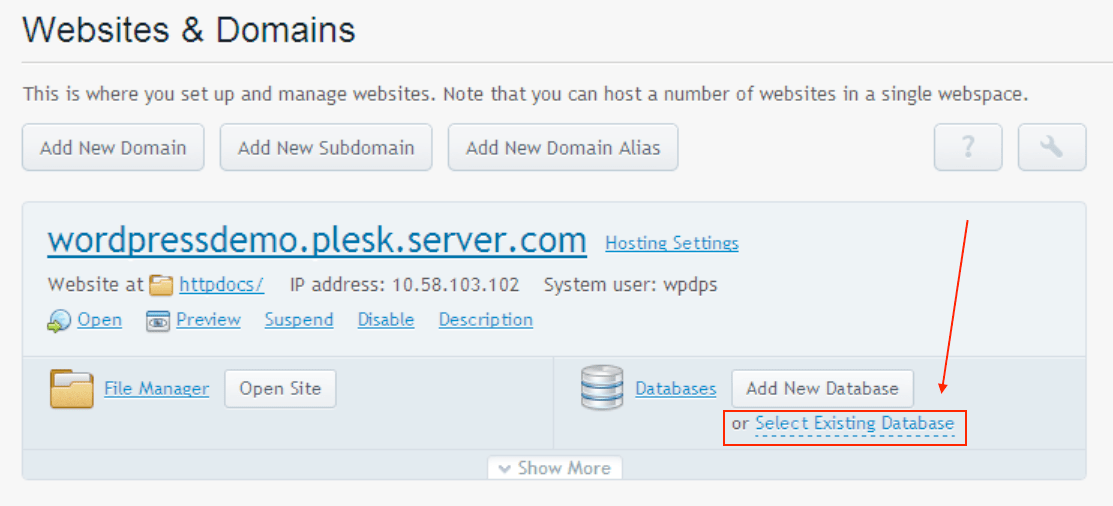
Click Select Existing Database to find select your WordPress database:
cPanel
On your main control panel for cPanel, look for the MySQL logo and click the link to MySQL Databases. On the next page, look for phpMyAdmin link and click it to access your phpMyAdmin.

Direct Admin
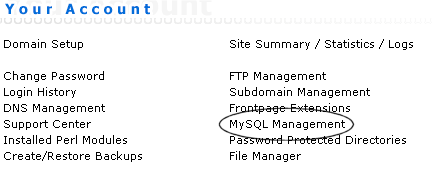
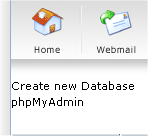
From Your Account page, look for MySQL Management and click it to access phpMyAdmin.
Ensim
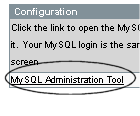
Look for the MySQL Admin logo and click the link. Under Configuration choose MySQL Administration Tool.

vDeck
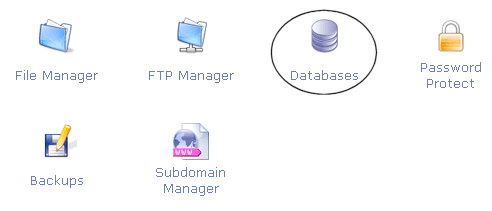
From the main control panel, click Host Manager, then click Databases. In the next window, click Admin. Another window will popup taking you to the phpMyAdmin login screen.

Ferozo
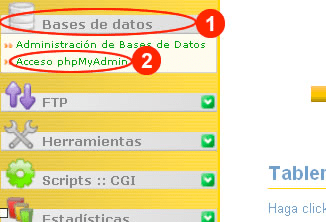
Login to your Ferozo Control Panel by using your credentials. Once inside, go to the “Base de Datos” (“Data Base”) menu and then click on “Acceso phpMyAdmin” (“Access phpMyAdmin”). A new window will open displaying the phpMyAdmin login screen.
Simple Backup with phpMyAdmin
The following is a very simple version of Backing Up Your Database. Once you have discovered how to access your site’s phpMyAdmin, follow these simple instructions.
- Click on Databases in your phpMyAdmin panel. (It may not be necessary to do this, depending on your version of phpMyAdmin)
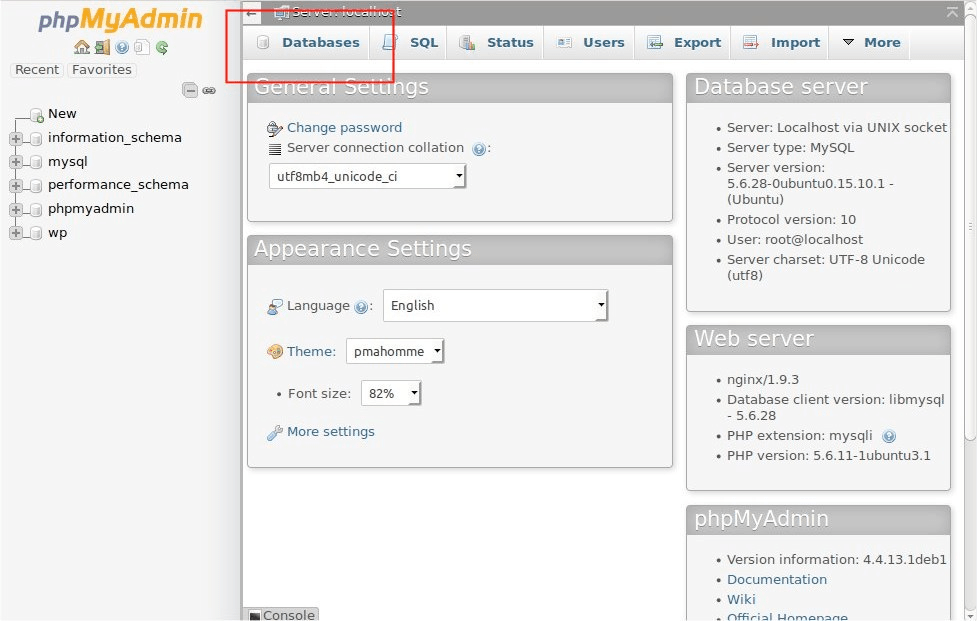
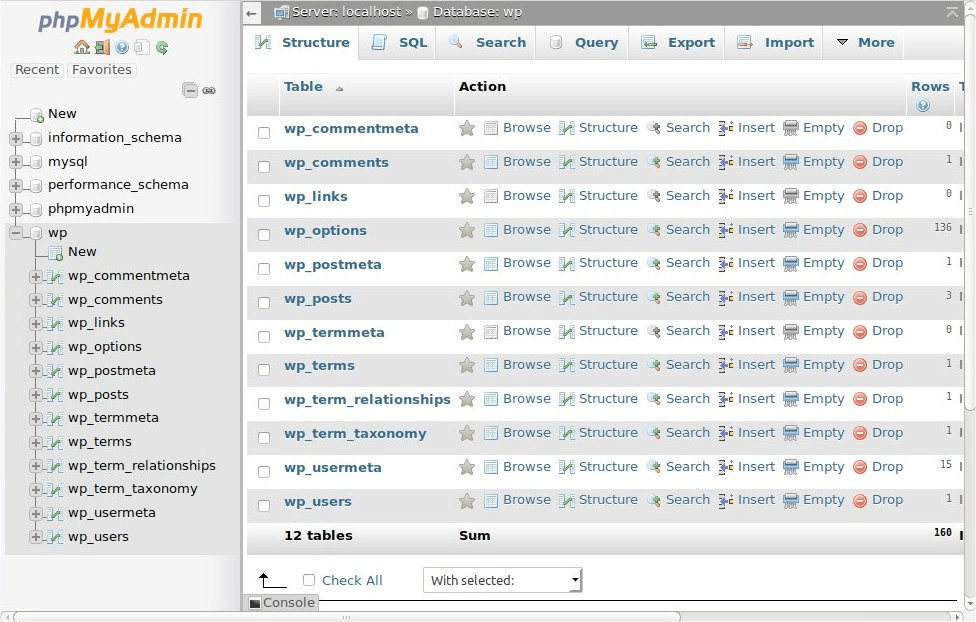
- You may have several databases. Click the one that holds your WordPress data, the database you created when you installed WordPress. (In older versions this may be done through a pull-down menu.)
-
Below is a picture of the default tables in the Structure view tab. You may have more tables — this would happen if you have any statistics plugins or anti-spam plugins.
- Click Export.
– There are two methods to export, Quick and Custom; if you choose Custom, follow these steps:
– Select all the tables.
– In the Output section check Save output to a file and select None for Compression. (If your database is very large use a compression method)
– Select SQL from the Format drop-down menu.
– Check “Add DROP TABLE”: this can be useful for over-writing an existing database.
– Check “IF NOT EXISTS”: this prevents errors during restores if the tables are already there.
– Click Go. The data will now be saved into your computer.
Automatic Backups
Various plugins exist to take automatic scheduled backups of your WordPress database. This helps to manage your backup collection easily. You can find automatic backup plugins in the Plugin Browser on the WordPress Administration Screens or through the WordPress Plugin Directory.
Backup Resources
- FTP Backups – How to automate backing up to an FTP server
- Incremental Backups – How to make encrypted incremental backups using duplicity
- Using phpMyAdmin with WordPress