文件编辑器屏幕
概述
本文档介绍了 WordPress 中的插件文件编辑器屏幕,允许开发者编辑插件文件。编辑器位置取决于主题类型,并提供文件编辑、文档查找和更新功能。
关键要点
- 插件文件编辑器用于查看或修改插件 PHP 代码,位于 Tools(块主题)或 Appearance(经典主题)菜单下。
- 编辑器显示可编辑的插件文件列表,支持从下拉菜单中选择插件和文件进行编辑。
- 编辑激活的插件文件需谨慎,编辑器不创建备份;若错误导致站点崩溃,需通过 FTP 恢复或重命名 /plugins/ 文件夹。
- 编辑器下方提供函数名下拉菜单,可点击“Lookup”按钮查看 Code Reference 或 PHP 文档。
- 编辑后需点击“Update File”按钮保存更改,若文件不可写则按钮不可用。
注意事项
- 插件文件为纯文本,无法插入图像或图片。
- 保存更改前需确保文件可写,否则会显示提示信息。
- 编辑后若未看到“File edited successfully”消息,表示更改未保存。
Among the many user-editable files in a standard WordPress installation are the Plugins files. Though it should be rare that you need to change a Plugin code, the Plugin File Editor Screen allows you to edit those Plugin files.
You can find this editor in the following places depending on your theme:
- If you are using a Block theme, this editor will be listed under Tools.
- If you are using a Classic theme, this editor will be listed under Appearance.
Edit Plugins
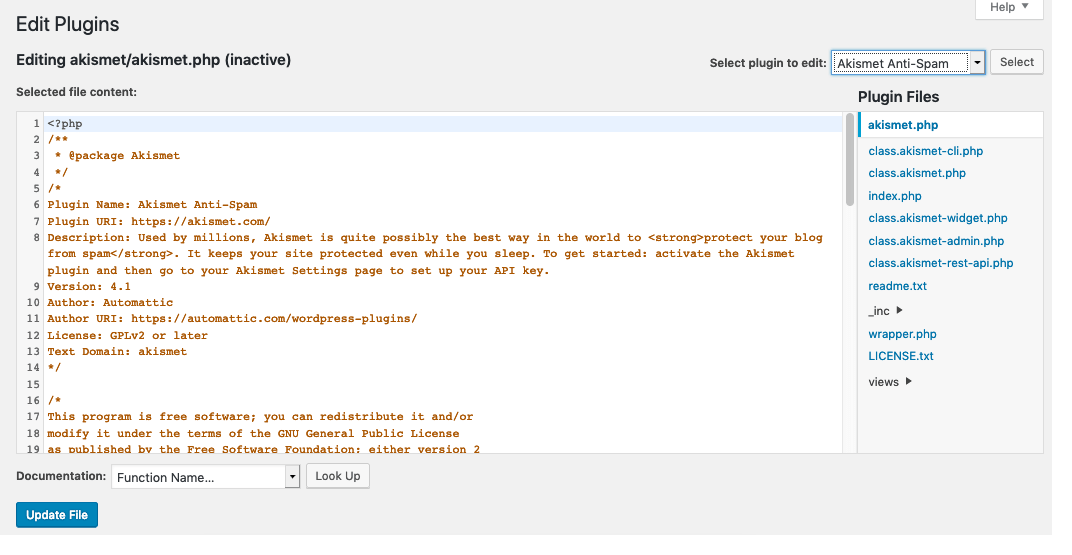
The built-in Plugin File Editor allows you to view or change any Plugin PHP code in the large text (or edit) box that dominates this Screen.
If a particular file is writeable you can make changes and save the file from here. If not, you will see the message You need to make this file writable before you can save your changes.
The name of the Plugin file being edited shows up at the top of the text box. Since Plugin files are pure text, no images or pictures can be inserted into the text box.
You can select a Plugin to edit from the dropdown menu on the top right. Just find a Plugin name and click “Select”.
Plugin Files
Below the Plugin Selection Menu is a list of the Plugin files that can be edited. Click on any of the file links to place the text of that file in the text box.
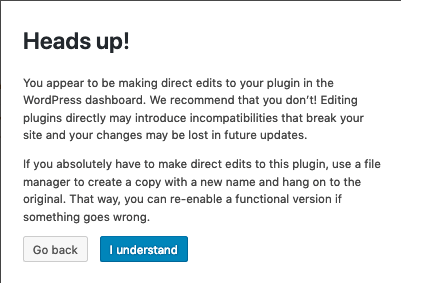
Be very careful editing activated plugin files. The editor does not make backup copies. If you introduce an error that crashes your site, you cannot use the editor to fix the problem. In such a case, use FTP to either upload a functional backup of the problem file or change the folder name of the /plugins/ folder under /wp-content/, which effectively deactivates all plugins until the folder is renamed correctly.
Documentation Lookup
Under the editor, there is a dropdown menu listing function names found in the Plugin file you are editing. By selecting a function and clicking the “Lookup” button, you can view its documentation on Code Reference or PHP.
Update File
Remember to click this button to save the changes you have made to the Plugin file. After clicking this button you should see a splash message at the top of the screen saying “File edited successfully”. If you don’t see that message, then your changes are not saved! Note that if a file is not writeable the Update File button will not be available.