将 WP-Cron 挂钩到系统任务调度器
概述
本文档介绍了如何将 WP-Cron 与系统任务调度器集成,以解决 WP-Cron 不连续运行的问题,确保关键任务按时执行。通过配置系统调度器定期触发 wp-cron.php 文件,并禁用 WordPress 内置的 WP-Cron 以减少服务器资源消耗。
关键要点
- WP-Cron 不连续运行,可能导致关键任务延迟,可通过系统任务调度器(如 Windows Task Scheduler、cron)定期调用 wp-cron.php 文件来解决。
- 在配置系统调度器后,需在 wp-config.php 文件中添加 define( 'DISABLE_WP_CRON', true ); 以禁用 WordPress 内置的 WP-Cron,避免额外资源使用。
- Windows 系统可使用 PowerShell 命令 powershell "Invoke-WebRequest http://YOUR_SITE_URL/wp-cron.php" 来设置任务。
- MacOS 和 Linux 系统使用 cron,可通过 crontab -e 编辑任务,例如使用 wget --delete-after http://YOUR_SITE_URL/wp-cron.php 命令,并遵循 cron 语法(如 */15 * * * * 表示每15分钟运行)。
代码示例
define( 'DISABLE_WP_CRON', true );注意事项
- 使用 wget 时,需添加 --delete-after 选项以避免保存 HTTP GET 请求的输出文件。
- cron 任务会根据执行命令的系统用户权限运行,需注意用户权限设置。
As previously mentioned, WP-Cron does not run continuously, which can be an issue if there are critical tasks that must run on time. There is an easy solution for this. Simply set up your system’s task scheduler to run on the intervals you desire (or at the specific time needed). The easiest solution is to use a tool to make a web request to the wp-cron.php file.
After scheduling the task on your system, there is one more step to complete. WordPress will continue to run WP-Cron on each page load. This is no longer necessary and will contribute to extra resource usage on your server. WP-Cron can be disabled in the wp-config.php file. Open the wp-config.php file for editing and add the following line:
define( 'DISABLE_WP_CRON', true );Windows
Windows calls their time based scheduling system the Task Scheduler. It can be accessed via the Administrative Tools in the control panel.
How you setup the task varies with server setup. One method is to use PowerShell and a Basic Task. After creating a Basic Task the following command can be used to call the WordPress Cron script.
powershell "Invoke-WebRequest http://YOUR_SITE_URL/wp-cron.php"MacOS and Linux
Mac OS X and Linux both use cron as their time based scheduling system. It is typically access from the terminal with the crontab -e command. It should be noted that tasks will be run as a regular user or as root depending on the system user running the command.
Cron has a specific syntax that needs to be followed and contains the following parts:
- Minute
- Hour
- Day of month
- Month
- Day of week
- Command to execute
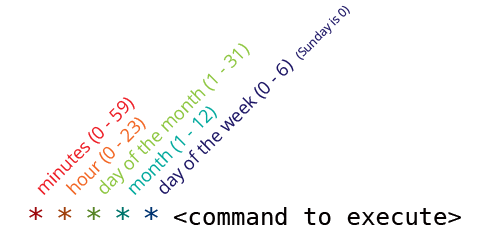
If a command should be run regardless of one of the time sections an asterisk (*) should be used. For example if you wanted to run a command every 15 minutes regardless of the hour, day, or month it would look like:
*/15 * * * * commandMany servers have wget installed and this is an easy tool to call the WordPress Cron script.
wget --delete-after http://YOUR_SITE_URL/wp-cron.phpA daily call to your site’s WordPress Cron that triggers at midnight every night could look similar to:
0 0 * * * wget --delete-after http://YOUR_SITE_URL/wp-cron.php