探索 WordPress 6.5 中的 Block Hooks API
Block Hooks API 于 WordPress 6.4 引入,是一种可扩展性机制,允许您动态地将区块插入区块主题。例如,插件可以在网站主导航菜单中添加一个电子商务购物车区块,而无需用户手动添加。
该 API 旨在模拟您可能用于扩展经典主题的钩子和过滤器,但存在一些关键差异。
- 顾名思义,您只能使用 Block Hooks API 插入区块,并且只能插入到模板、模板部件和模式中。
- 该 API 与站点编辑器协同工作。虽然区块被挂钩时前端插入会自动发生,但用户拥有最终控制权。在站点编辑器中,他们可以保留、移除、自定义或移动该区块,这些更改将反映在前端。
WordPress 6.5 扩展了该 API,增加了许多社区请求的新功能。您可以将区块插入导航菜单以及用户修改过的模板、模板部件和模式中。两个新的过滤器允许您自定义插入区块的属性。现在支持静态渲染的区块,等等。
本文通过多个实用示例,全面概述了如何在项目中利用 Block Hooks API。让我们开始吧。
如何创建区块钩子
Block Hooks API 背后的概念很简单。您选择一个要插入区块主题的区块类型,并选择另一个区块类型作为“锚点”。被挂钩的区块将相对于锚点区块插入,通常在其之前或之后。
也许您想在文章标题区块之前挂钩一个文章特色图片区块。在这种情况下,锚点是 core/post-title,相对位置是 before。
该 API 包含两种实现区块钩子的方法。您可以在区块的 block.json 文件中使用 blockHooks 属性,或者使用 hooked_block_types 过滤器。然后,hooked_block 过滤器允许您修改任何先前挂钩的区块。
虽然我将概述每种方法和过滤器,但我鼓励您查阅开发说明,以更技术性地了解 Block Hooks API 及其创建原则。
- Introducing Block Hooks for dynamic blocks (WordPress 6.4)
- Updates to Block Hooks in 6.5 (WordPress 6.5)
block.json
在 block.json 中指定的区块钩子是无条件的,这意味着该区块将相对于每个模板、模板部件和模式中锚点区块的所有实例插入。
在区块的 block.json 文件中,包含 blockHooks 属性。此属性接受一个对象,其中键是锚点区块的名称,值指定其位置。可能的值包括 before、after、firstChild 和 lastChild。
以下示例将无条件地将区块插入到所有文章内容区块实例之后。您可以指定多个锚点。
"blockHooks": {
    "core/post-content": "after"
}
hooked_block_types
hooked_block_types 过滤器提供了更大的灵活性,也是本文大多数示例将使用的方法。它允许您无条件或有条件地挂钩区块。
该过滤器的回调函数接受四个参数,并返回修改后的已挂钩区块数组:
$hooked_block_types(array): 已挂钩区块的数组。$relative_position(string): 被挂钩区块的相对位置:before、after、first_child或last_child。$anchor_block_type(string): 锚点区块的名称。$context(WP_Block_Template|WP_Post|array): 锚点区块所属的区块模板、模板部件、wp_navigation文章类型或模式。
在创建条件钩子时,您通常会使用 $context 参数。
以下是过滤器和回调函数的一般结构。
function add_example_block_after_post_content_block( $hooked_block_types, $relative_position, $anchor_block_type, $context ) {

	// Unconditionally hook the Example block after the Post Content block.
	if ( 'after' === $relative_position && 'core/post-content' === $anchor_block_type ) {
		$hooked_block_types[] = 'example-block/example-block';
	}

	return $hooked_block_types;
}
add_filter( 'hooked_block_types', 'add_example_block_after_post_content_block', 10, 4 );
hooked_block
hooked_block 过滤器及其区块特定变体 hooked_block_{$hooked_block_type} 在 WordPress 6.5 中引入。使用这些过滤器,您可以修改任何已挂钩区块的属性,甚至将其包装在另一个区块中,例如 Group 区块。
两个过滤器的回调函数都接受五个参数,并返回修改后的已解析挂钩区块:
$parsed_hooked_block(array|null): 已挂钩区块,以解析后的区块数组格式表示,或者为 null,表示先前的过滤器已抑制给定区块的注入。$hooked_block_type(string): 已挂钩区块类型名称。$relative_position(string): 已挂钩区块的相对位置(可以是before、after、first_child或last_child之一)。$parsed_anchor_block(array): 锚点区块,以解析后的区块数组格式表示。$context(WP_Block_Template|WP_Post|array): 锚点区块所属的区块模板、模板部件、wp_navigation文章类型或模式。
$parsed_hooked_block 和 $parsed_anchor_block 变量是具有以下格式的数组:
blockName(string): 区块名称。attrs(array): 区块属性数组。innerBlocks(array): 内部区块数组,每个区块的格式与$parsed_hooked_block相同。innerContent(array): 内部内容数组。
您以前可能从未使用过这种区块表示形式。虽然 WordPress 内部使用它已有多年,但 Block Hooks API 是少数向扩展者公开解析后区块数组格式的工具之一。
探索这些过滤器最有效的方法是通过示例。本文的其余部分将重点介绍该 API 的四种不同应用,您可以将其调整用于自己的项目。
基础示例(示例 1)
对于第一个示例,让我们使用 Block Hooks 的主要开发者之一 Bernie Reiter 开发的 Like Button 区块。它添加了一个心形图标和“Like”一词。点击时,心形会变成红色。在本文中,我还将使用 Twenty Twenty-Four 主题,但请随意使用任何区块主题进行实验。
Like Button 区块默认在两个位置被“挂钩”。其 block.json 文件包含以下 blockHooks 属性,这将无条件地将该区块作为所有评论模板区块的 lastChild 插入。
"blockHooks": {
    "core/comment-template": "lastChild"
}
然后,在插件的主文件 like-button.php 中,使用 hooked_block_types 过滤器有条件地将区块插入到文章内容区块之后。作为参考,该区块的名称是 ockham/like-button。
function add_like_button_block_after_post_content_block( $hooked_block_types, $relative_position, $anchor_block_type, $context ) {

	// Only hook the block on Single templates (posts).
	if ( ! $context instanceof WP_Block_Template || ! property_exists( $context, 'slug' ) || 'single' !== $context->slug ) {
		return $hooked_block_types;
	}

	// Hook the block after the Post Content block.
	if ( 'after' === $relative_position && 'core/post-content' === $anchor_block_type ) {
		$hooked_block_types[] = 'ockham/like-button';
	}

	return $hooked_block_types;
}
add_filter( 'hooked_block_types', 'add_like_button_block_after_post_content_block', 10, 4 );
在区块主题中,文章内容区块可能出现在许多上下文中,例如作为模式一部分的查询循环中。该插件的条件方法确保 Like Button 仅插入到 single.html 模板上的文章内容区块之后。如果 $context 不是 WP_Block_Template 对象的实例或者 slug 不是 single,则不会发生任何操作。
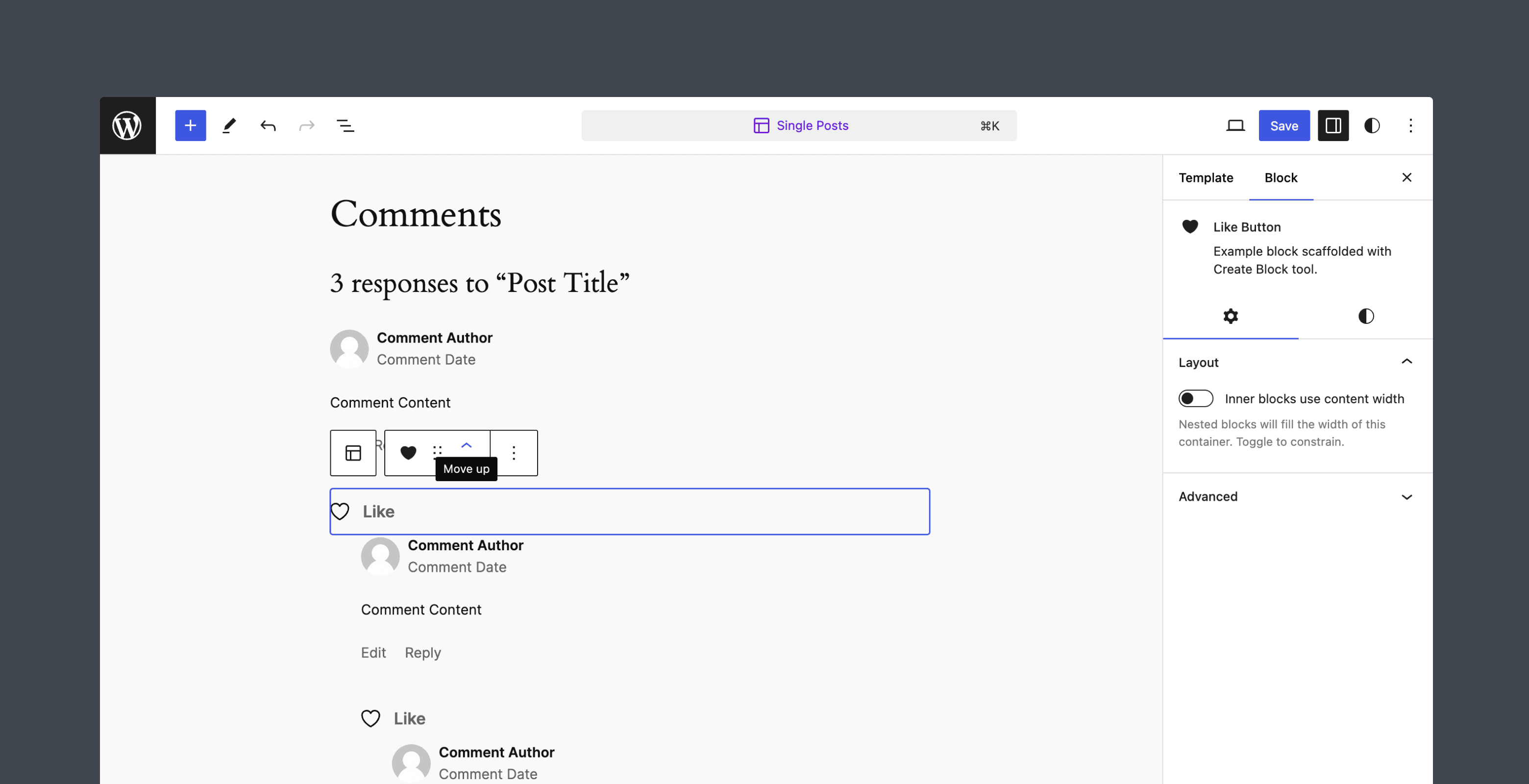
在以下截图中,您可以看到此实现在文章中的样子。Like Button 插入在文章内容区块之后以及每个评论模板区块的底部。
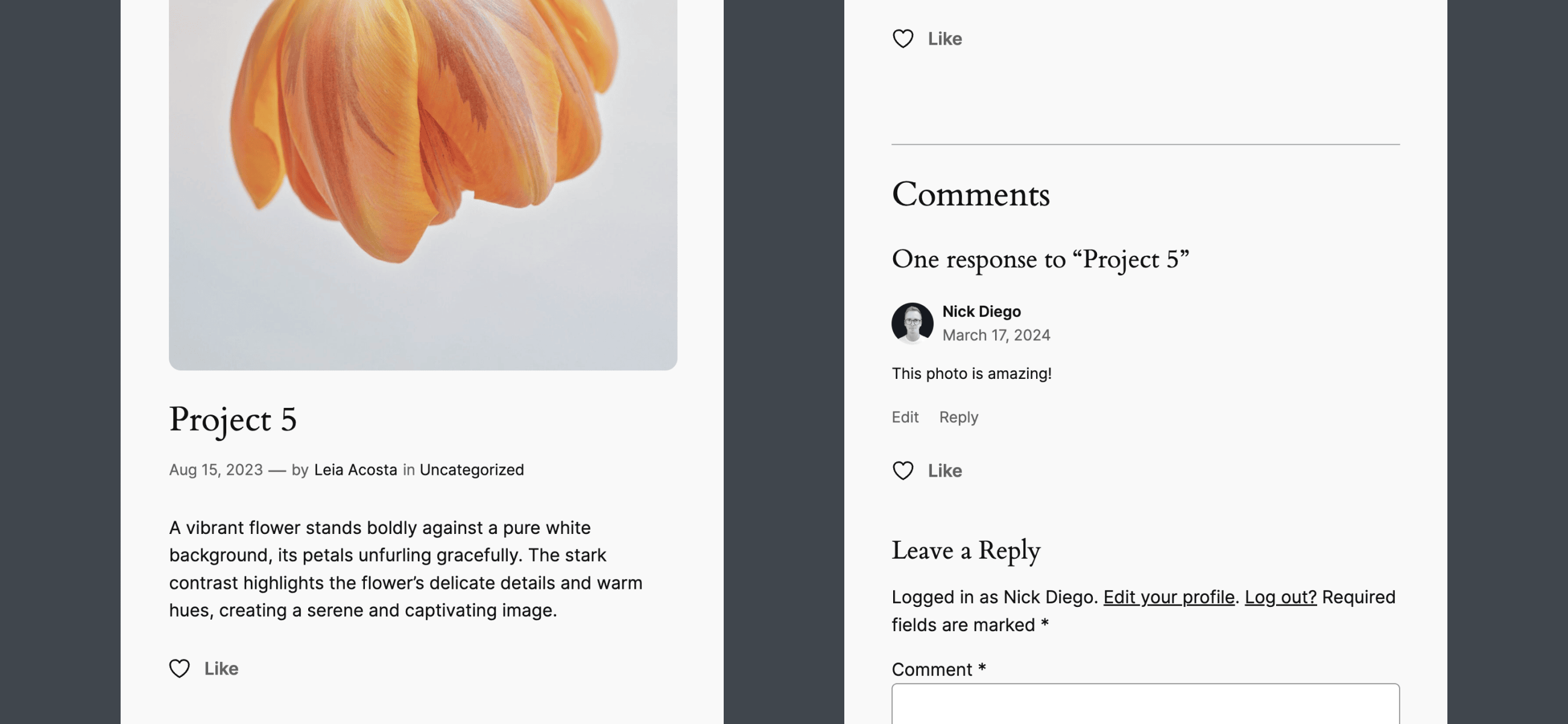
这些区块也存在于站点编辑器中,用户可以进行移动或移除。
创建实用插件
假设您想更改 Like Button 区块的位置。您可以直接修改 Like Button 插件,但更常见的情况是您无法直接控制要插入的区块。相反,我建议创建一个包含必要过滤器的实用插件。
导航到本地 WordPress 环境中的 plugins 文件夹。创建一个名为 block-hooks-demo 的新文件夹,其中包含文件 block-hooks-demo.php。将以下头部添加到文件中并激活插件。
<?php
/**
 * Plugin Name:       Block Hooks Demo
 * Description:       Block Hooks API experiments.
 * Version:           0.1.0
 * Requires at least: 6.5
 */
您可以将本文中的示例代码添加到演示插件中,而不是修改主题的 functions.php 文件或任何其他插件文件。此步骤不是必需的,但通常有助于保持代码分离。
插入区块
在 Like Button 插件中,该区块在文章的文章内容区块之后被挂钩。让我们将该区块挂钩到文章标题上方。
首先,您需要使用 hooked_block_types 将区块插入到正确的位置。代码将如下所示。
function add_like_button_block_before_post_title_block( $hooked_block_types, $relative_position, $anchor_block_type, $context ) {

	// Only hook the block on Single templates (posts).
	if ( ! $context instanceof WP_Block_Template || ! property_exists( $context, 'slug' ) || 'single' !== $context->slug ) {
		return $hooked_block_types;
	}

	// Insert the Like Button block before the Post Title block.
	if ( 'before' === $relative_position && 'core/post-title' === $anchor_block_type ) {
		$hooked_block_types[] = 'ockham/like-button';
	}

	return $hooked_block_types;
}
add_filter( 'hooked_block_types', 'add_like_button_block_before_post_title_block', 12, 4 );
与上面 Like Button 插件中的代码类似,您需要:
- 首先检查
$context是否为模板以及模板slug是否为single。 - 然后检查锚点区块是否为
core/post-title,以及位置是否为before。
作为一般规则,您应始终首先应用基于 $context 的条件。
保存文件并刷新文章后,该区块应位于文章标题上方和文章内容区块(由 Like Button 插件添加)下方。
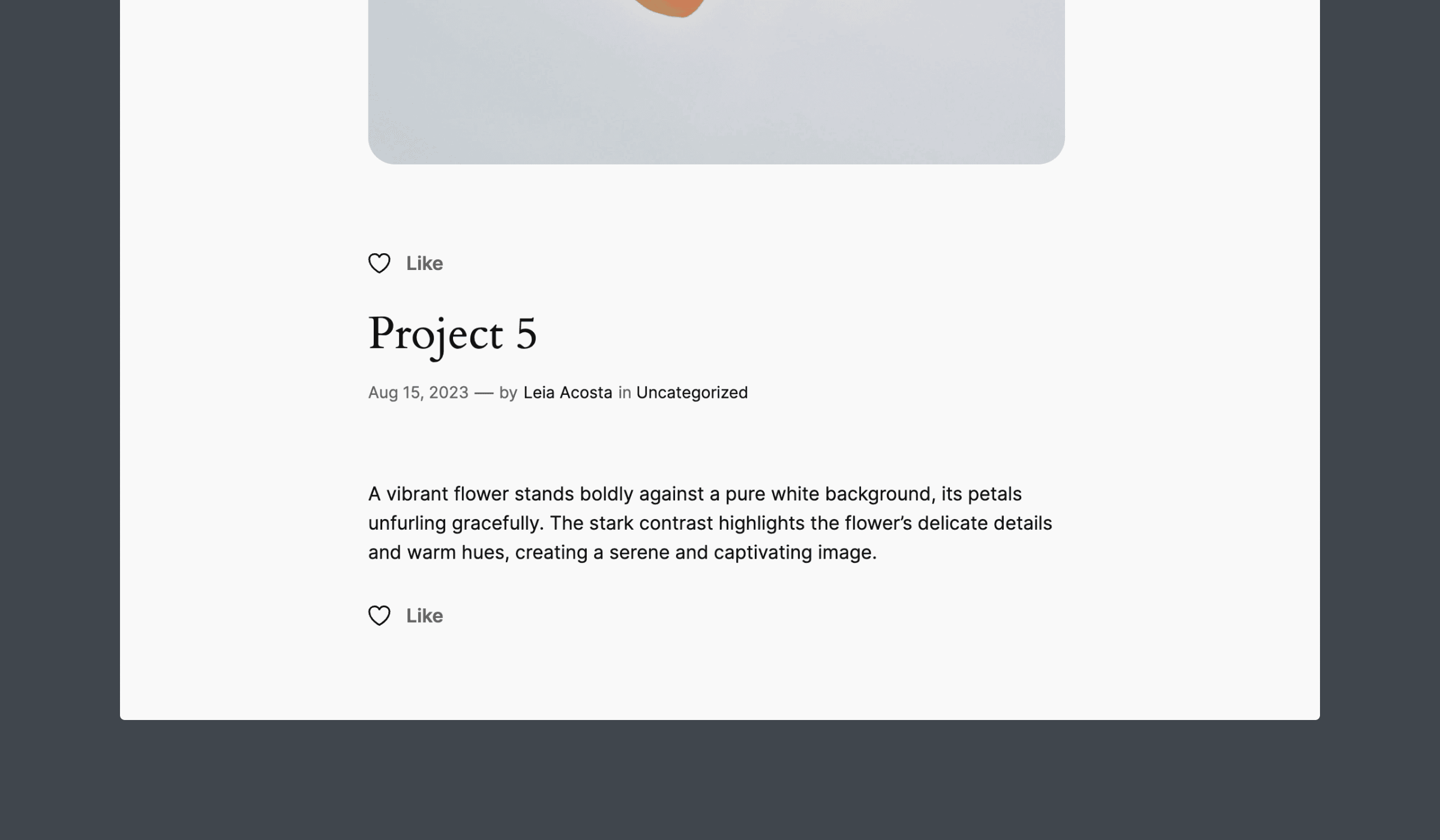
移除已挂钩的区块
不需要两个 Like Button 区块,因此让我们移除出现在文章内容之后的那个。
有多种方法可以实现。在上面的代码中,只需添加一个条件,如果锚点是文章内容,则取消设置 ockham/like-button 区块。它将如下所示。
function add_like_button_block_before_post_title_block( $hooked_block_types, $relative_position, $anchor_block_type, $context ) {

	// Only apply this hook on the single template.
	if ( ! $context instanceof WP_Block_Template || ! property_exists( $context, 'slug' ) || 'single' !== $context->slug ) {
		return $hooked_block_types;
	}

	// Insert the Like Button block before the Post Title block.
	if ( 'before' === $relative_position && 'core/post-title' === $anchor_block_type ) {
		$hooked_block_types[] = 'ockham/like-button';
	}

	// Remove the Like Button block after the Post Content block.
	if ( 'after' === $relative_position && 'core/post-content' === $anchor_block_type ) {
		$hooked_block_types = array_filter( $hooked_block_types, function( $block ) {
			return 'ockham/like-button' !== $block;
		} );
	}

	return $hooked_block_types;
}
add_filter( 'hooked_block_types', 'add_like_button_block_before_post_title_block', 12, 4 );
或者,您可以使用新的 hooked_block 或 hooked_block_{$hooked_block_type} 过滤器。我更喜欢区块特定的过滤器,它应该是 hooked_block_ockham/like-button。
以下是完整的代码。
function remove_hooked_like_button_block_after_post_content( $parsed_hooked_block, $hooked_block_type, $relative_position, $parsed_anchor_block, $context  ) {

	// Has the hooked block been suppressed by a previous filter?
	if ( is_null( $parsed_hooked_block ) ) {
		return $parsed_hooked_block;
	}

	// Remove any Like Button blocks hooked after Post Content.
	if ( 'core/post-content' === $parsed_anchor_block['blockName'] ) {
		return null;
	}

	return $parsed_hooked_block;
}
// Priority is set to 15.
add_filter( 'hooked_block_ockham/like-button', 'remove_hooked_like_button_block_after_post_content', 15, 5 );
第一个条件检查区块是否已被先前的过滤器抑制。虽然在这种情况下技术上不需要,但这是一个好习惯,尤其是在使用可能也使用 Block Hooks API 的第三方插件时。
第二个条件检查文章内容区块是否为锚点。如果是,则返回 null。这将“取消挂钩”此位置中的任何 Like Button 区块,无论模板或模式如何。如果您需要更多控制,可以像在 hooked_block_types 过滤器中一样使用 $context 属性。
移除区块时,通常需要提高过滤器的优先级以确保它在任何其他用于插入区块的过滤器之后运行。在这里,我将优先级设置为 15。默认值为 10。
保存文件并刷新文章。最终结果应如下所示。
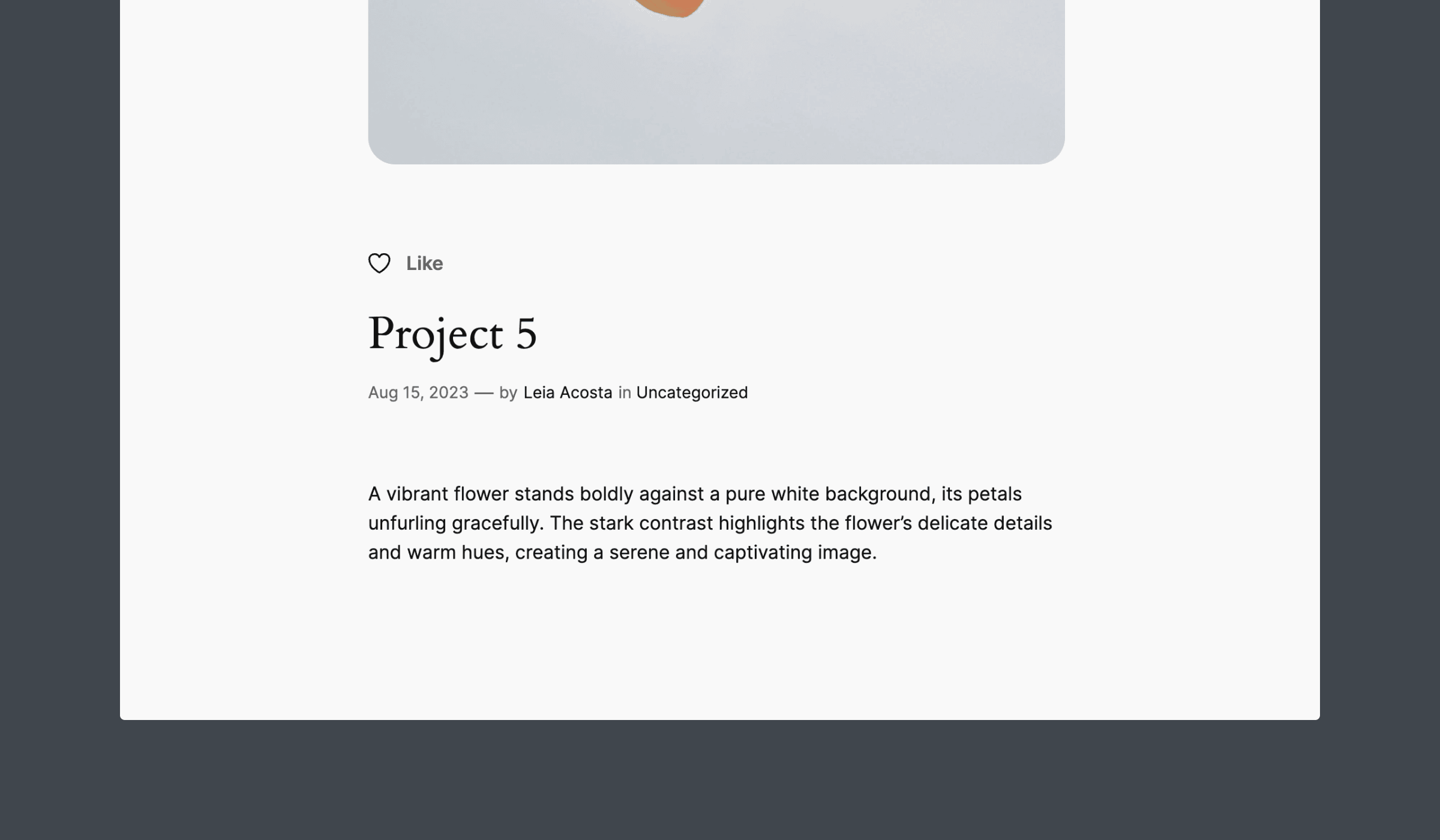
此示例仅触及了 hooked_block 和 hooked_block_{$hooked_block_type} 过滤器功能的表面。
上下文与区块属性(示例 2)
是时候通过另一个示例来提升难度了。让我们使用 Block Editor Handbook 文档 中的 Copyright Date 区块。此区块显示版权符号 (©)、当前年份和可选的起始年份。它还包括属性和多个区块支持,这将展示 WordPress 6.5 中新过滤器的灵活性。
按照 快速入门指南 中的说明,在本地 WordPress 环境中搭建 Copyright Date 区块。
此示例旨在在插件激活时自动插入一个区块。在这种情况下,您将在网站的页脚添加 Copyright Date 区块,这是大多数版权声明的常见位置。
虽然每个区块主题的页脚布局都会不同,但许多也包含站点标题区块。Twenty Twenty-Four 的默认页脚在左侧显示站点标题“Leia Acosta”。
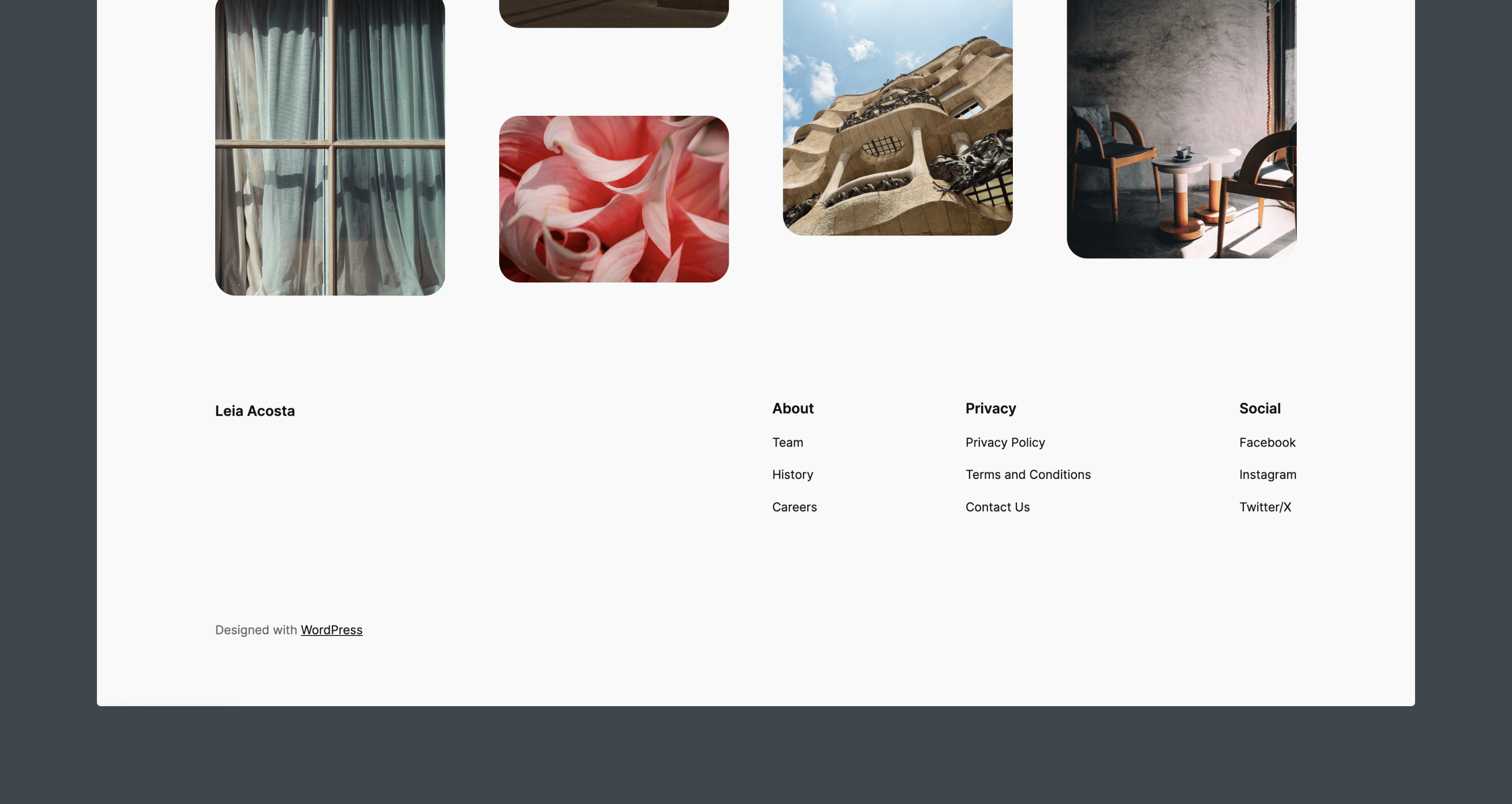
让我们在主题的页脚模板部件和任何设计为页脚的模式中,将 Copyright Date 区块插入到站点标题区块之后。站点标题将作为锚点。
插入区块
首先使用 hooked_block_types 过滤器将区块插入到 core/site-title 区块 after 的位置。
function add_copyright_date_block_to_footer( $hooked_block_types, $relative_position, $anchor_block_type, $context ) {

	if (
		'core/site-title' === $anchor_block_type &&
		'after' === $relative_position
	) {
		$hooked_block_types[] = 'create-block/copyright-date-block';
	}

return $hooked_block_types;
}
add_filter( 'hooked_block_types', 'add_copyright_date_block_to_footer', 10, 4 );
此时,尚未设置包含 $context 的条件,这意味着此过滤器将在您网站上的每个站点标题区块之后添加 Copyright Date 区块。
理解上下文:模板与模式
在使用 Block Hooks API 时,理解 $context 变量如何变化非常重要。
许多区块主题在主题提供的模板和模板部件中使用模式区块。Twenty Twenty-Four 主题就是一个很好的例子。以下是默认 footer.html 模板部件的外观。
<!-- wp:pattern {"slug":"tw