15种定制WordPress编辑体验的方法
定制WordPress编辑器可以通过调整界面以满足特定需求,从而极大地提升用户体验。通过定制编辑环境,您可以简化内容创建、减少杂乱、强制保持一致性,并确保可用的工具是相关的。
本文将向您介绍15种定制编辑器的方法,并展示WordPress中当前可用的各种方法。
应用定制方法
在深入示例之前,重要的是要理解编辑器定制可以采取多种形式,并通过多种方式实现。虽然许多方法可以通过theme.json、PHP或JavaScript实现,但有些方法需要特定的方法。
如果您想跟着操作,本指南假设您希望将编辑器修改添加到主题中,但您可以轻松地调整它们以在插件中使用。主要区别在于放置每个过滤器或函数的位置。
除非另有说明,如果示例需要PHP代码,请将其放在主题的functions.php文件中。如果需要JavaScript,请创建一个名为editor-curation-examples.js的文件,并将其放在主题的assets/js文件夹中。
接下来,使用enqueue_block_editor_assets钩子和wp_enqueue_script()函数来入队editor-curation-examples.js。将此代码插入到主题的functions.php文件中。
function example_enqueue_editor_curation_examples() {
	wp_enqueue_script(
		'example-enqueue-block-variations',
		get_template_directory_uri() . '/assets/js/editor-curation-examples.js',
		array( 'wp-blocks', 'wp-dom-ready' ),
		wp_get_theme()->get( 'Version' ),
		true // Print scripts in the footer. This is required for scripts to work correctly in the Site Editor.
	);
}
add_action( 'enqueue_block_editor_assets', 'example_enqueue_editor_curation_examples' );
定制示例
以下示例仅触及了WordPress中当前可用定制方法的表面。当您查看每一个时,请考虑如何根据您的需求进行调整。
配置theme.json设置
在WordPress中定制编辑体验时,最好的起点是主题的theme.json文件中的settings属性。此文件允许您配置全局和块级设置,这些设置定义了编辑器的默认行为。这也是最容易实现的方法,因此在考虑PHP或JavaScript替代方案之前,您应该探索theme.json中的所有可能性。
虽然有许多可用的配置,但这里有一个简单的示例,禁用了标题块的颜色支持。
{
    "version": 3,
    "settings": {
        "blocks": {
            "core/heading": {
                "color": {
                    "text": false,
                    "background": false,
                    "link": false
                }
            }
        }
    }
}
应用后,颜色面板将不再出现在块检查器中。
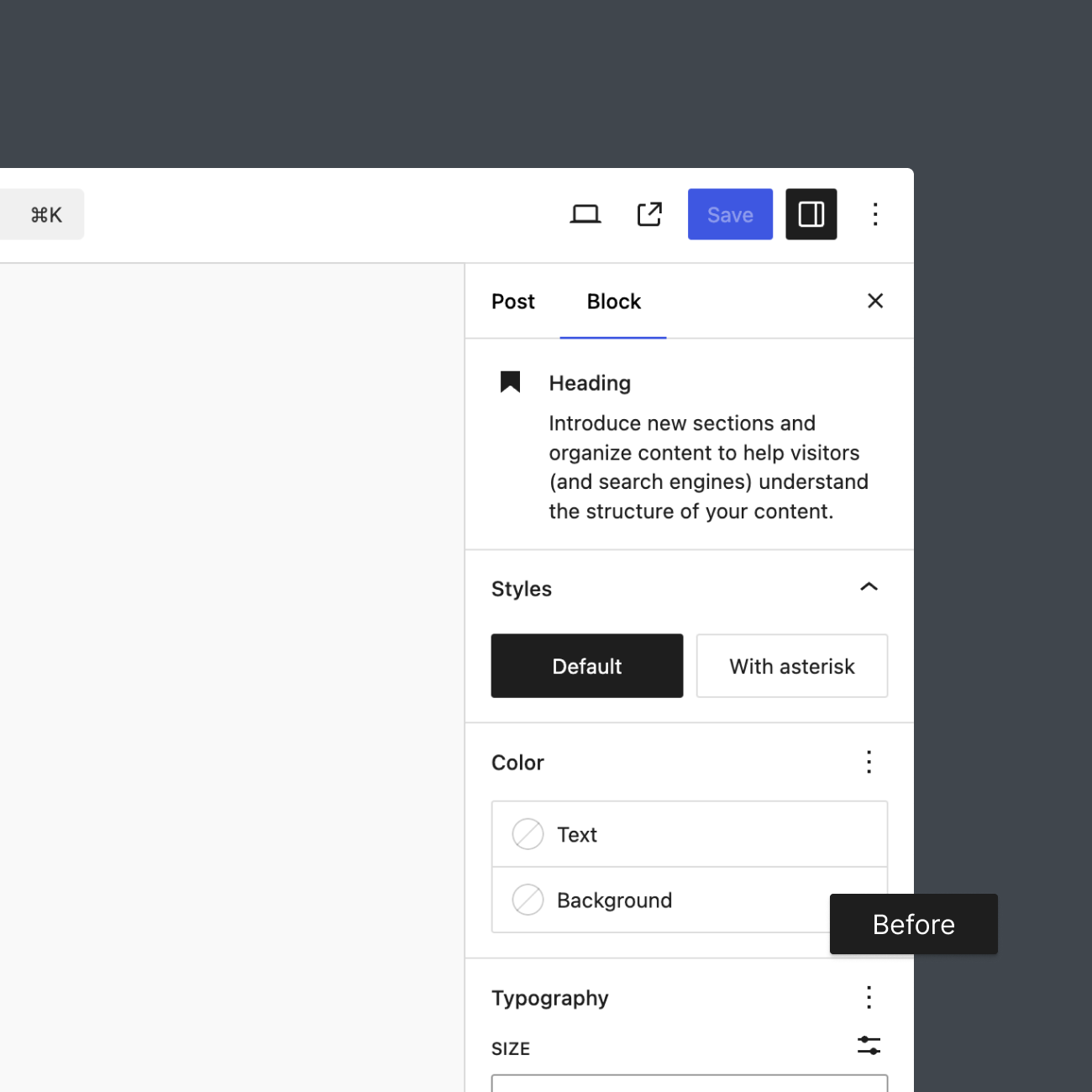
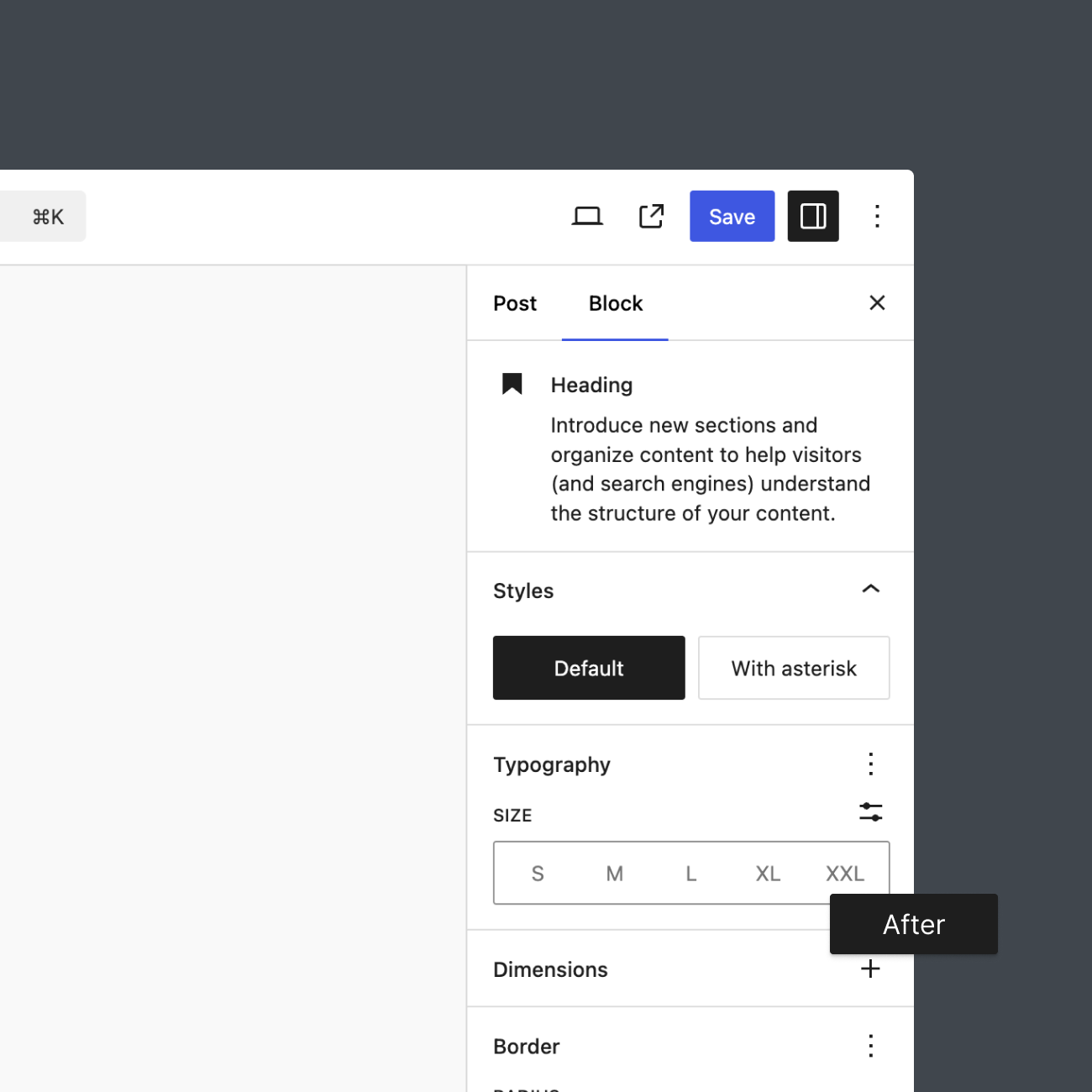
有关更多theme.json示例,请参阅定制编辑器体验文档。
禁用特定块
限制编辑器中可用的块是简化用户编辑体验的最佳方法之一。虽然您可以在PHP和JavaScript中限制块,但最简单的方法是使用强大的allowed_block_types_all过滤器。
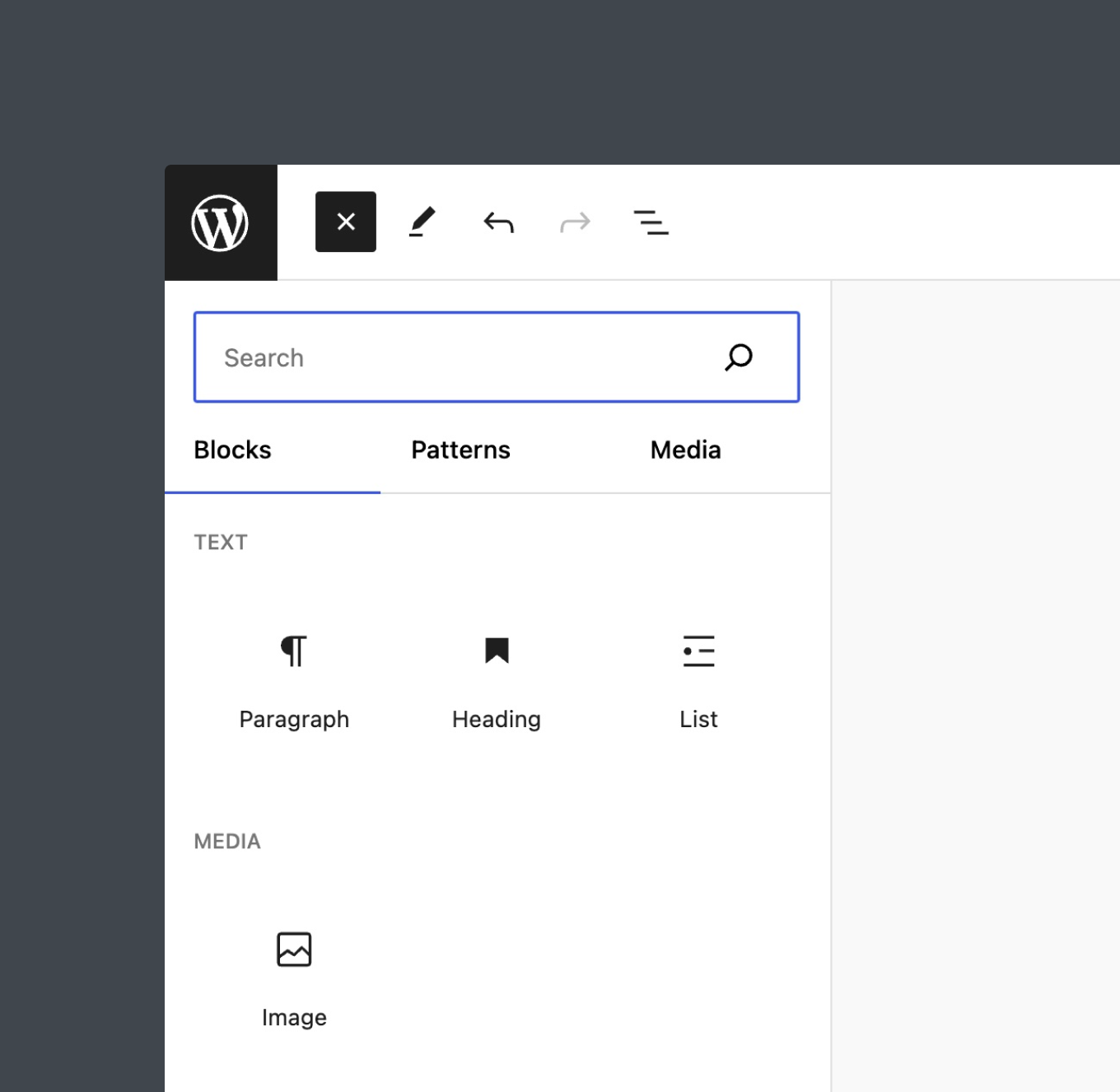
以下是一个示例,当用户在文章编辑器中编辑文章时,限制可用的块。
/**
 * Filters the list of allowed block types based on the editing context.
 *
 * This function restricts the available block types to Heading, List, Image, and
 * Paragraph when the user is editing posts in the Editor. When editing other post types
 * or in the Site Editor, all blocks are allowed.
 *
 * @param array|bool $allowed_block_types Array of block type slugs, or boolean to enable/disable all.
 * @param object     $block_editor_context The current block editor context, including the editor type and the post being edited.
 *
 * @return array|bool The array of allowed block types when editing posts, or true to allow all blocks in other contexts.
 */
function example_allowed_block_types_when_editing_posts( $allowed_block_types, $block_editor_context ) {

	// Only apply in the Editor when editing posts.
	if (
		'core/edit-post' === $block_editor_context->name &&
		isset( $block_editor_context->post ) &&
		'post' === $block_editor_context->post->post_type
	) {
		$allowed_block_types = array(
			'core/heading',
			'core/image',
			'core/list',
			'core/list-item',
			'core/paragraph',
			'core/missing', // Displayed when a block type is no longer registered.
		);

		return $allowed_block_types;
	}

	// Allow all blocks in the Site Editor or when editing other post types.
	return true;
}
add_filter( 'allowed_block_types_all', 'example_allowed_block_types_when_editing_posts', 10, 2 );
应用代码后,块插入器将如下所示:
要了解更多禁用块的技术和用例,请参阅文章如何在WordPress中禁用特定块。
注销块变体
块变体经常被误认为是块本身。考虑群组块的行和堆叠变体,或许多嵌入块变体。由于这些不是实际的块,您需要使用JavaScript中的unregisterBlockVariation函数将它们从编辑器中移除。不幸的是,截至WordPress 6.6,没有PHP替代方案。
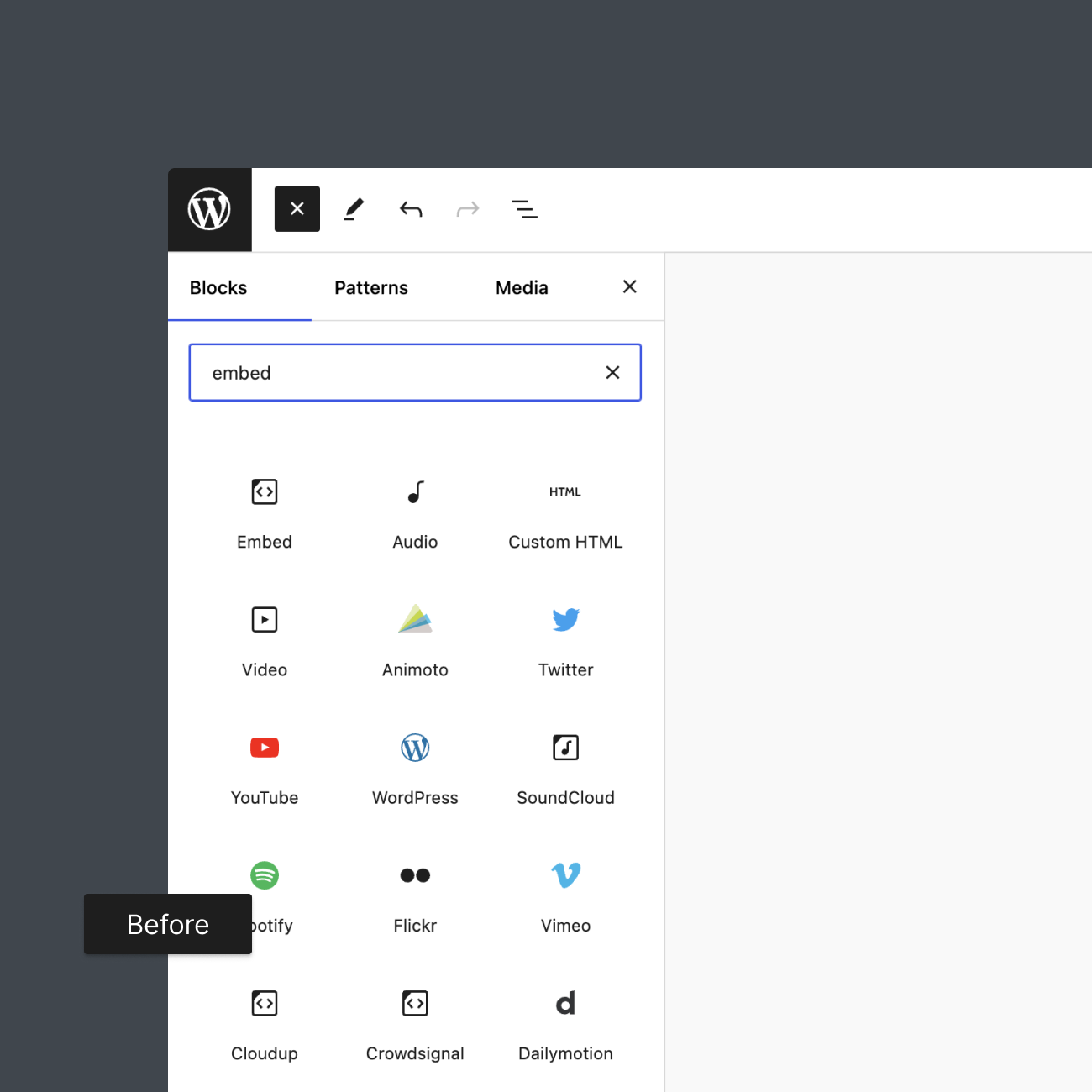
以下是一个禁用许多嵌入块变体的示例。使用unregisterBlockVariation时,必须提供原始块名称和要移除的变体name。
/**
 * Unregister selected Embed block variations.
 */
wp.domReady( () => {
    const embedVariations = [
        'animoto',
        'dailymotion',
        'hulu',
        'reddit',
        'tumblr',
        'vine',
        'amazon-kindle',
        'cloudup',
        'crowdsignal',
        'speaker',
        'scribd'
    ];

    embedVariations.forEach( ( variation ) => {
        wp.blocks.unregisterBlockVariation( 'core/embed', variation );
    } );
} );将此代码添加到editor-curation-example.js文件后,注销的变体将不再出现在块插入器中。
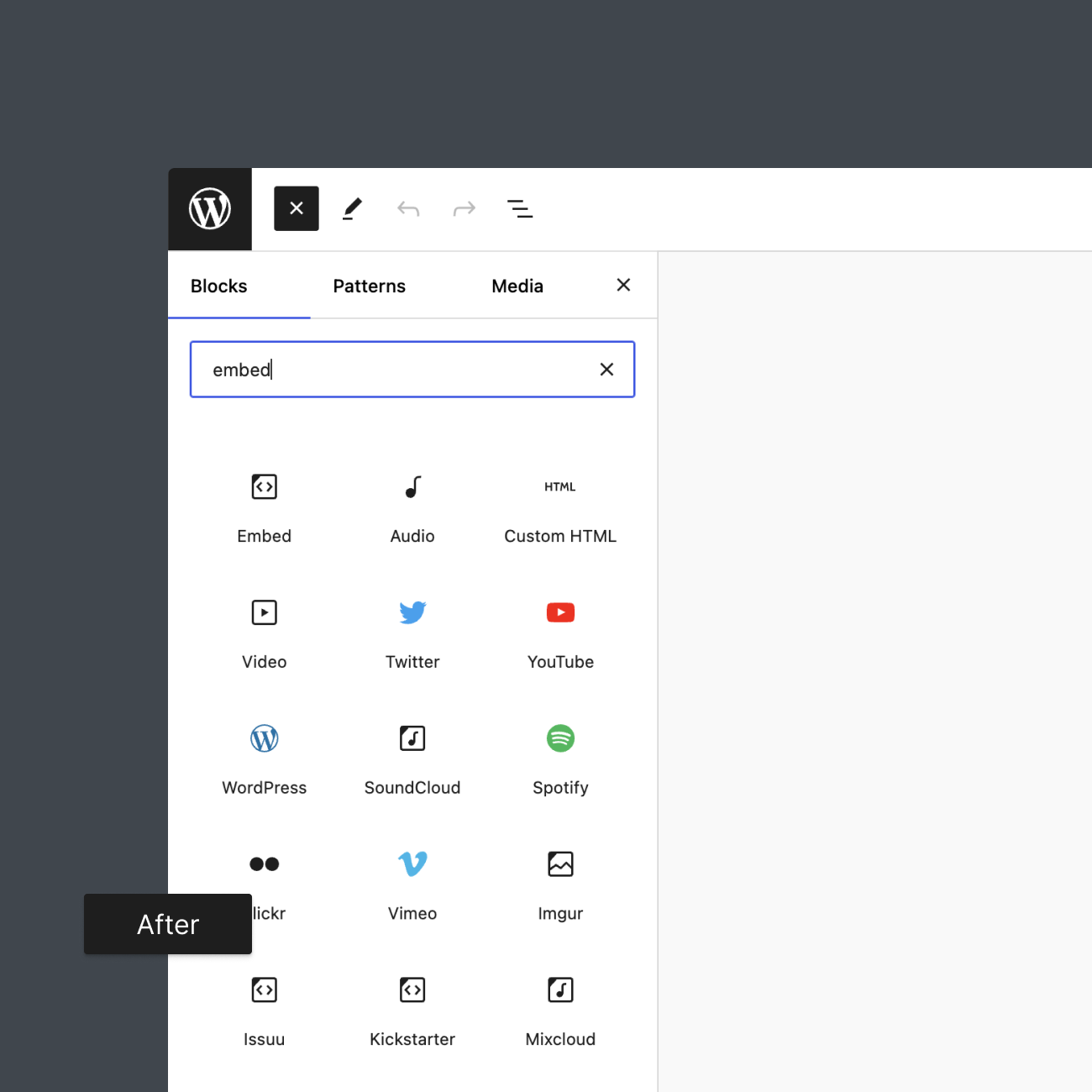
有关块变体的更多信息,请参阅文章块变体简介。
注销块样式
WordPress提供了几种默认的块样式,例如图像块的圆角选项。禁用某些样式是一种常见的定制技术,无论您是提供自己的块样式还是希望简化界面。
您可以在PHP和JavaScript中注销块样式,但有一个重要的细微差别。PHP方法仅适用于使用register_block_style在服务器端注册的样式。要禁用使用客户端代码注册的样式(包括WordPress提供的样式),必须使用带有unregisterBlockStyle的JavaScript。
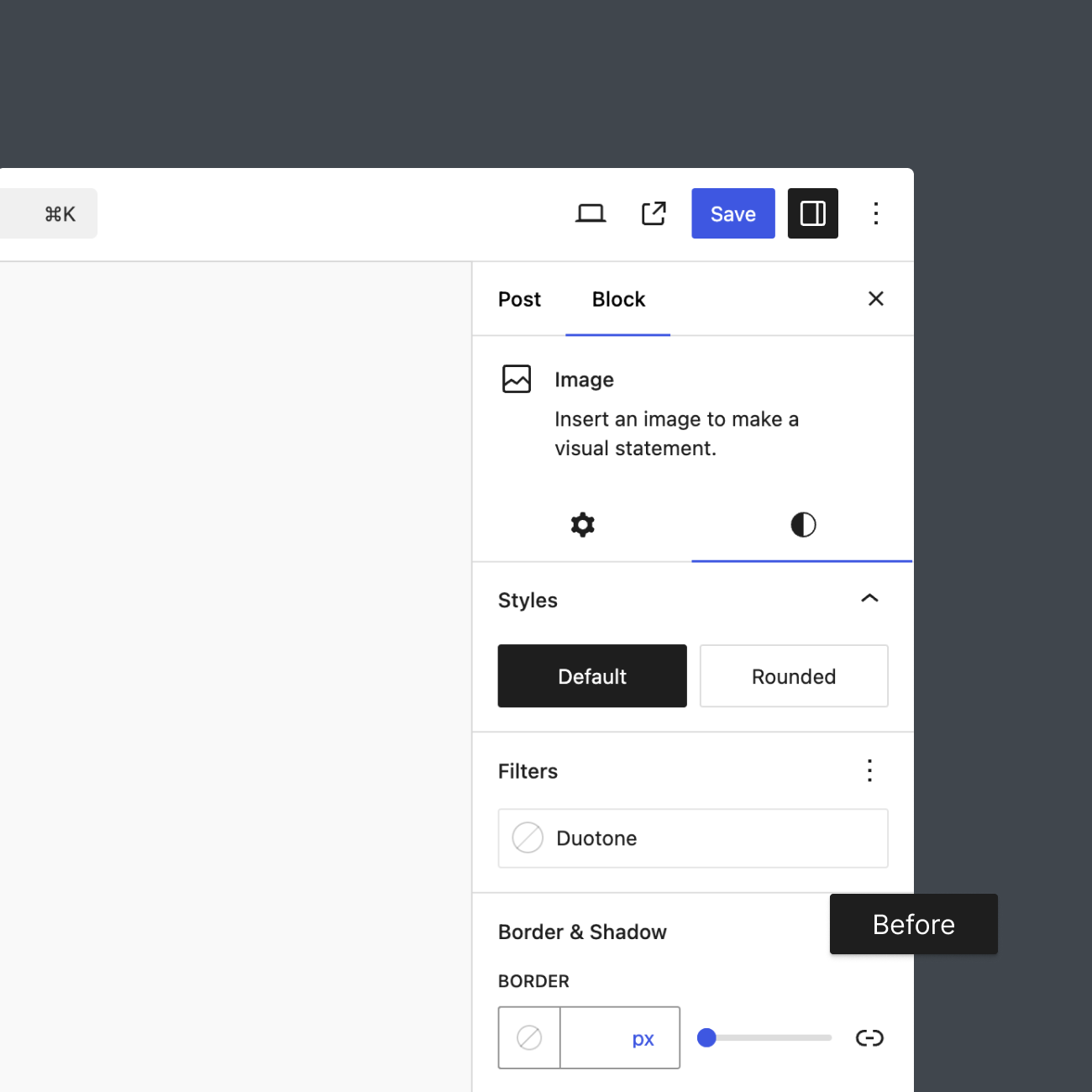
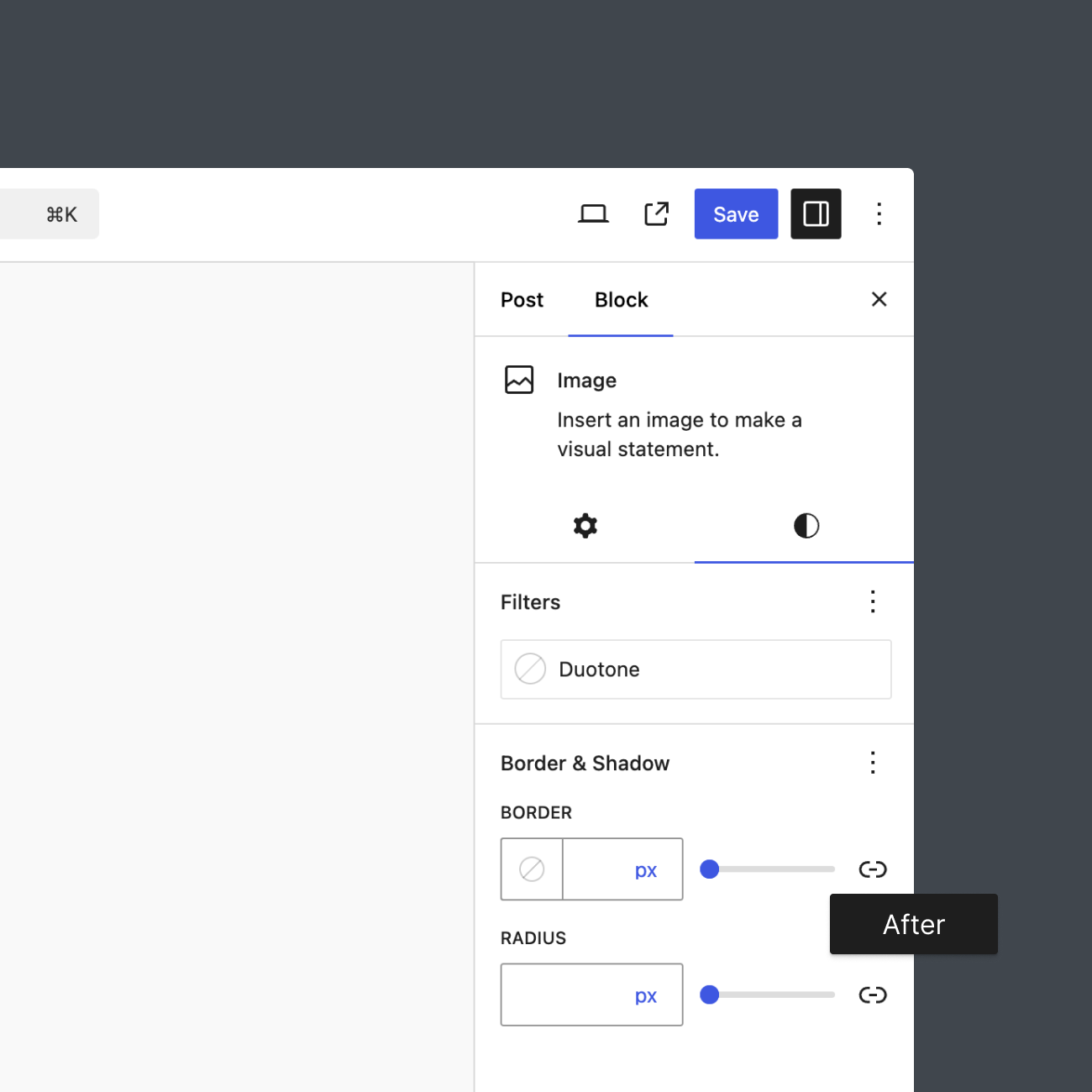
以下代码禁用了图像块的默认和圆角块样式。
/**
 * Unregister Image block styles.
 */
wp.domReady( function() {
    wp.blocks.unregisterBlockStyle( 'core/image', [ 'default', 'rounded' ] );
} );将修改应用到editor-curation-example.js文件后,检查器面板将如下所示。
禁用块支持
有时,WordPress编辑器可能提供过多的块级样式选项。虽然您可以在theme.json中禁用块支持,但也可以使用register_block_type_args、block_type_metadata_settings和block_type_metadata PHP过滤器。对于更高级的自定义,JavaScript方法也可用。
这些工具允许您根据不同的需求(例如文章类型或用户权限)调整块参数,这在theme.json中是不可能的。例如,您可能希望在编辑文章时禁用特定块的自定义颜色选项,但在编辑页面时不禁用。这使编辑体验保持简单和相关,确保用户只看到他们需要的工具。
对于此示例,让我们关注register_block_type_args过滤器,该过滤器在块类型实际注册之前应用于块的参数数组($args)。此过滤器的回调函数接受两个参数:
$args:注册块类型的参数数组。$block_type:包括命名空间的块类型名称。
当用户编辑文章时,以下代码将禁用段落、标题、列表和列表项块的颜色控件。
/**
 * Disable color controls for specific blocks when editing posts.
 *
 * @param array  $args       The original block type arguments.
 * @param string $block_type The name of the block type being registered.
 * @return array             Modified block type arguments.
 */
function example_disable_color_for_specific_blocks_on_posts( $args, $block_type ) {
    // Get the current post type using a utility function.
    $post_type = example_get_post_type();

    // Check if we are editing a post.
    if ( 'post' === $post_type ) {
        // List of block types to modify.
        $block_types_to_modify = [
            'core/paragraph',
            'core/heading',
            'core/list',
            'core/list-item'
        ];

        // Check if the current block type is in the list.
        if ( in_array( $block_type, $block_types_to_modify, true ) ) {
            // Disable color controls.
            $args['supports']['color'] = array(
                'text'       => false,
                'background' => false,
                'link'       => false,
            );
        }
    }

    return $args;
}
add_filter( 'register_block_type_args', 'example_disable_color_for_specific_blocks_on_posts', 10, 2 );

/**
 * Retrieve the current post type from query parameters.
 *
 * @return string The post type if found, otherwise an empty string.
 */
function example_get_post_type() {
	$post_type = '';

	if ( isset( $_GET['post'] ) ) {
		$post_type = get_post_type( absint( $_GET['post'] ) );
	} elseif ( isset( $_GET['post_type'] ) ) {
		$post_type = sanitize_key( $_GET['post_type'] );
	} elseif ( isset( $_GET['postType'] ) ) {
		$post_type = sanitize_key( $_GET['postType'] );
	}

	return $post_type;
}请注意,使用了一个实用函数来获取当前文章类型。这是必要的,因为当register_block_type_args过滤器运行时,像get_current_screen()这样的函数不可用。
以下是应用此代码后标题块检查器面板的外观。
启用块支持
在前面的示例中,从特定块中移除了块支持。您也可以使用register_block_type_args过滤器添加支持。但是,如果块当前缺少特定功能,可能有很好的理由,例如未解决的错误或计划在未来的版本中发布。请谨慎使用此功能。
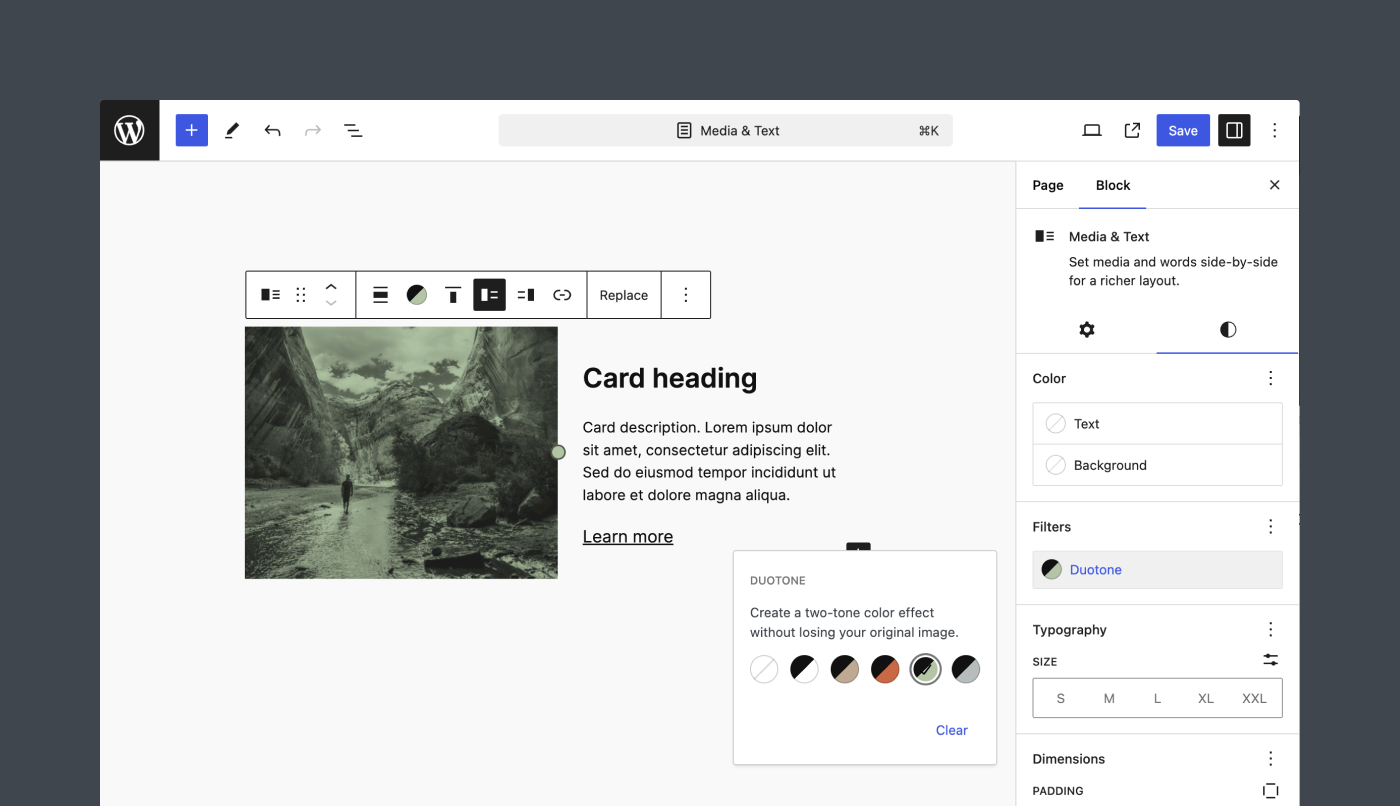
以下是一个为媒体与文本块中的图像添加双色调支持的示例。
/**
 * Enable duotone for Media & Text blocks.
 *
 * @param array  $args       The block type args.
 * @param string $block_type The block type.
 * @return array             The modified block type args.
 */
function example_enable_duotone_to_media_text_blocks( $args, $block_type ) {

	// Only apply the filter to Media & Text blocks.
	if ( 'core/media-text' === $block_type ) {
		return $args;
	}

	$args['supports'] ??= [];
	$args['supports']['filter'] ??= [];
	$args['supports']['filter']['duotone'] = true;

	$args['selectors'] ??= [];
	$args['selectors']['filter'] ??= [];
	$args['selectors']['filter']['duotone'] = '.wp-block-media-text .wp-block-media-text__media';

	return $args;
}
add_filter( 'register_block_type_args', 'example_enable_duotone_to_media_text_blocks', 10, 2 );
如果您仔细观察下面的截图,您会注意到图像上的拖动手柄也应用了双色调滤镜。尽管存在这个小错误,但为媒体与文本块添加双色调效果按预期工作。只需确保彻底测试您的修改。
禁用块锁定用户界面
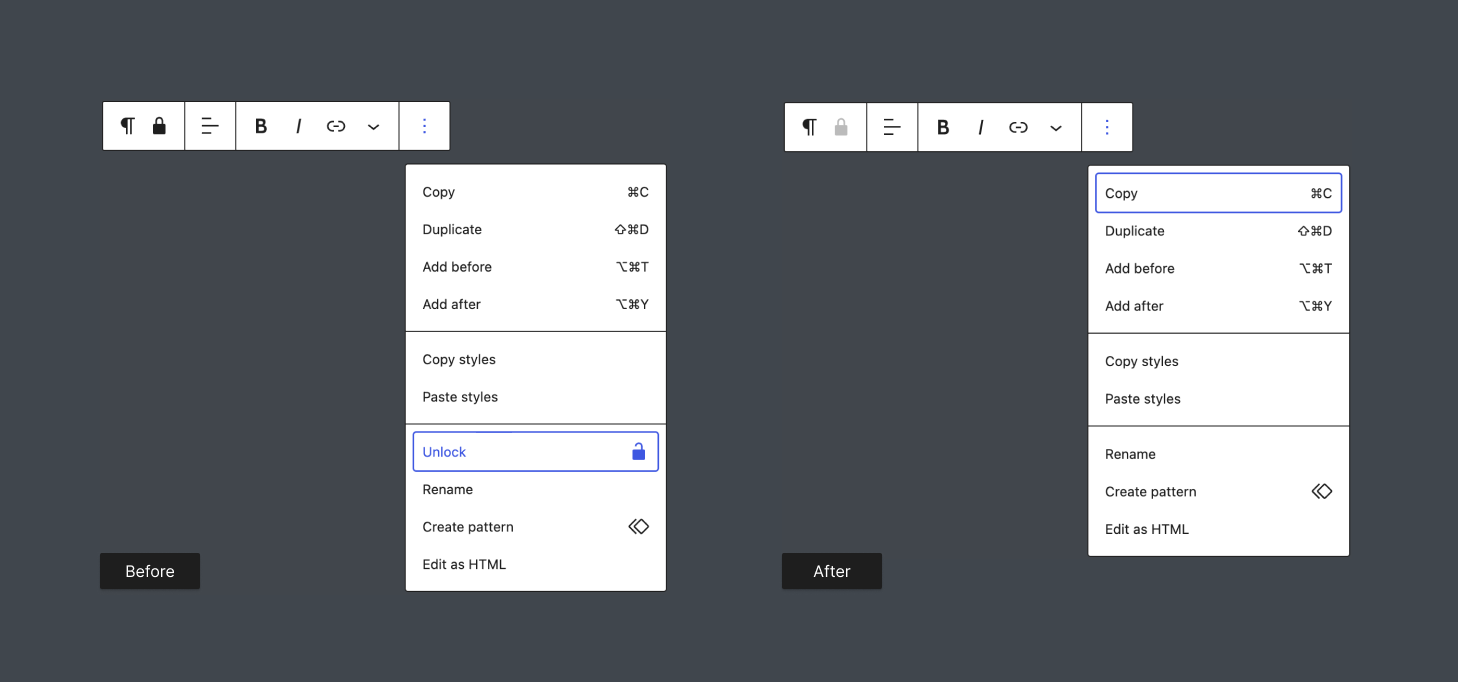
块锁定API是一个极好的定制工具,允许您限制特定块的移动和移除。默认情况下,用户可以解锁已锁定的块,这可能不是期望的。
编辑器包含可以通过block_editor_settings_all过滤器修改的设置。此过滤器的回调函数接受两个参数:
$settings:当前编辑器设置的数组。$context:当前块编辑器上下文。
编辑器中的设置之一是canLockBlocks。以下示例检查当前用户是否是管理员(或具有类似权限)。如果不是,则禁用块锁定界面。
/**
 * Allow only Administrators to access the block locking user interface.
 *
 * @param array                   $settings Default editor settings.
 * @param WP_Block_Editor_Context $context  The current block editor context.
 */
function example_restrict_block_locking_to_administrators( $settings, $context ) {
	$is_administrator = current_user_can( 'edit_theme_options' );

	if ( ! $is_administrator ) {
		$settings[ 'canLockBlocks' ] = false;
	}

	return $settings;
}
add_filter( 'block_editor_settings_all', 'example_restrict_block_locking_to_administrators', 10, 2 );将此代码添加到主题的functions.php文件后,非管理员用户将无法再锁定或解锁块。
禁用代码编辑器
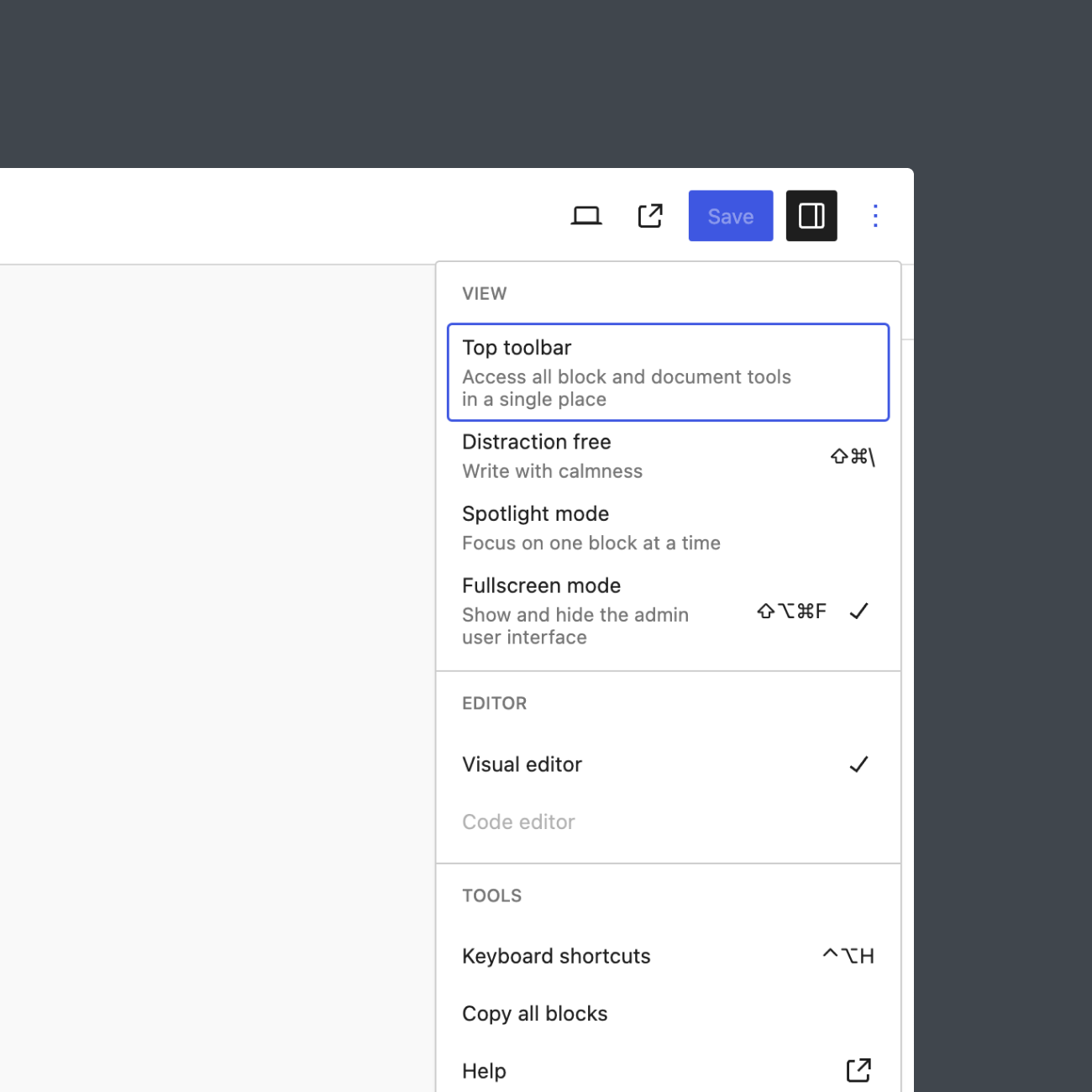
基于前面的示例,为了确保用户无法篡改锁定的块,您需要禁用代码编辑器。如果没有此步骤,即使用户无法再访问块锁定界面,他们也可以手动移除锁定属性。
为此,将codeEditingEnabled设置设置为false。以下是更新后的代码片段。
/**
 * Restrict access to the block locking UI and the Code editor to Administrators.
 *
 * @param array                   $settings Default editor settings.
 * @param WP_Block_Editor_Context $context  The current block editor context.
 */
function example_restrict_block_locking_and_code_editor_to_administrators( $settings, $context ) {
	$is_administrator = current_user_can( 'edit_theme_options' );

	if ( ! $is_administrator ) {
		$settings[ 'canLockBlocks' ]      = false;
		$settings[ 'codeEditingEnabled' ] = false;
	}

	return $settings;
}
add_filter( 'block_editor_settings_all', 'example_restrict_block_locking_and_code_editor_to_administrators', 10, 2 );应用后,用户仍然可以看到代码编辑器菜单项,但它将被禁用。
禁用检查器选项卡
检查器选项卡在WordPress 6.2中引入,通过分离块的设置和样式来帮助组织检查器。虽然这在大多数情况下很有用,但出于工作流程或其他考虑,您可能希望在某些情况下禁用此功能。
您可以使用blockInspectorTabs编辑器设置来控制哪些块具有检查器选项卡。此设置接受块样式数组。您也可以通过将default选项设置为false来禁用所有块的选项卡。
以下示例禁用了按钮块的选项卡。
/**
 * This function modifies the block editor settings to disable inspector tabs
 * for the 'core/button' block.
 *
 * @param array $settings The current block editor settings.
 * @return array          The modified block editor settings.
 */
function example_disable_inspector_tabs_for_specific_blocks( $settings ) {
	if ( ! isset( $settings['blockInspectorTabs'] ) ) {
		$settings['blockInspectorTabs'] = array();
	}

	$settings['blockInspectorTabs'] = array_merge(
		$settings[ 'blockInspectorTabs' ],
		array(
			'default'     => true, // Set to false to disable tabs for all blocks.
			'core/button' => false,
		),
	);

	return $settings;
}
add_filter( 'block_editor_settings_all', 'example_disable_inspector_t